Webメールシステム - SquirrelMail2014/09/16 |
|
SquirrelMail をインストールして、Yahoo メールや Hotmail のような Web メールシステムを構築します。
ここの例では下記の通り、同一 LAN 内の別ホストのメールサーバーを利用するように設定します。
www.srv.world - SquirrelMail 導入 Web サーバー
mail.srv.world - SMTP/IMAP サーバー |
|
| [1] |
こちらを参考に SMTP サーバーをインストール・起動しておきます。
|
| [2] |
こちらを参考に IMAP サーバーをインストール・起動しておきます。
|
| [3] | |
| [4] | |
| [5] | SquirrelMail のインストールと設定です。 |
|
[root@www ~]#
wget http://www.squirrelmail.org/plugins/compatibility-2.0.16-1.0.tar.gz -P /usr/share/squirrelmail/plugins [root@www ~]# wget http://www.squirrelmail.org/plugins/empty_trash-2.0-1.2.2.tar.gz -P /usr/share/squirrelmail/plugins [root@www ~]# wget http://www.squirrelmail.org/plugins/secure_login-1.4-1.2.8.tar.gz -P /usr/share/squirrelmail/plugins [root@www ~]# tar zxvf /usr/share/squirrelmail/plugins/compatibility-2.0.16-1.0.tar.gz -C /usr/share/squirrelmail/plugins [root@www ~]# tar zxvf /usr/share/squirrelmail/plugins/empty_trash-2.0-1.2.2.tar.gz -C /usr/share/squirrelmail/plugins [root@www ~]# tar zxvf /usr/share/squirrelmail/plugins/secure_login-1.4-1.2.8.tar.gz -C /usr/share/squirrelmail/plugins [root@www ~]# rm -f /usr/share/squirrelmail/plugins/*.tar.gz # 設定スクリプト実行 [root@www ~]# /usr/share/squirrelmail/config/conf.pl SquirrelMail Configuration : Read: config.php (1.4.0) --------------------------------------------------------- Main Menu -- 1. Organization Preferences 2. Server Settings 3. Folder Defaults 4. General Options 5. Themes 6. Address Books 7. Message of the Day (MOTD) 8. Plugins 9. Database 10. Languages D. Set pre-defined settings for specific IMAP servers C Turn color off S Save data Q QuitCommand >> 1 # 選択 SquirrelMail Configuration : Read: config.php (1.4.0) --------------------------------------------------------- Organization Preferences 1. Organization Name : SquirrelMail 2. Organization Logo : ../images/sm_logo.png 3. Org. Logo Width/Height : (308/111) 4. Organization Title : SquirrelMail $version 5. Signout Page : 6. Top Frame : _top 7. Provider link : http://squirrelmail.org/ 8. Provider name : SquirrelMail R Return to Main Menu C Turn color off S Save data Q QuitCommand >> 5 # 選択 When users click the Sign Out button they will be logged out and then sent to signout_page. If signout_page is left empty, (hit space and then return) they will be taken, as normal, to the default and rather sparse SquirrelMail signout page.[]: /webmail # ログアウト後のページ変更 SquirrelMail Configuration : Read: config.php (1.4.0) --------------------------------------------------------- Organization Preferences 1. Organization Name : SquirrelMail 2. Organization Logo : ../images/sm_logo.png 3. Org. Logo Width/Height : (308/111) 4. Organization Title : SquirrelMail $version 5. Signout Page : /webmail 6. Top Frame : _top 7. Provider link : http://squirrelmail.org/ 8. Provider name : SquirrelMail R Return to Main Menu C Turn color off S Save data Q QuitCommand >> r # メインメニューに戻る SquirrelMail Configuration : Read: config.php (1.4.0) --------------------------------------------------------- Main Menu -- 1. Organization Preferences 2. Server Settings 3. Folder Defaults 4. General Options 5. Themes 6. Address Books 7. Message of the Day (MOTD) 8. Plugins 9. Database 10. Languages D. Set pre-defined settings for specific IMAP servers C Turn color off S Save data Q QuitCommand >> 2 # 選択 SquirrelMail Configuration : Read: config.php (1.4.0) --------------------------------------------------------- Server Settings General ------- 1. Domain : localhost 2. Invert Time : false 3. Sendmail or SMTP : Sendmail A. Update IMAP Settings : localhost:143 (uw) B. Change Sendmail Config : /usr/sbin/sendmail R Return to Main Menu C Turn color off S Save data Q QuitCommand >> 1 # 選択 The domain name is the suffix at the end of all email addresses. If for example, your email address is jdoe@example.com, then your domain would be example.com.[localhost]: srv.world # 自身のドメイン名に変更 SquirrelMail Configuration : Read: config.php (1.4.0) --------------------------------------------------------- Server Settings General ------- 1. Domain : srv.world 2. Invert Time : false 3. Sendmail or SMTP : Sendmail A. Update IMAP Settings : localhost:143 (uw) B. Change Sendmail Config : /usr/sbin/sendmail R Return to Main Menu C Turn color off S Save data Q QuitCommand >> 3 # 選択 You now need to choose the method that you will use for sending messages in SquirrelMail. You can either connect to an SMTP server or use sendmail directly. 1. Sendmail 2. SMTPYour choice [1/2] [1]: 2 # SMTPに変更 SquirrelMail Configuration : Read: config.php (1.4.0) --------------------------------------------------------- Server Settings General ------- 1. Domain : srv.world 2. Invert Time : false 3. Sendmail or SMTP : SMTP A. Update IMAP Settings : localhost:143 (uw) B. Update SMTP Settings : localhost:25 R Return to Main Menu C Turn color off S Save data Q QuitCommand >> A # 選択 SquirrelMail Configuration : Read: config.php (1.4.0) --------------------------------------------------------- Server Settings General ------- 1. Domain : srv.world 2. Invert Time : false 3. Sendmail or SMTP : SMTP IMAP Settings -------------- 4. IMAP Server : localhost 5. IMAP Port : 143 6. Authentication type : login 7. Secure IMAP (TLS) : false 8. Server software : uw 9. Delimiter : / B. Update SMTP Settings : localhost:25 H. Hide IMAP Server Settings R Return to Main Menu C Turn color off S Save data Q QuitCommand >> 4 # 選択 This is the hostname where your IMAP server can be contacted.[localhost]: mail.srv.world # IMAPサーバー指定 SquirrelMail Configuration : Read: config.php (1.4.0) --------------------------------------------------------- Server Settings General ------- 1. Domain : srv.world 2. Invert Time : false 3. Sendmail or SMTP : SMTP IMAP Settings -------------- 4. IMAP Server : mail.srv.world 5. IMAP Port : 143 6. Authentication type : login 7. Secure IMAP (TLS) : false 8. Server software : uw 9. Delimiter : / B. Update SMTP Settings : localhost:25 H. Hide IMAP Server Settings R Return to Main Menu C Turn color off S Save data Q QuitCommand >> 8 # 選択
Each IMAP server has its own quirks.  As much as we tried to stick
to standards, it doesn't help much if the IMAP server doesn't follow
the same principles.  We have made some work-arounds for some of
these servers.  If you would like to use them, please select your
IMAP server.  If you do not wish to use these work-arounds, you can
set this to "other", and none will be used.
    bincimap    = Binc IMAP server
    courier     = Courier IMAP server
    cyrus       = Cyrus IMAP server
    dovecot     = Dovecot Secure IMAP server
    exchange    = Microsoft Exchange IMAP server
    hmailserver = hMailServer
    macosx      = Mac OS X Mailserver
    mercury32   = Mercury/32
    uw          = University of Washington's IMAP server
    gmail       = IMAP access to Google mail (Gmail) accounts
    other       = Not one of the above servers
[uw]: dovecot # Dovecotに変更 SquirrelMail Configuration : Read: config.php (1.4.0) --------------------------------------------------------- Server Settings General ------- 1. Domain : srv.world 2. Invert Time : false 3. Sendmail or SMTP : SMTP IMAP Settings -------------- 4. IMAP Server : mail.srv.world 5. IMAP Port : 143 6. Authentication type : login 7. Secure IMAP (TLS) : false 8. Server software : dovecot 9. Delimiter : / B. Update SMTP Settings : localhost:25 H. Hide IMAP Server Settings R Return to Main Menu C Turn color off S Save data Q QuitCommand >> 9 # 選択 This is the delimiter that your IMAP server uses to distinguish between folders. For example, Cyrus uses '.' as the delimiter and a complete folder would look like 'INBOX.Friends.Bob', while UW uses '/' and would look like 'INBOX/Friends/Bob'. Normally this should be left at 'detect' but if you are sure you know what delimiter your server uses, you can specify it here. To have it autodetect the delimiter, set it to 'detect'.[/]: detect # detect入力 SquirrelMail Configuration : Read: config.php (1.4.0) --------------------------------------------------------- Server Settings General ------- 1. Domain : srv.world 2. Invert Time : false 3. Sendmail or SMTP : SMTP IMAP Settings -------------- 4. IMAP Server : mail.srv.world 5. IMAP Port : 143 6. Authentication type : login 7. Secure IMAP (TLS) : false 8. Server software : dovecot 9. Delimiter : detect B. Update SMTP Settings : localhost:25 H. Hide IMAP Server Settings R Return to Main Menu C Turn color off S Save data Q QuitCommand >> B # 選択 SquirrelMail Configuration : Read: config.php (1.4.0) --------------------------------------------------------- Server Settings General ------- 1. Domain : srv.world 2. Invert Time : false 3. Sendmail or SMTP : SMTP SMTP Settings ------------- 4. SMTP Server : localhost 5. SMTP Port : 25 6. POP before SMTP : false 7. SMTP Authentication : none 8. Secure SMTP (TLS) : false 9. Header encryption key : A. Update IMAP Settings : mail.srv.world:143 (dovecot) H. Hide SMTP Settings R Return to Main Menu C Turn color off S Save data Q QuitCommand >> 4 # 選択 This is the hostname of your SMTP server.[localhost]: mail.srv.world # SMTPサーバー指定 SquirrelMail Configuration : Read: config.php (1.4.0) --------------------------------------------------------- Server Settings General ------- 1. Domain : srv.world 2. Invert Time : false 3. Sendmail or SMTP : SMTP SMTP Settings ------------- 4. SMTP Server : mail.srv.world 5. SMTP Port : 25 6. POP before SMTP : false 7. SMTP Authentication : none 8. Secure SMTP (TLS) : false 9. Header encryption key : A. Update IMAP Settings : mail.srv.world:143 (dovecot) H. Hide SMTP Settings R Return to Main Menu C Turn color off S Save data Q QuitCommand >> 7 # 選択 If you have already set the hostname and port number, I can try to automatically detect the mechanisms your SMTP server supports. Auto-detection is *optional* - you can safely say "n" here.Try to detect auth mechanisms? [y/N]: y # yes (自動検出) Trying to detect supported methods (SMTP)... Testing none: SUPPORTED Testing login: SUPPORTED Testing plain: SUPPORTED Testing CRAM-MD5: NOT SUPPORTED Testing DIGEST-MD5: NOT SUPPORTED What authentication mechanism do you want to use for SMTP connections? none - Your SMTP server does not require authorization. login - Plaintext. If you can do better, you probably should. plain - Plaintext. If you can do better, you probably should. cram-md5 - Slightly better than plaintext. digest-md5 - Privacy protection - better than cram-md5. *** YOUR SMTP SERVER MUST SUPPORT THE MECHANISM YOU CHOOSE HERE *** If you don't understand or are unsure, you probably want "none"none, login, plain, cram-md5, or digest-md5 [none]: login # 検出されたものからいずれかを選択 SMTP authentication uses IMAP username and password by default. Would you like to use other login and password for all SquirrelMailSMTP connections? [y/N]: n # no (SquirrelMail独自のユーザー認証はしない ) SquirrelMail Configuration : Read: config.php (1.4.0) --------------------------------------------------------- Server Settings General ------- 1. Domain : srv.world 2. Invert Time : false 3. Sendmail or SMTP : SMTP SMTP Settings ------------- 4. SMTP Server : mail.srv.world 5. SMTP Port : 25 6. POP before SMTP : false 7. SMTP Authentication : login (with IMAP username and password) 8. Secure SMTP (TLS) : false 9. Header encryption key : A. Update IMAP Settings : mail.srv.world:143 (dovecot) H. Hide SMTP Settings R Return to Main Menu C Turn color off S Save data Q QuitCommand >> r # メインメニューに戻る SquirrelMail Configuration : Read: config.php (1.4.0) --------------------------------------------------------- Main Menu -- 1. Organization Preferences 2. Server Settings 3. Folder Defaults 4. General Options 5. Themes 6. Address Books 7. Message of the Day (MOTD) 8. Plugins 9. Database 10. Languages D. Set pre-defined settings for specific IMAP servers C Turn color off S Save data Q QuitCommand >> 10 # 選択 SquirrelMail Configuration : Read: config.php (1.4.0) --------------------------------------------------------- Language preferences 1. Default Language : en_US 2. Default Charset : iso-8859-1 3. Enable lossy encoding : false R Return to Main Menu C Turn color off S Save data Q QuitCommand >> 1 # 選択 SquirrelMail attempts to set the language in many ways. If it can not figure it out in another way, it will default to this language. Please use the code for the desired language.[en_US]: ja_JP # 日本語指定 SquirrelMail Configuration : Read: config.php (1.4.0) --------------------------------------------------------- Language preferences 1. Default Language : ja_JP 2. Default Charset : iso-8859-1 3. Enable lossy encoding : false R Return to Main Menu C Turn color off S Save data Q QuitCommand >> 2 # 選択 This option controls what character set is used when sending mail and when sending HTML to the browser. This option is used only when default language is 'en_US'.[iso-8859-1]: iso-2022-jp # 日本語指定 SquirrelMail Configuration : Read: config.php (1.4.0) --------------------------------------------------------- Language preferences 1. Default Language : ja_JP 2. Default Charset : iso-2022-jp 3. Enable lossy encoding : false R Return to Main Menu C Turn color off S Save data Q QuitCommand >> r # メインメニューに戻る SquirrelMail Configuration : Read: config.php (1.4.0) --------------------------------------------------------- Main Menu -- 1. Organization Preferences 2. Server Settings 3. Folder Defaults 4. General Options 5. Themes 6. Address Books 7. Message of the Day (MOTD) 8. Plugins 9. Database 10. Languages D. Set pre-defined settings for specific IMAP servers C Turn color off S Save data Q QuitCommand >> 4 # 選択
SquirrelMail Configuration : Read: config.php (1.4.0)
---------------------------------------------------------
General Options
1.  Data Directory               : /var/lib/squirrelmail/prefs/
2.  Attachment Directory         : /var/spool/squirrelmail/attach/
3.  Directory Hash Level         : 0
4.  Default Left Size            : 150
5.  Usernames in Lowercase       : false
6.  Allow use of priority        : true
7.  Hide SM attributions         : false
8.  Allow use of receipts        : true
9.  Allow editing of identity    : true
    Allow editing of name        : true
    Remove username from header  : false
10. Allow server thread sort     : true
11. Allow server-side sorting    : true
12. Allow server charset search  : true
13. Enable UID support           : true
14. PHP session name             : SQMSESSID
15. Location base                :
16. Only secure cookies if poss. : true
17. Disable secure forms         : false
18. Page referal requirement     :

R   Return to Main Menu
C   Turn color off
S   Save data
Q   Quit
Command >> 7 # Hide SM attributions 選択 Hide SM attributions (y/n) [n]: y # Yes
SquirrelMail Configuration : Read: config.php (1.4.0)
---------------------------------------------------------
General Options
1.  Data Directory               : /var/lib/squirrelmail/prefs/
2.  Attachment Directory         : /var/spool/squirrelmail/attach/
3.  Directory Hash Level         : 0
4.  Default Left Size            : 150
5.  Usernames in Lowercase       : false
6.  Allow use of priority        : true
7.  Hide SM attributions         : true
8.  Allow use of receipts        : true
9.  Allow editing of identity    : true
    Allow editing of name        : true
    Remove username from header  : false
10. Allow server thread sort     : true
11. Allow server-side sorting    : true
12. Allow server charset search  : true
13. Enable UID support           : true
14. PHP session name             : SQMSESSID
15. Location base                :
16. Only secure cookies if poss. : true
17. Disable secure forms         : false
18. Page referal requirement     :

R   Return to Main Menu
C   Turn color off
S   Save data
Q   Quit
Command >> r # メインメニューに戻る SquirrelMail Configuration : Read: config.php (1.4.0) --------------------------------------------------------- Main Menu -- 1. Organization Preferences 2. Server Settings 3. Folder Defaults 4. General Options 5. Themes 6. Address Books 7. Message of the Day (MOTD) 8. Plugins 9. Database 10. Languages D. Set pre-defined settings for specific IMAP servers C Turn color off S Save data Q QuitCommand >> 8 # 選択
SquirrelMail Configuration : Read: config.php (1.4.0)
---------------------------------------------------------
Plugins
  Installed Plugins
    1. delete_move_next
    2. squirrelspell
    3. newmail

  Available Plugins:
    4. administrator
    5. bug_report
    6. calendar
    7. compatibility
    8. empty_trash
    9. filters
    10. fortune
    11. info
    12. listcommands
    13. mail_fetch
    14. message_details
    15. secure_login
    16. sent_subfolders
    17. spamcop
    18. test
    19. translate
    20. undelete

R   Return to Main Menu
C   Turn color off
S   Save data
Q   Quit
Command >> 7 # compatibility追加(番号は環境によって変化)
SquirrelMail Configuration : Read: config.php (1.4.0)
---------------------------------------------------------
Plugins
  Installed Plugins
    1. delete_move_next
    2. squirrelspell
    3. newmail
    4. compatibility

  Available Plugins:
    5. administrator
    6. bug_report
    7. calendar
    8. empty_trash
    9. filters
    10. fortune
    11. info
    12. listcommands
    13. mail_fetch
    14. message_details
    15. secure_login
    16. sent_subfolders
    17. spamcop
    18. test
    19. translate
    20. undelete

R   Return to Main Menu
C   Turn color off
S   Save data
Q   Quit
Command >> 8 # empty_trash追加(番号は環境によって変化)
SquirrelMail Configuration : Read: config.php (1.4.0)
---------------------------------------------------------
Plugins
  Installed Plugins
    1. delete_move_next
    2. squirrelspell
    3. newmail
    4. compatibility
    5. empty_trash

  Available Plugins:
    6. administrator
    7. bug_report
    8. calendar
    9. filters
    10. fortune
    11. info
    12. listcommands
    13. mail_fetch
    14. message_details
    15. secure_login
    16. sent_subfolders
    17. spamcop
    18. test
    19. translate
    20. undelete

R   Return to Main Menu
C   Turn color off
S   Save data
Q   Quit
Command >> 15 # secure_login追加(番号は環境によって変化)
SquirrelMail Configuration : Read: config.php (1.4.0)
---------------------------------------------------------
Plugins
  Installed Plugins
    1. delete_move_next
    2. squirrelspell
    3. newmail
    4. compatibility
    5. empty_trash
    6. secure_login

  Available Plugins:
    7. administrator
    8. bug_report
    9. calendar
    10. filters
    11. fortune
    12. info
    13. listcommands
    14. mail_fetch
    15. message_details
    16. sent_subfolders
    17. spamcop
    18. test
    19. translate
    20. undelete

R   Return to Main Menu
C   Turn color off
S   Save data
Q   Quit
Command >> q # 終了 You have not saved your data.Save? [Y/n]: y # 保存する Data saved in config.php Exiting conf.pl. You might want to test your configuration by browsing to http://your-squirrelmail-location/src/configtest.php Happy SquirrelMailing![root@www ~]# cp /usr/share/squirrelmail/plugins/secure_login/config.sample.php /usr/share/squirrelmail/plugins/secure_login/config.php
[root@www ~]#
vi /usr/share/squirrelmail/plugins/secure_login/config.php # 24行目:変更(ログイン後もSSL継続) $change_back_to_http_after_login = 0 ;
/etc/rc.d/init.d/httpd reload Reloading httpd: [ OK ] |
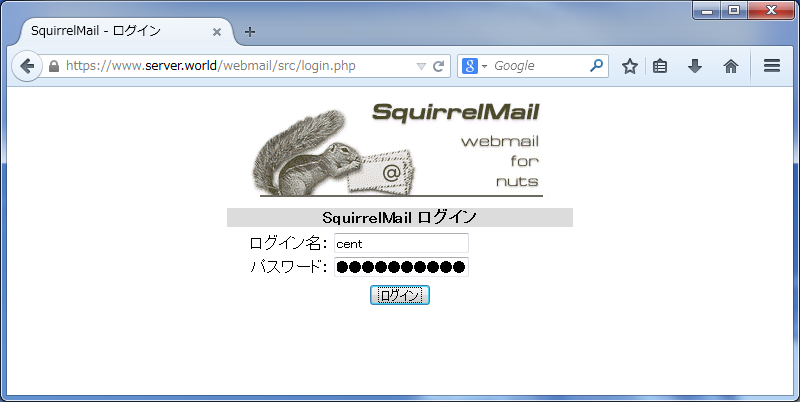
| [6] | クライアントPC で Web ブラウザを起動し、「https://(サーバーのホスト名またはIPアドレス)/webmail/」へアクセスします。 すると以下のようにログイン画面になるのでユーザー名とパスワードを入力してログインします。 |
|
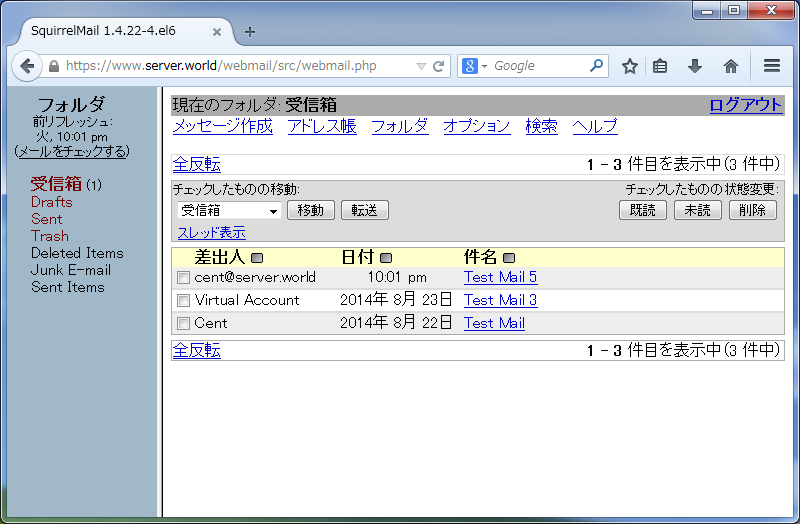
| [7] | ログインできました。 |
|
関連コンテンツ