Subversion : HTTP でアクセスする2026/07/01 |
|
[svnserve] を起動せず、HTTP でリポジトリにアクセスできるよう設定します。 |
|
| [1] | |
| [2] | |
| [3] | 必要なパッケージをインストールしておきます。 |
|
root@dlp:~# apt -y install libapache2-mod-svn
|
| [4] | Apache2 の設定です。 例として [/var/svn/repos/project] リポジトリにアクセスできるよう設定します。 |
|
root@dlp:~#
vi /etc/apache2/conf-available/subversion.conf # 新規作成
<Location /project>
    DAV svn
    AuthType Basic
    AuthName "DAV SVN"
    AuthUserFile /var/svn/.svnpasswd
    Require valid-user
    SVNPath /var/svn/repos/project
</Location>
root@dlp:~#
a2enmod dav_svn root@dlp:~# a2enconf subversion root@dlp:~# chown -R www-data:www-data /var/svn/repos/project root@dlp:~# systemctl restart apache2 # ユーザー登録 root@dlp:~# htpasswd -Bc /var/svn/.svnpasswd ubuntu New password: Re-type new password: Adding password for user ubuntu |
| [5] | アクセス権を設定する場合は以下のようにします。 [svnserve] サービス起動時のアクセス権設定とは別の設定です。 |
|
root@dlp:~#
vi /var/svn/repos/project/conf/authzsvn.conf # 新規作成 # グループを定義 [groups] developer = ubuntu,resolute operator = debian # ルートディレクトリのアクセス権は [Read] [/] * = r # [trunk] 配下のアクセス権は [developer] のみ [Read/Write] [project:/trunk] @developer = rw # [branches] 配下のアクセス権は [operator] のみ [Read/Write] [project:/branches] @operator = rw # [tags] 配下のアクセス権は [operator] のみ [Read/Write] [project:/tags] @operator = rw
root@dlp:~#
vi /etc/apache2/conf-available/subversion.conf
<Location /project>
    DAV svn
    AuthType Basic
    AuthName "DAV SVN"
    AuthUserFile /var/svn/.svnpasswd
    Require valid-user
    SVNPath /var/svn/repos/project
    # 追記
    AuthzSVNAccessFile /var/svn/repos/project/conf/authzsvn.conf
</Location>
root@dlp:~# systemctl reload apache2 |
| [6] | 任意のホストから HTTP/HTTPS アクセスして設定を確認します。 |
|
resolute@node01:~$ svn --username ubuntu list https://dlp.srv.world/project Authentication realm: <https://dlp.srv.world:443> DAV SVN Password for 'ubuntu': ******** ----------------------------------------------------------------------- ATTENTION! Your password for authentication realm: <https://dlp.srv.world:443> DAV SVN can only be stored to disk unencrypted! You are advised to configure your system so that Subversion can store passwords encrypted, if possible. See the documentation for details. You can avoid future appearances of this warning by setting the value of the 'store-plaintext-passwords' option to either 'yes' or 'no' in '/home/resolute/.subversion/servers'. ----------------------------------------------------------------------- Store password unencrypted (yes/no)? no branches/ tags/ trunk/
resolute@node01:~$
resolute@node01:~/work$ echo 'store-plaintext-passwords = no' >> ~/.subversion/servers resolute@node01:~$ mkdir work resolute@node01:~$ cd work
svn --username ubuntu co https://dlp.srv.world/project Authentication realm: <https://dlp.srv.world:443> DAV SVN Password for 'ubuntu': ******** A project/branches A project/tags A project/trunk A project/trunk/index.html Checked out revision 4.
resolute@node01:~/work$
cd project/trunk
# 適当にバージョン管理下の任意のファイル編集後に # [debian] ユーザーで [trunk] へ [commit] resolute@node01:~/work/project/trunk$ echo index.html >> index.html resolute@node01:~/work/project/trunk$ svn --username debian ci index.html -m "update by debian"
Authentication realm: <https://dlp.srv.world:443> DAV SVN
Password for 'debian': ********

Sending        index.html
Transmitting file data .svn: E195023: Commit failed (details follow):
svn: E195023: Changing file '/home/resolute/work/project/trunk/index.html' is forbidden by the server
svn: E175013: While preparing '/home/resolute/work/project/trunk/index.html' for commit
svn: E175013: Access to '/project/!svn/txr/6-6/trunk/index.html' forbidden
# 設定通り拒否された
# [resolute] ユーザーで [trunk] へ [commit] resolute@node01:~/work/project/trunk$ svn --username resolute ci index.html -m "update by resolute"
Authentication realm: <https://dlp.srv.world:443> DAV SVN
Password for 'resolute': ********

Sending        index.html
Transmitting file data .done
Committing transaction...
Committed revision 7.
# 設定通り [commit] できた
|
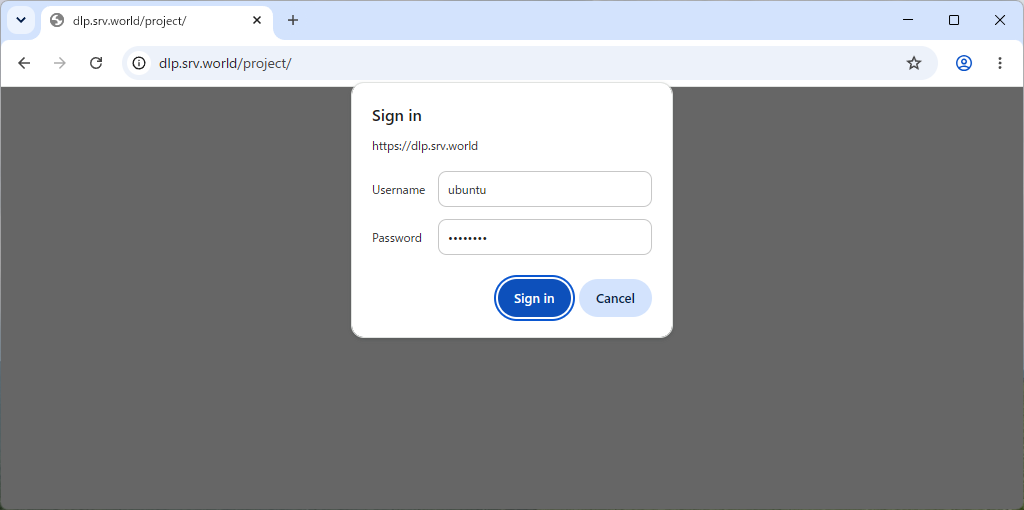
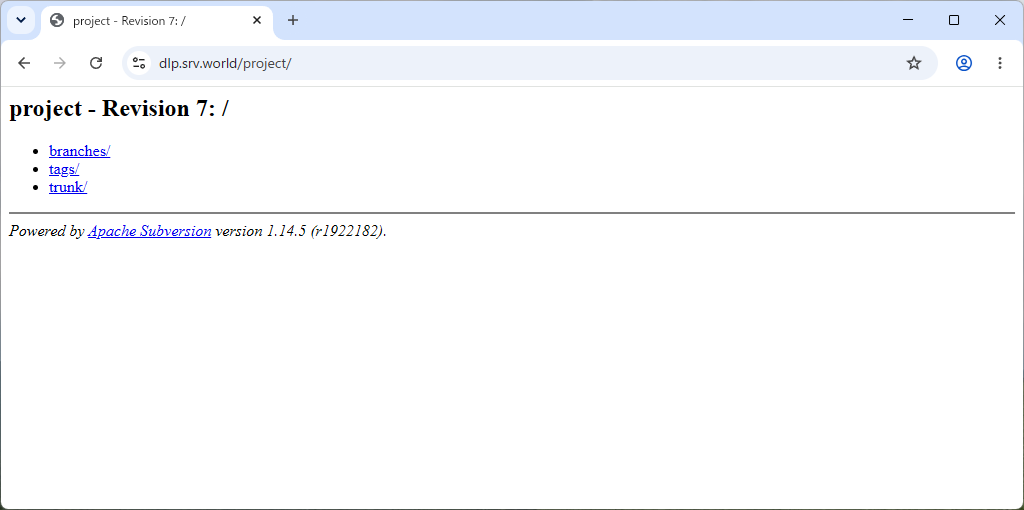
| [7] | HTTP のため Web ブラウザーで参照アクセスすることもできます。 |
|
|
関連コンテンツ