Flutter : インストール2025/09/30 |
|
Flutter をインストールします。 |
|
| [1] | |
| [2] | Chrome をインストールしておきます。 |
|
root@dlp:~#
root@dlp:~# apt -y install curl git clang cmake zip unzip pkg-config fonts-liberation libblkid-dev libgtk-3-dev lib32z1 wget https://dl.google.com/linux/direct/google-chrome-stable_current_amd64.deb root@dlp:~# dpkg -i google-chrome-stable_current_amd64.deb Selecting previously unselected package google-chrome-stable. (Reading database ... 173167 files and directories currently installed.) Preparing to unpack google-chrome-stable_current_amd64.deb ... Unpacking google-chrome-stable (140.0.7339.207-1) ... Setting up google-chrome-stable (140.0.7339.207-1) ... update-alternatives: using /usr/bin/google-chrome-stable to provide /usr/bin/x-www-browser (x-www-browser) in auto mode update-alternatives: using /usr/bin/google-chrome-stable to provide /usr/bin/gnome-www-browser (gnome-www-browser) in auto mode update-alternatives: using /usr/bin/google-chrome-stable to provide /usr/bin/google-chrome (google-chrome) in auto mode Processing triggers for mailcap (3.74) ... Processing triggers for gnome-menus (3.36.0-3) ... Processing triggers for desktop-file-utils (0.28-1) ... Processing triggers for man-db (2.13.1-1) ... |
| [3] | Flutter をインストールします。 |
|
root@dlp:~# snap install flutter --classic flutter 0+git.1fa6fd6 from Flutter Team✓ installed |
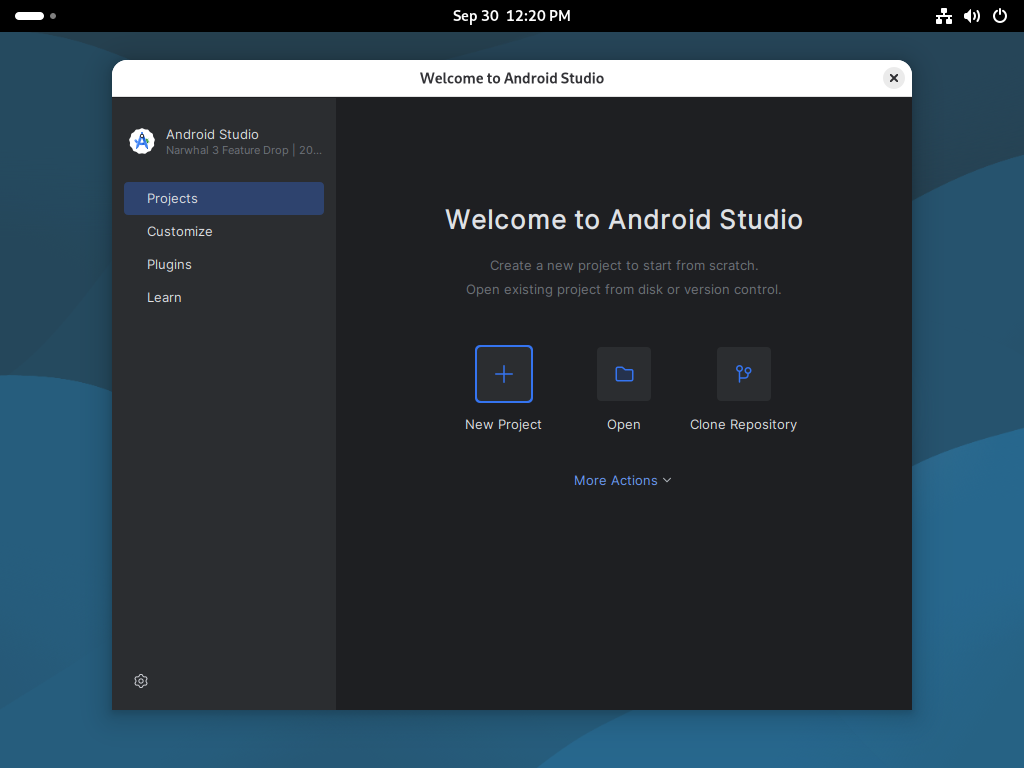
| [4] | 任意の一般ユーザーでデスクトップにログインし、Android Studio を起動して、左ペインで [Plugins] をクリックします。 |
|
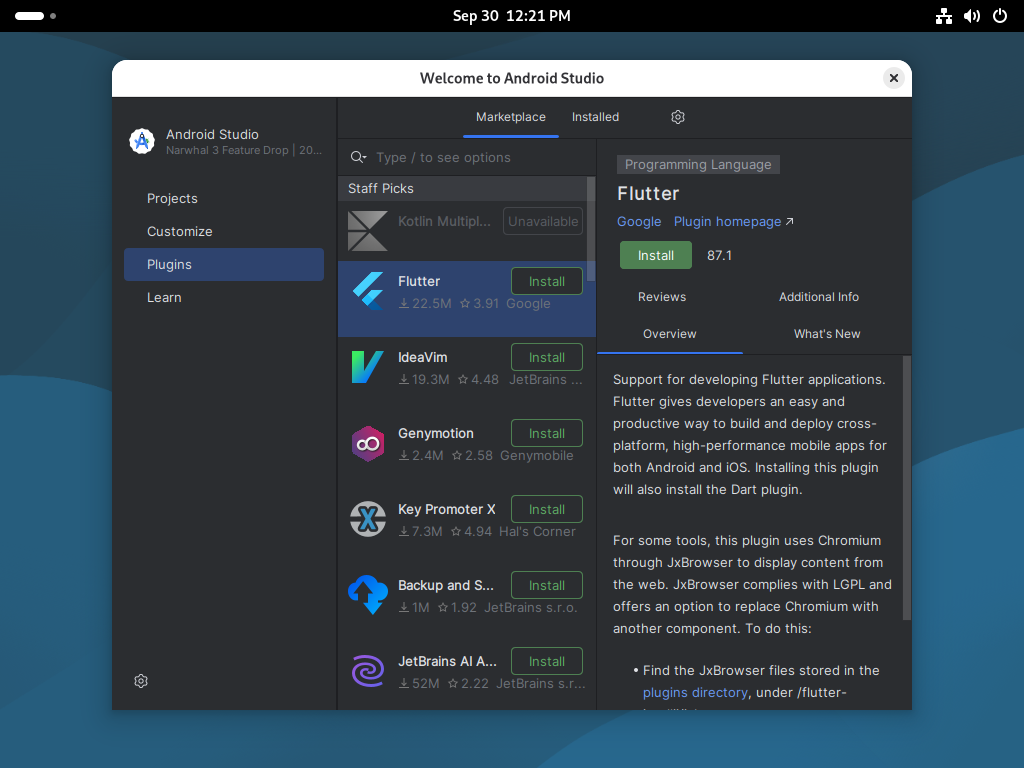
| [5] | [Flutter] を選択して [Install] をクリックします。 |
|
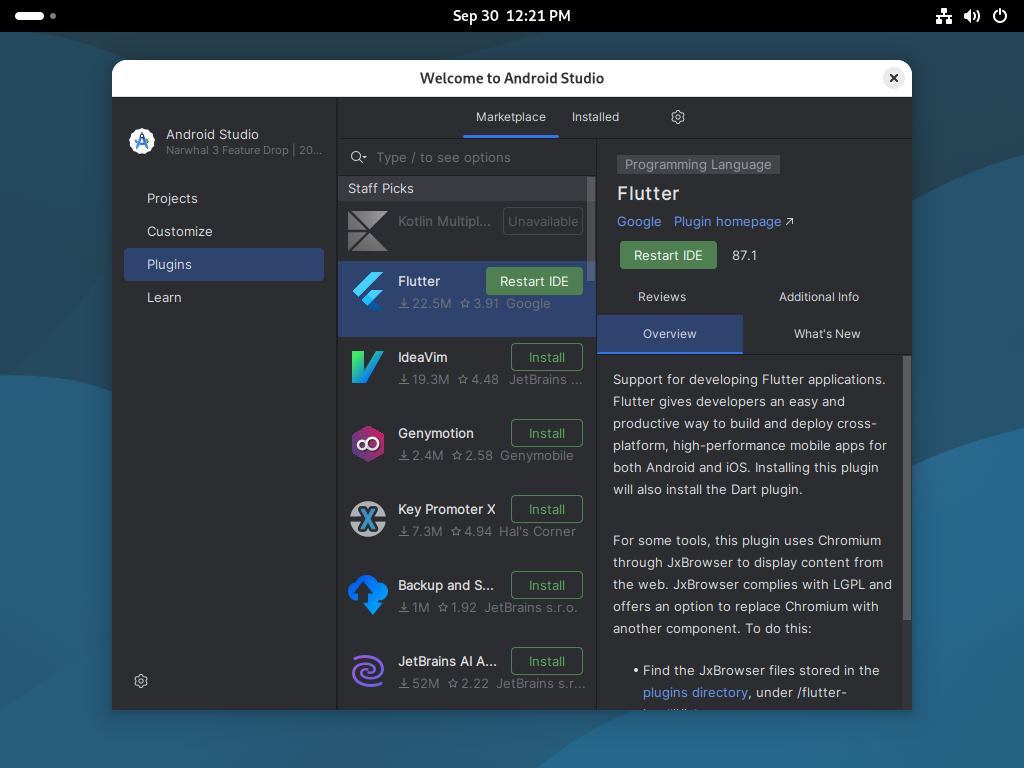
| [6] | [Restart IDE] をクリックして Android Studio を再起動します。 |
|
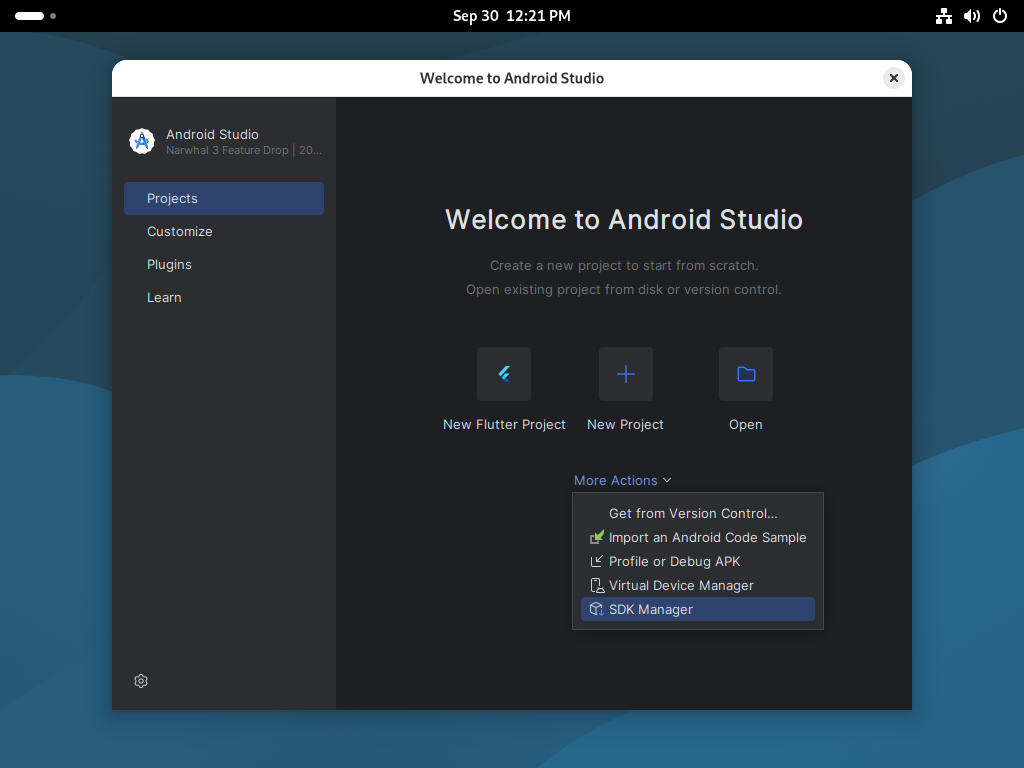
| [7] | Android Studio のメイン画面から、右ペインで [More Actios] をクリックし、メニューから [SDK Manager] を選択します。 |
|
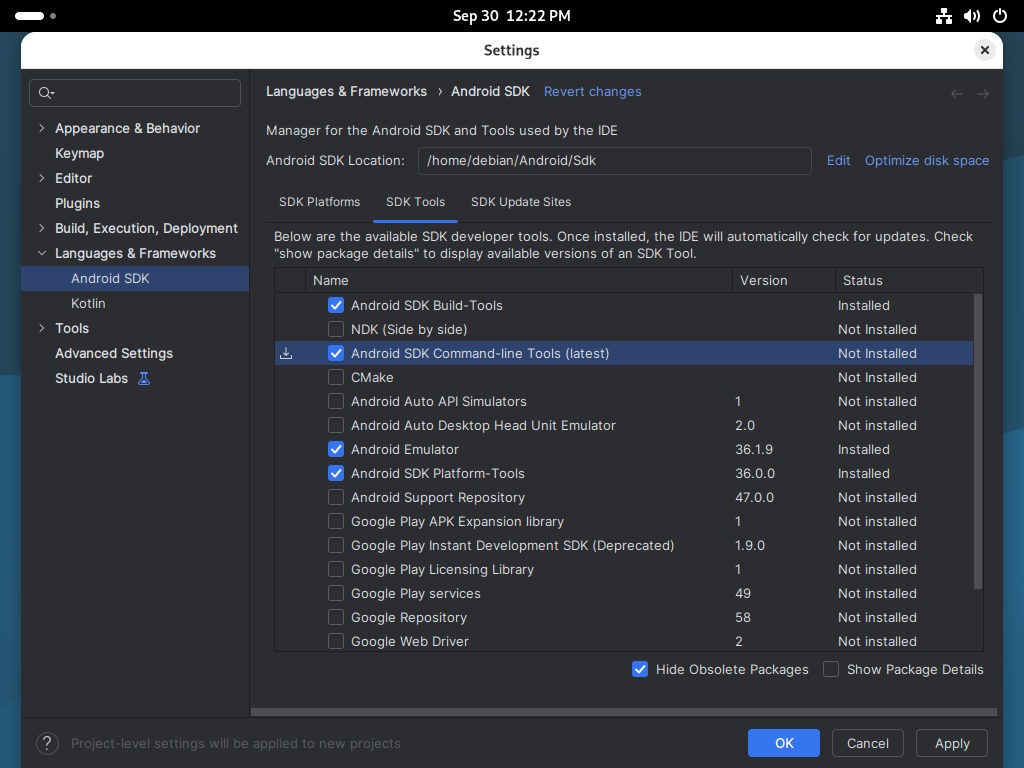
| [8] | [SDK Tools] タブに移動し、[Android SDK Command-line Tools] にチェックを入れて [OK] ボタンをクリックします。 |
|
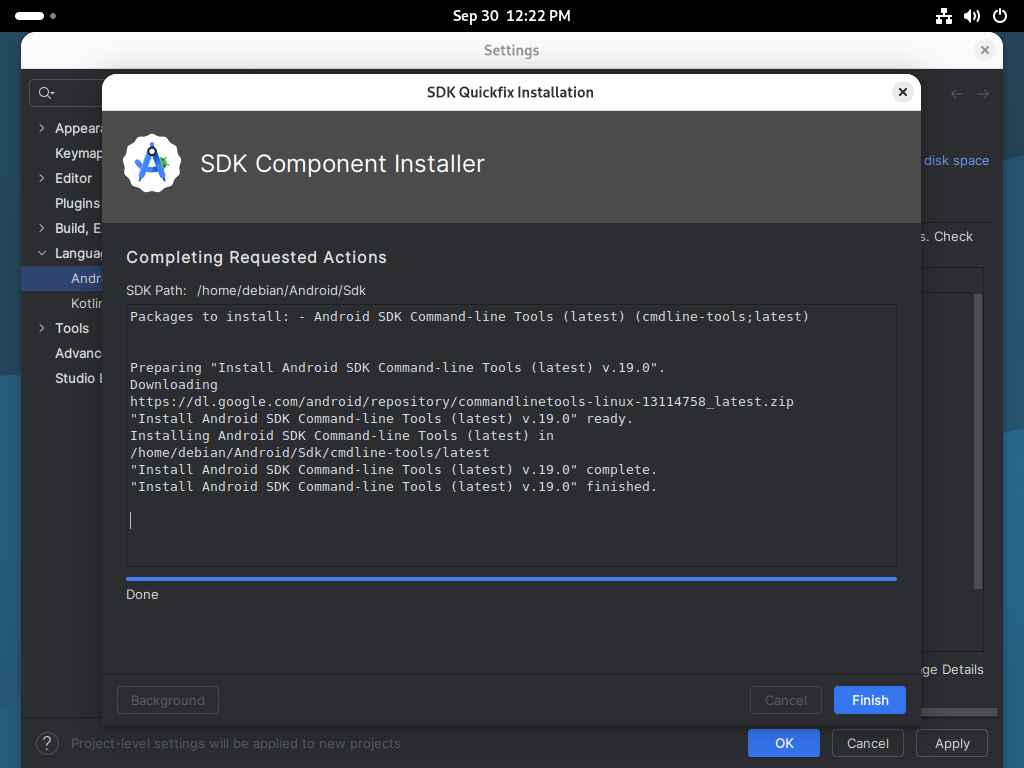
| [9] | インストール終了後、[完了] ボタンをクリックします。 |
|
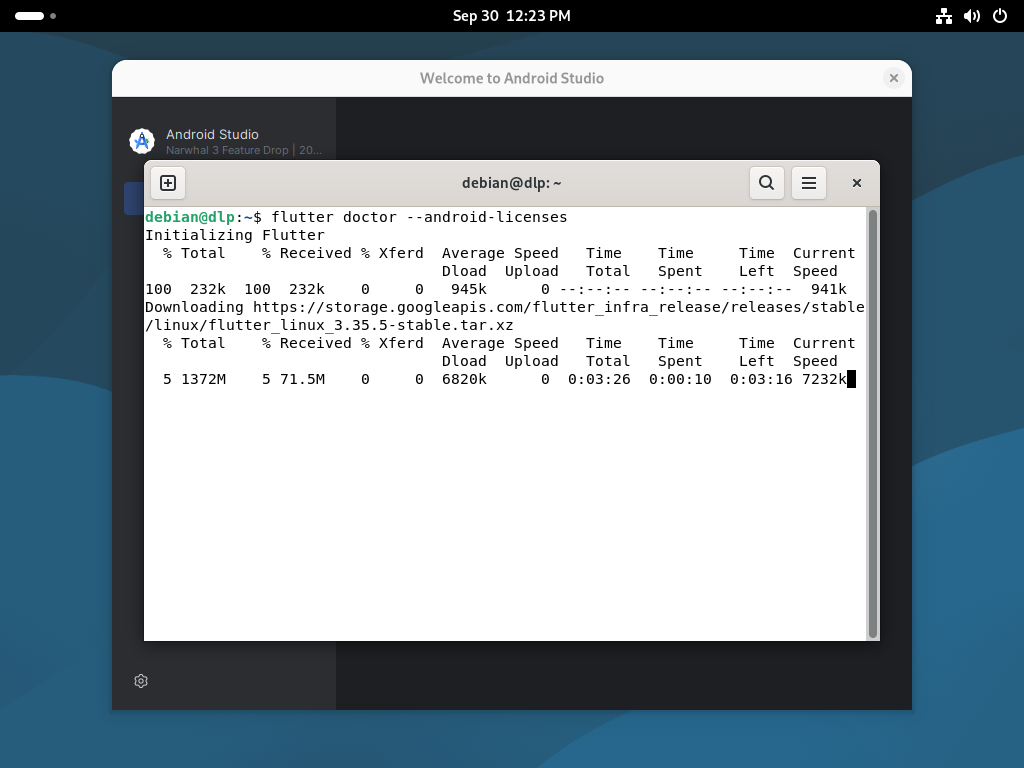
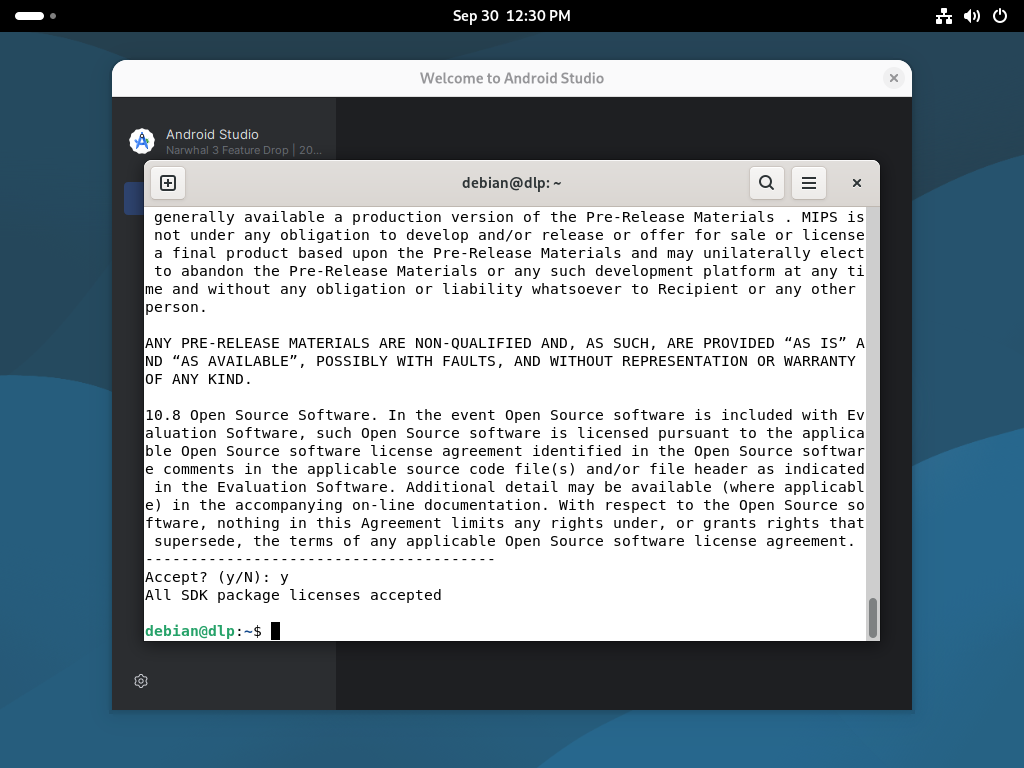
| [10] | ターミナルを起動して、[flutter doctor --android-licenses] とコマンド入力します。 利用規約が表示されるので、内容を熟読して理解し、全て同意します。 |
|
|
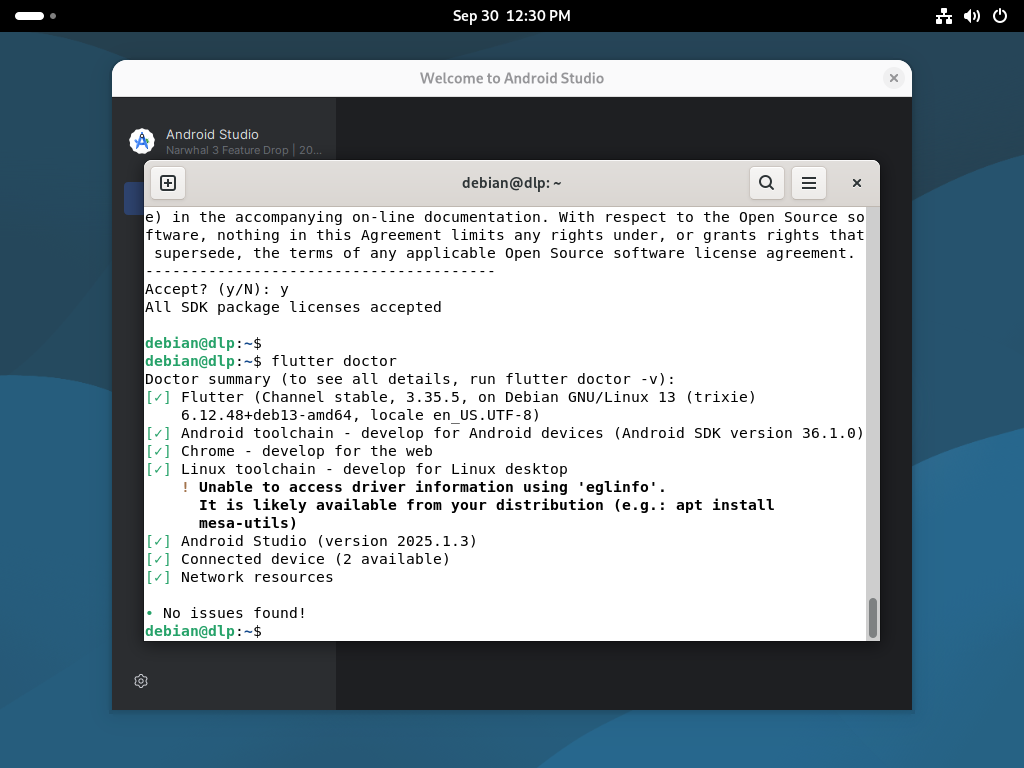
| [11] | 最後に、[flutter doctor] とコマンド入力し、[No issues found!] と表示されれば、インストール完了です。 |
|
| [12] | コマンドラインからテストアプリケーションを作成して、動作確認します。 |
|
debian@dlp:~$ flutter create testapp Creating project testapp... Resolving dependencies in `testapp`... Downloading packages... Got dependencies in `testapp`. Wrote 130 files. All done! You can find general documentation for Flutter at: https://docs.flutter.dev/ Detailed API documentation is available at: https://api.flutter.dev/ If you prefer video documentation, consider: https://www.youtube.com/c/flutterdev In order to run your application, type: $ cd testapp $ flutter run Your application code is in testapp/lib/main.dart.debian@dlp:~$ cd testapp
debian@dlp:~/testapp$
vi lib/main.dart
          mainAxisAlignment: MainAxisAlignment.center,
          children: <Widget>[
            // 107行目 : Hello World テキストを追加
            const Text(
              'Hello Flutter World!',
              style: TextStyle(
                fontSize: 48,
                fontWeight: FontWeight.bold,
                color: Colors.red,
              )
            ),
            const Text('You have pushed the button this many times:'),
            Text(
              '$_counter',
              style: Theme.of(context).textTheme.headlineMedium,
            ),
debian@dlp:~/testapp$ flutter run -d web-server --web-hostname=0.0.0.0 --web-port=43101 Launching lib/main.dart on Web Server in debug mode... Waiting for connection from debug service on Web Server... 17.6s lib/main.dart is being served at http://0.0.0.0:43101 The web-server device requires the Dart Debug Chrome extension for debugging. Consider using the Chrome or Edge devices for an improved development workflow. Flutter run key commands. r Hot reload. R Hot restart. h List all available interactive commands. d Detach (terminate "flutter run" but leave application running). c Clear the screen q Quit (terminate the application on the device). |
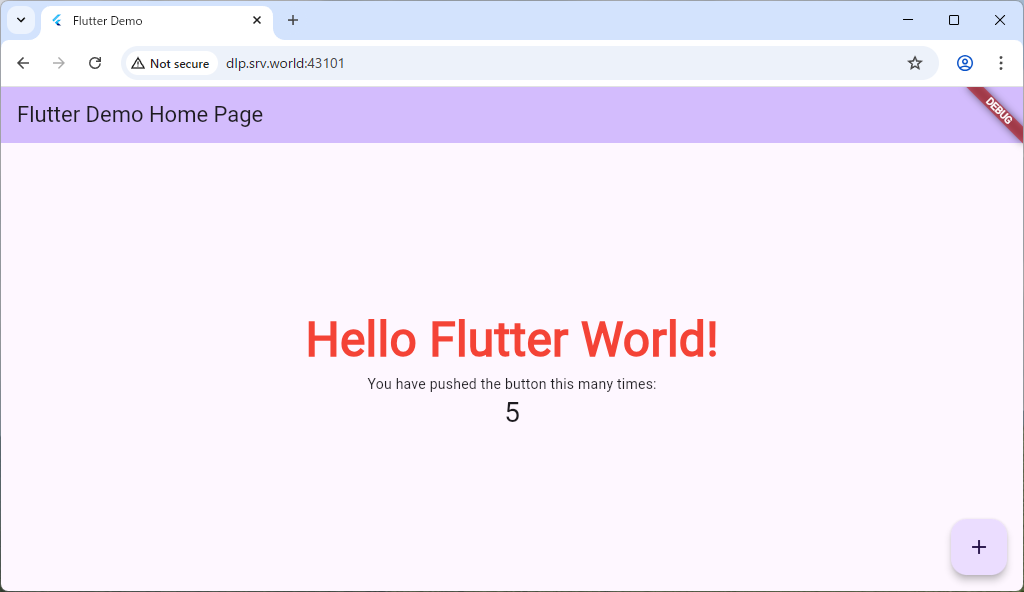
| 任意のクライアントコンピューターで Web アクセスして、以下のようなページが表示されれば OK です。 |
|
関連コンテンツ