OpenSSH : Password Authentication2025/10/15 |
|
Configure SSH Server to operate servers from remote computers. |
|
| [1] | Install OpenSSH server. |
|
dlp:~ #
zypper -n install openssh-server
dlp:~ #
systemctl enable --now sshd
# show current settings dlp:~ # sshd -T port 22 addressfamily any listenaddress [::]:22 listenaddress 0.0.0.0:22 usepam yes pamservicename sshd logingracetime 120 x11displayoffset 10 maxauthtries 6 maxsessions 10 ..... ..... |
| [2] | If Firewalld is running, allow SSH service. SSH uses [22/TCP]. |
|
dlp:~ # firewall-cmd --add-service=ssh success dlp:~ # firewall-cmd --runtime-to-permanent success |
SSH Client : openSUSE |
|
Configure SSH Client for openSUSE. |
|
| [3] | Install SSH Client. |
|
node01:~ # zypper -n install openssh-clients
|
| [4] | Connect to SSH server with any common user. |
|
# ssh [username@(hostname or IP address)] suse@node01:~> ssh suse@dlp.srv.world The authenticity of host 'dlp.srv.world (10.0.0.30)' can't be established. ED25519 key fingerprint is SHA256:+ujAkGcRZMk9HrBQxrwNb1bbsuYgW0qLCBU2qRlKQMs. This key is not known by any other names. Are you sure you want to continue connecting (yes/no/[fingerprint])? yes Warning: Permanently added 'dlp.srv.world' (ED25519) to the list of known hosts. (suse@dlp.srv.world) Password: Have a lot of fun... suse@dlp:~> # logined |
| [5] | It's possible to execute commands on remote Host with SSH like follows. |
|
# for example, run [cat /etc/passwd] suse@node01:~> ssh suse@dlp.srv.world "cat /etc/passwd" (suse@dlp.srv.world) Password: root:x:0:0:root:/root:/bin/bash tftp:x:499:499:TFTP Account:/srv/tftpboot:/usr/sbin/nologin nobody:x:65534:65534:nobody:/var/lib/nobody:/usr/sbin/nologin man:x:13:62:Manual pages viewer:/var/lib/empty:/usr/sbin/nologin lp:x:498:498:Printing daemon:/var/spool/lpd:/usr/sbin/nologin messagebus:x:497:482:User for D-Bus:/run/dbus:/usr/sbin/nologin dnsmasq:x:496:481:dnsmasq:/var/lib/empty:/usr/sbin/nologin chrony:x:495:480:Chrony Daemon:/var/lib/chrony:/usr/sbin/nologin ..... ..... |
SSH Client : Windows #1 |
|
Configure SSH Client for Windows. |
|
| [6] |
Download a SSH Client software for Windows.
Install and start Putty, then Input your server's Hostname or IP address on [Host name] field and Click [Open] button to connect.
On this example, it uses Putty (www.chiark.greenend.org.uk/~sgtatham/putty/). |

|
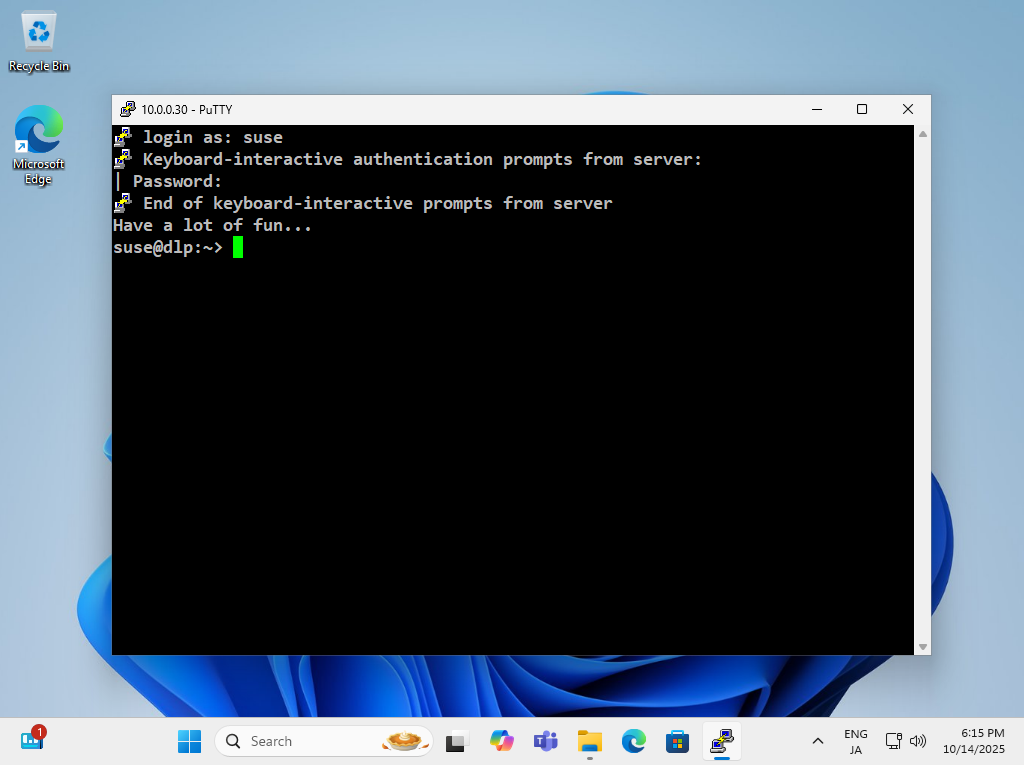
| [7] | After successing authentication, it's possible to login and operate openSUSE server from remote computer. |
|
SSH Client : Windows #2 |
| [8] | If you are using Windows 11, OpenSSH Client has been implemented as a Windows feature, so it's possible to use [ssh] command on PowerShell or Command Prompt without Putty or other 3rd party SSH softwares. |

|
Matched Content