Redmine : Install2026/01/09 |
|
Install Redmine which is the Project Management Tool. On this example, SELinux is configured Permissive or Disabled. |
|
| [1] | |
| [2] | |
| [3] | |
| [4] | |
| [5] | Install other requited packages. |
|
dlp:~ # zypper -n install ruby-devel postgresql-server-devel libyaml-devel openssl-devel libxslt-devel libxml2-devel libcurl-devel zlib-devel httpd-devel gcc gcc-c++ make patch rpm-build ImageMagick ImageMagick-devel google-droid-fonts |
| [6] | Create a user and database for Redmine on PostgreSQL. |
|
dlp:~ #
vi /var/lib/pgsql/data/pg_hba.conf # line 115 : change like follows #host all all 127.0.0.1/32 ident #host all all ::1/128 ident host all all 127.0.0.1/32 scram-sha-256 host all all ::1/128 scram-sha-256
dlp:~ #
systemctl restart postgresql # set any password for [password] section dlp:~ # su - postgres postgres@dlp:~> createuser redmine postgres@dlp:~> createdb redmine -O redmine postgres@dlp:~> psql -c "alter user redmine with password 'password'" ALTER ROLE |
| [7] | Download and install Redmine. Make sure the latest version on the site below. ⇒ http://www.redmine.org/projects/redmine/wiki/Download |
|
dlp:~ # wget https://www.redmine.org/releases/redmine-6.1.0.tar.gz dlp:~ # tar zxvf redmine-6.1.0.tar.gz dlp:~ # mv redmine-6.1.0 /srv/www/redmine dlp:~ # cd /srv/www/redmine
dlp:/srv/www/redmine #
vi config/database.yml # create new production: adapter: postgresql # database name database: redmine host: localhost # database user username: redmine # database user' password password: password encoding: utf8
dlp:/srv/www/redmine #
vi config/configuration.yml # create new (SMTP settings) # replace to your own language font for [rmagick_font_path] section
production:
  email_delivery:
    delivery_method: :smtp
    smtp_settings:
      address: "localhost"
      port: 25
      domain: 'dlp.srv.world'
  rmagick_font_path: /usr/share/fonts/truetype/DroidSansJapanese.ttf
# install bundler dlp:/srv/www/redmine # gem install bundler # install Gems for Redmine dlp:/srv/www/redmine # bundle config set --local without 'development test mysql sqlite' dlp:/srv/www/redmine # bundle install # generate keys dlp:/srv/www/redmine # bundle exec rake generate_secret_token # generate tables dlp:/srv/www/redmine # bundle exec rake db:migrate RAILS_ENV=production # install Passenger dlp:/srv/www/redmine # gem install passenger # install modules for Apache httpd dlp:/srv/www/redmine # /usr/lib64/ruby/gems/3.4.0/gems/passenger-6.1.1/bin/passenger-install-apache2-module
Welcome to the Phusion Passenger Apache 2 module installer, v6.0.19.

This installer will guide you through the entire installation process. It
shouldn't take more than 3 minutes in total.

Here's what you can expect from the installation process:

 1. The Apache 2 module will be installed for you.
 2. You'll learn how to configure Apache.
 3. You'll learn how to deploy a Ruby on Rails application.

Don't worry if anything goes wrong. This installer will advise you on how to
solve any problems.

Press Enter to continue, or Ctrl-C to abort.

.....
.....

Almost there!

Please edit your Apache configuration file, and add these lines:

   LoadModule passenger_module /usr/lib64/ruby/gems/3.4.0/gems/passenger-6.1.1/buildout/apache2/mod_passenger.so
   <IfModule mod_passenger.c>
     PassengerRoot /usr/lib64/ruby/gems/3.4.0/gems/passenger-6.1.1
     PassengerDefaultRuby /usr/bin/ruby.ruby3.4
   </IfModule>

After you restart Apache, you are ready to deploy any number of web
applications on Apache, with a minimum amount of configuration!

Press ENTER when you are done editing.
|
| [8] | Configure httpd to run Passenger. On this example, Set VirtualHost for Redmine. |
|
dlp:/srv/www/redmine #
vi /etc/apache2/conf.d/passenger.conf # create new
LoadModule passenger_module /usr/lib64/ruby/gems/3.4.0/gems/passenger-6.1.1/buildout/apache2/mod_passenger.so
PassengerRoot /usr/lib64/ruby/gems/3.4.0/gems/passenger-6.1.1
PassengerDefaultRuby /usr/bin/ruby.ruby3.4
SetEnv LD_LIBRARY_PATH /usr/lib64

NameVirtualHost *:80
<VirtualHost *:80>
    ServerName redmine.srv.world
    DocumentRoot /srv/www/redmine/public
</VirtualHost>

<Directory "/srv/www/redmine/public">
    Options FollowSymLinks
    AllowOverride All
    Require all granted
</Directory>
chown -R wwwrun:wwwrun /srv/www/redmine dlp:/srv/www/redmine # systemctl reload apache2 |
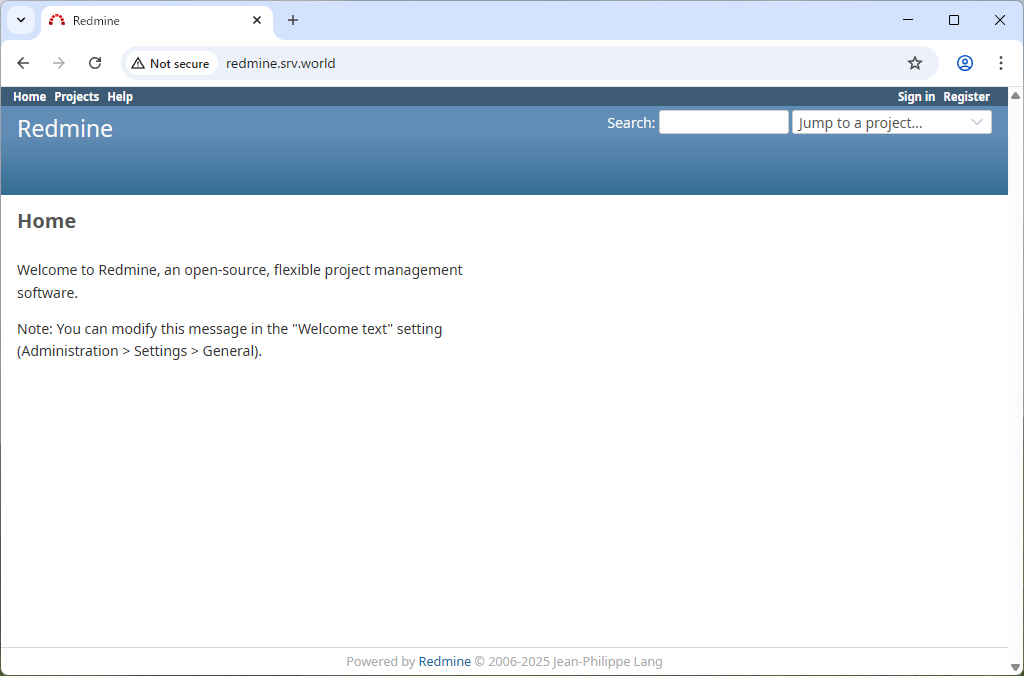
| [9] | Access to the URL you configured on httpd, then Redmine index is shown like follows. Click [Sing in] link. |
|
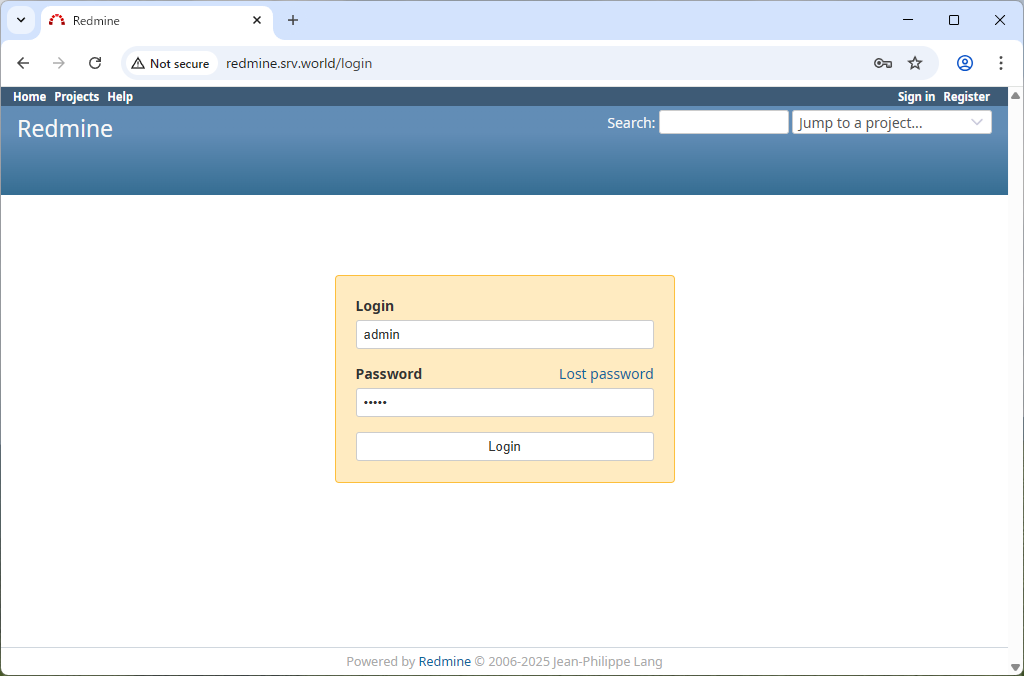
| [10] | Login with the initial username/password [admin/admin]. |
|
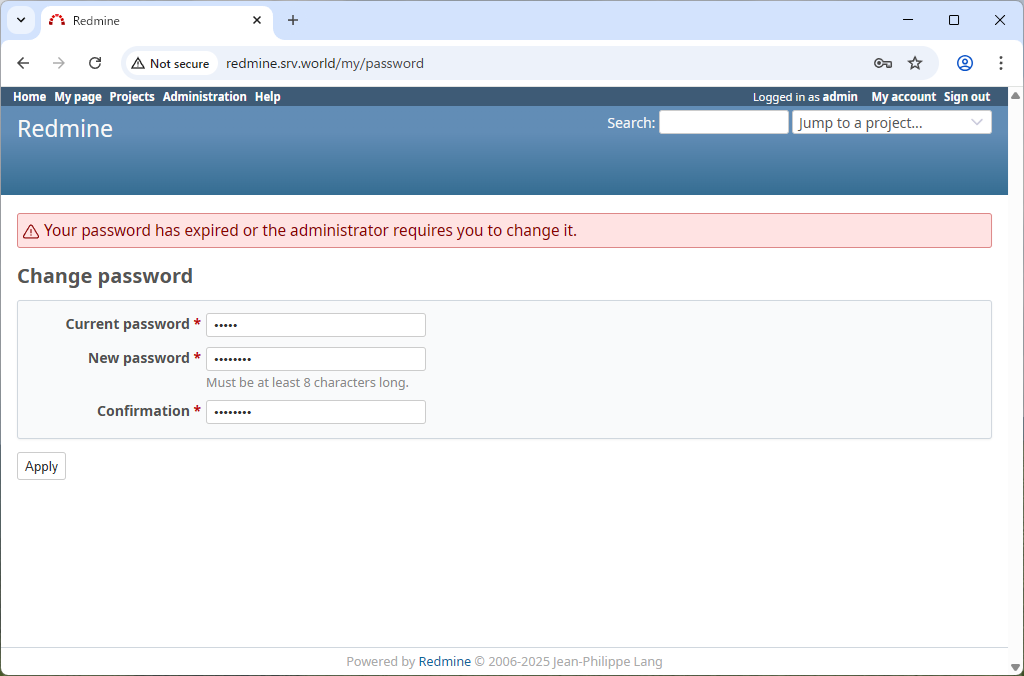
| [11] | After initial login, changing password is required. |
|
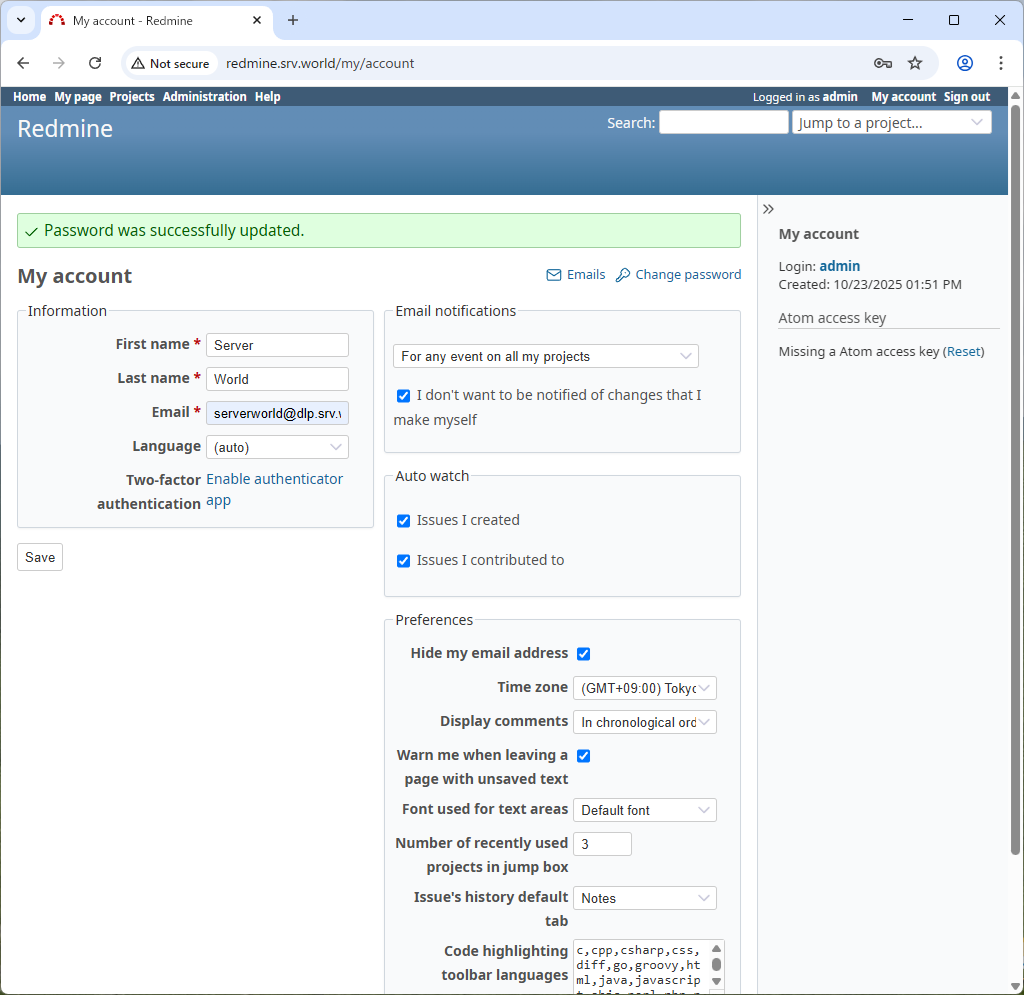
| [12] | After changing password, setting of account information is required, input them. |
|
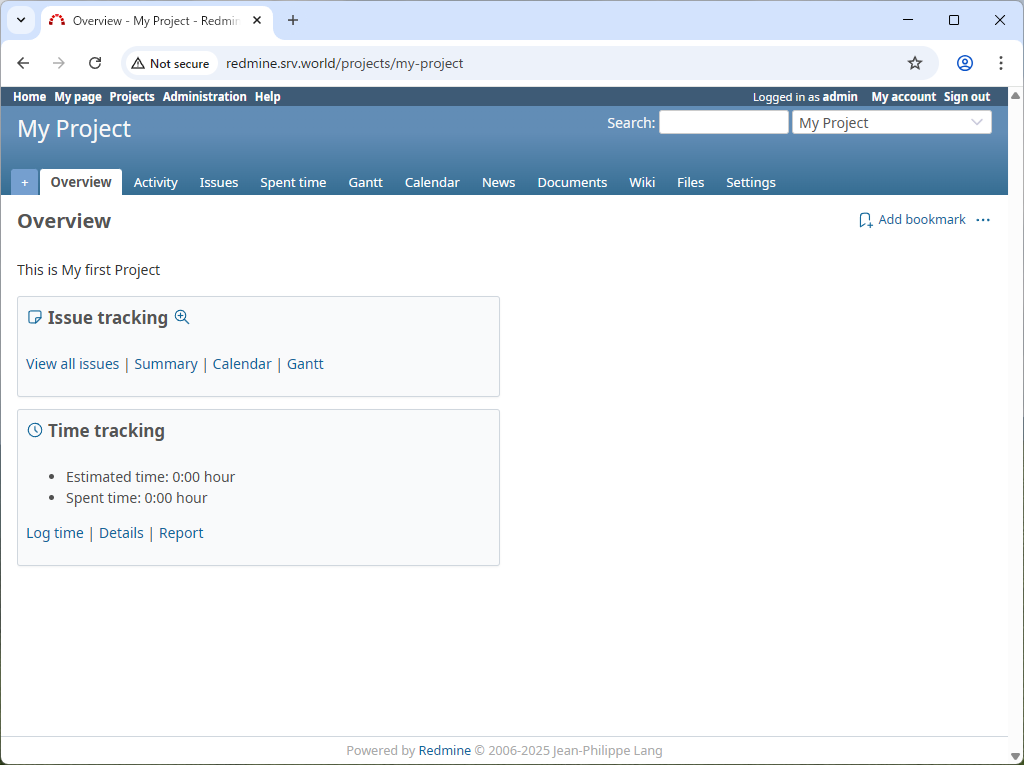
| [13] | That's OK, Create Projects and use Redmine. |
|
Matched Content