Proxmox VE 9 : Download2026/01/15 |
| [1] |
This is a how-to on building a network server using Proxmox Virtual Environment 9. The installation image of Proxmox Virtual Environment 9 can be downloaded from the following website. ⇒ https://www.proxmox.com/en/downloads |
|
Proxmox VE 9 : Create installation media (USB stick)
|
|
Save the downloaded ISO image to a USB memory stick to create installation media. |
|
| [2] |
Download and install Fedora Media Writer from the following site. |
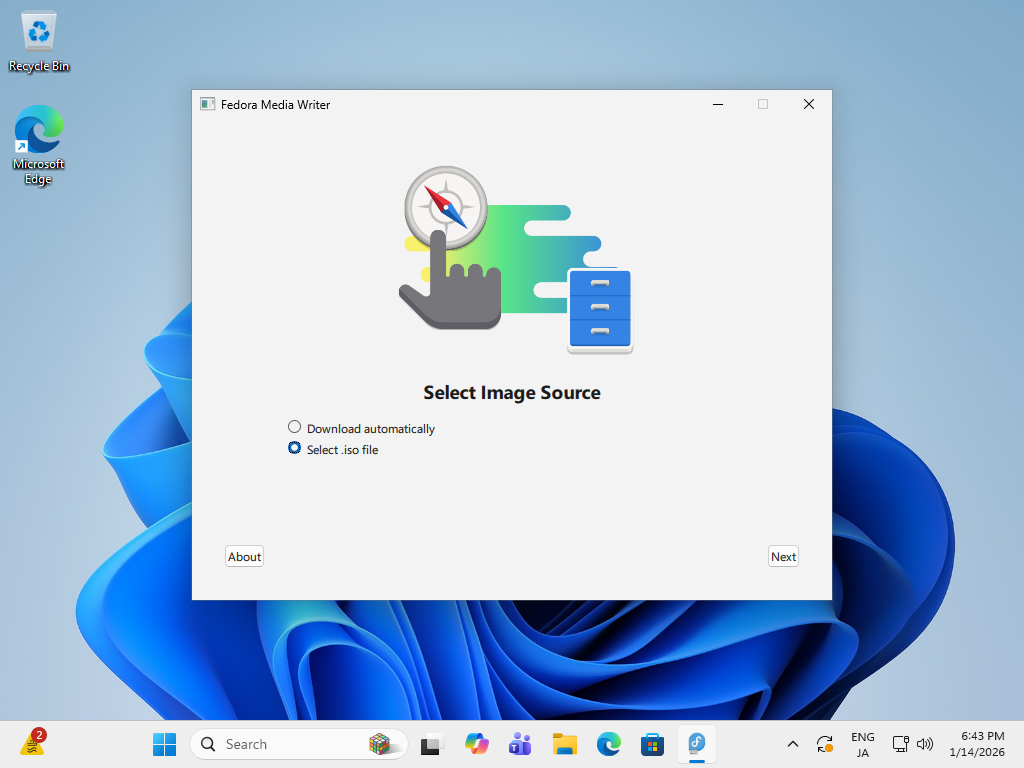
| [3] | Connect the USB memory stick to your computer. Next, launch Fedora Media Writer and you'll see the following screen. Click "Select [.iso] file" to proceed. |
|
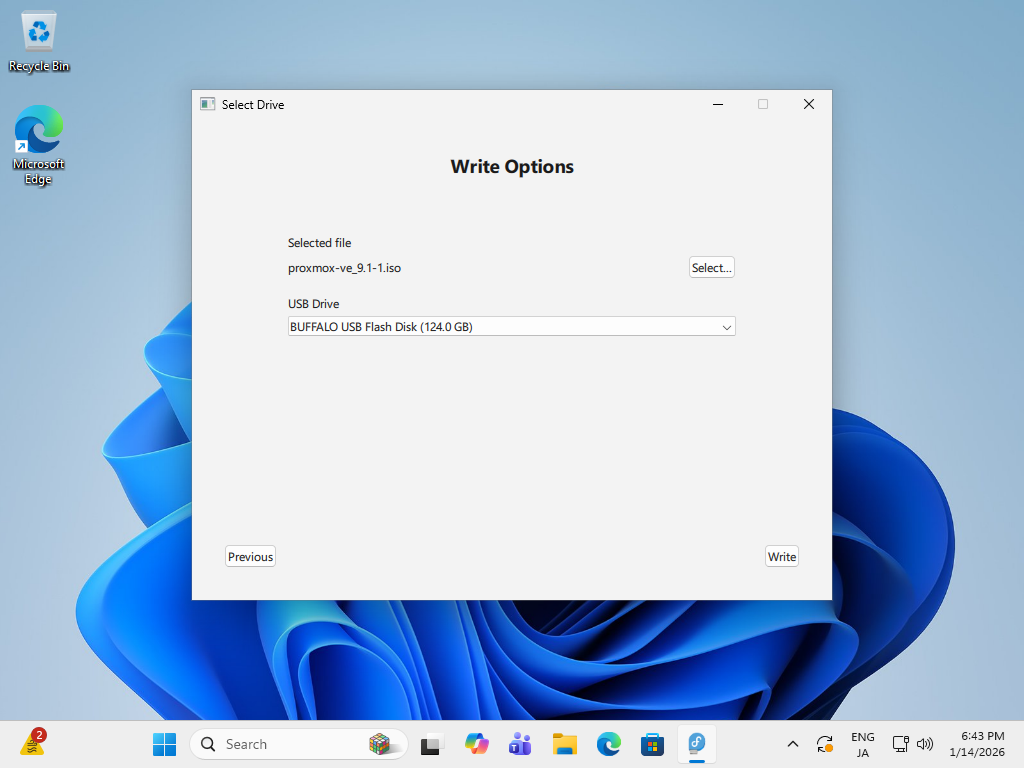
| [4] | Select the USB memory to write to for the USB drive, select the downloaded ISO image for the file, and click the [Write] button to create the installation USB memory. |
|
|
Proxmox VE 9 : Create installation media (DVD)
|
|
Burn the downloaded ISO image to a DVD to create installation media. |
|
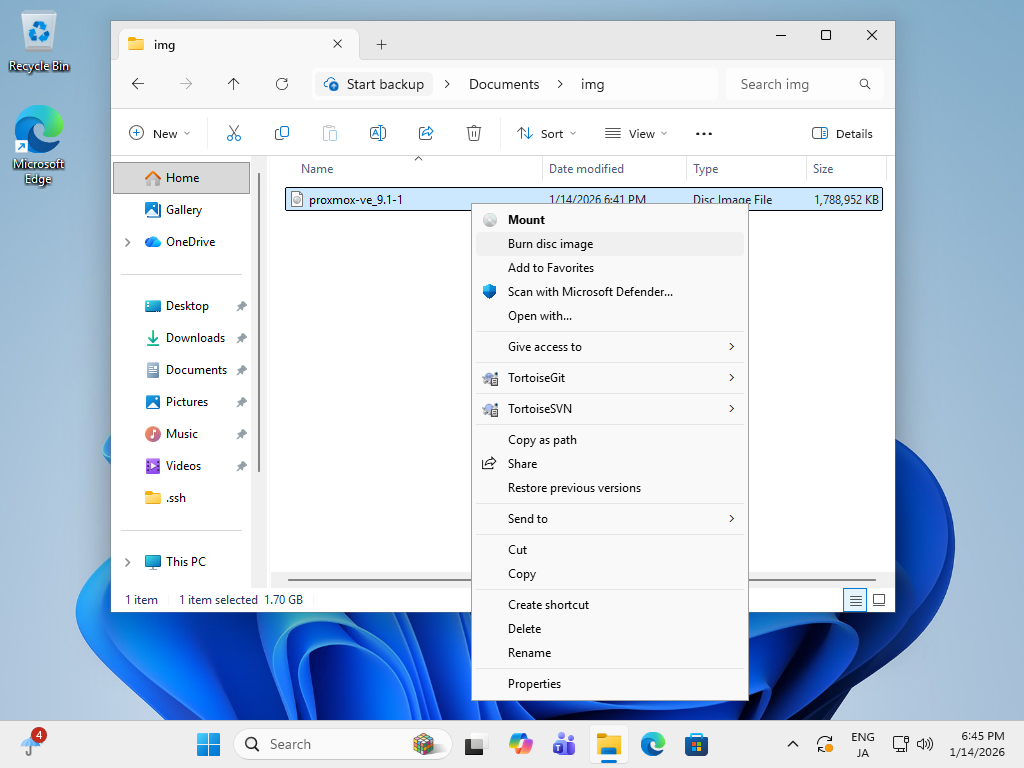
| [5] | Insert a blank DVD into your drive. Next, right-click the downloaded ISO image and select [Burn Disc Image] from the menu. |
|
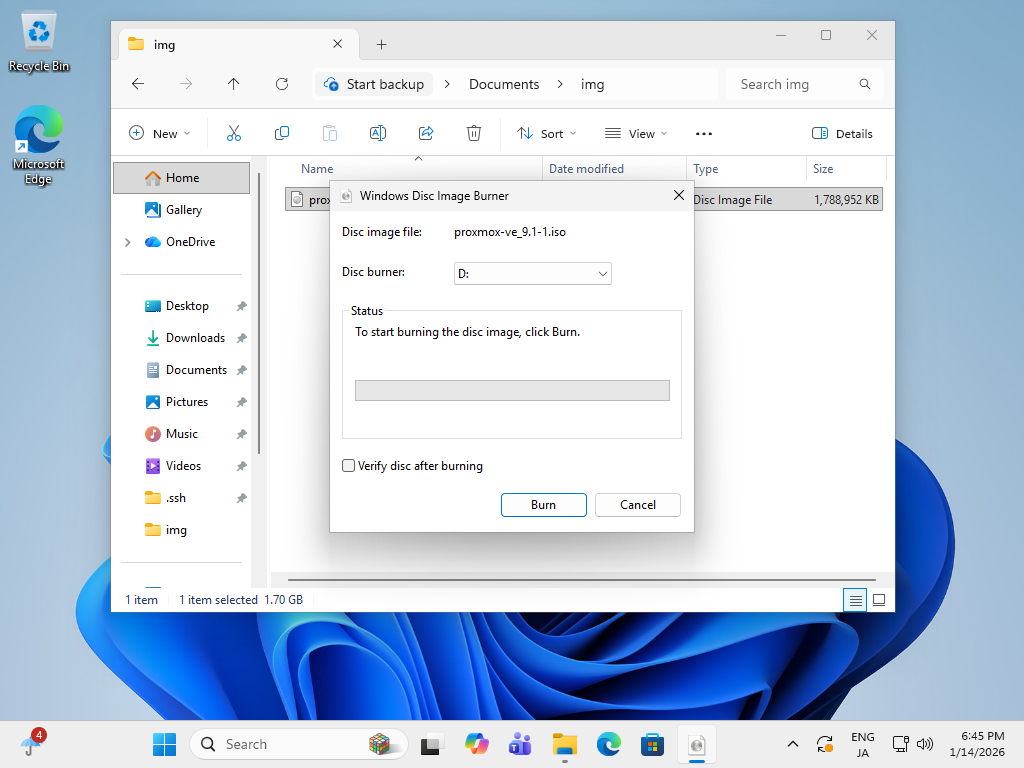
| [6] | Click the [Burn] button to begin burning. Once burning is complete, remove the DVD and click the Close button. This completes the creation of the installation media. |
|
Matched Content