Syncthing : Synchronize Files / Directories2026/02/04 |
|
Copy files or directories from one location to an another localtion by [Syncthing]. This example is based on the environment like follows.+----------------------+ | +----------------------+ | dlp.srv.world |10.0.0.30 | 10.0.0.51| node01.srv.world | | +----------+----------+ | | | <-------------> | | +----------------------+ sync +----------------------+ |
| [1] | Install Syncthing on all hosts. |
|
root@dlp:~ # pkg install -y syncthing py311-bcrypt
|
| [2] | Configure Syncthing on all hosts. |
|
root@dlp:~ #
service syncthing enable root@dlp:~ # service syncthing start root@dlp:~ # service syncthing stop
# generate password root@dlp:~ # python3.11 -c 'import bcrypt, getpass; print(bcrypt.hashpw(getpass.getpass().encode(), bcrypt.gensalt()).decode())' Password: $2b$12$RXw/VJ1vBm.....
root@dlp:~ #
vi /usr/local/etc/syncthing/config.xml
    # line 13 : change like follows
    <gui enabled="true" tls="true" debugging="false" sendBasicAuthPrompt="false">
        # change to the address this server listens
        <address>10.0.0.30:8384</address>
        # set admin user (any name you like) and generated password
        <user>serverworld</user>
        <password>$2b$12$RXw/VJ1vBm.....</password>
        <apikey>cFdXMg.....</apikey>

        # line 55 : delete the line blow
        <unackedNotificationID>authenticationUserAndPassword</unackedNotificationID>
root@dlp:~ # mkdir /var/Sync root@dlp:~ # chown syncthing:syncthing /var/Sync root@dlp:~ # service syncthing start |
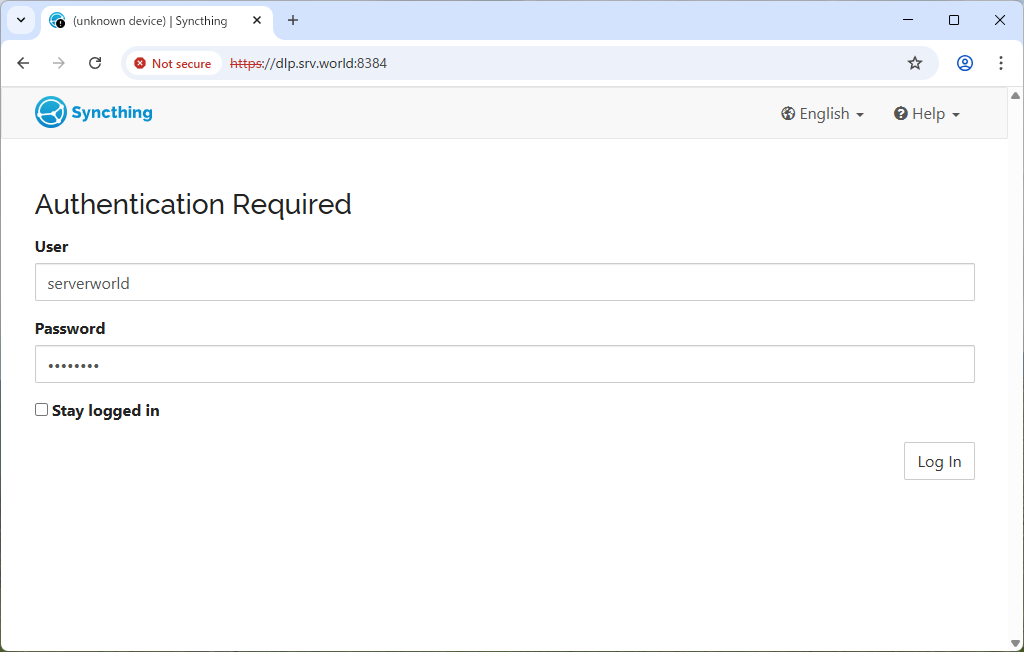
| [3] | On any client computer, go to the configured address of one of your Syncthing hosts and log in with the admin user you configured. |
|
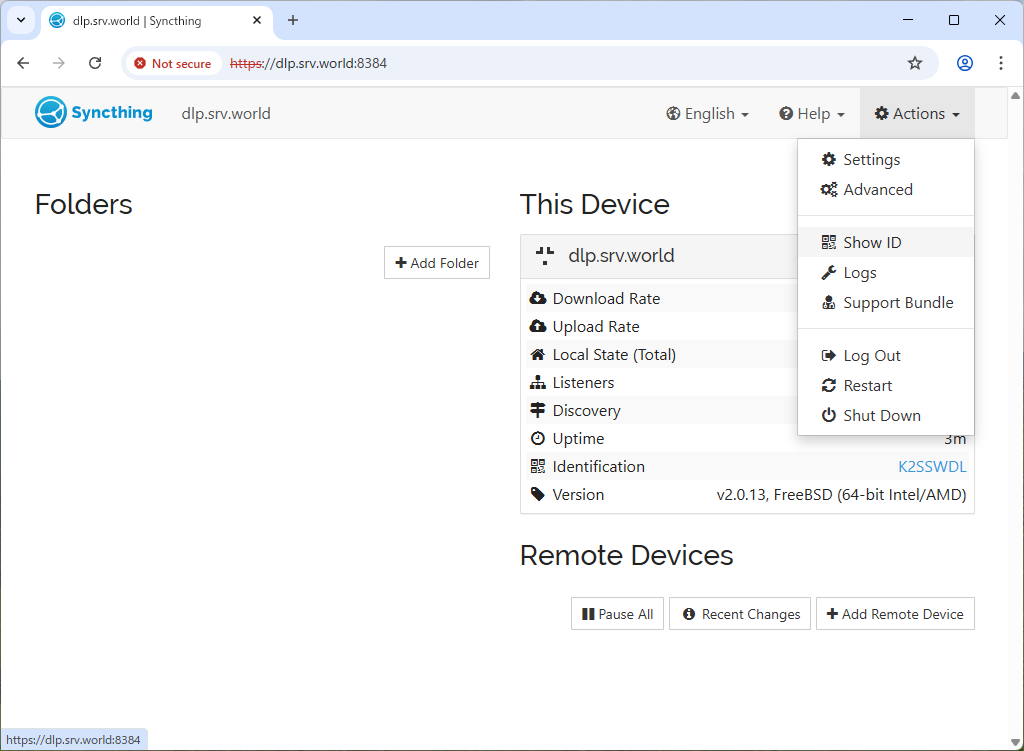
| [4] | Click [Actions] - [Show ID]. |
|
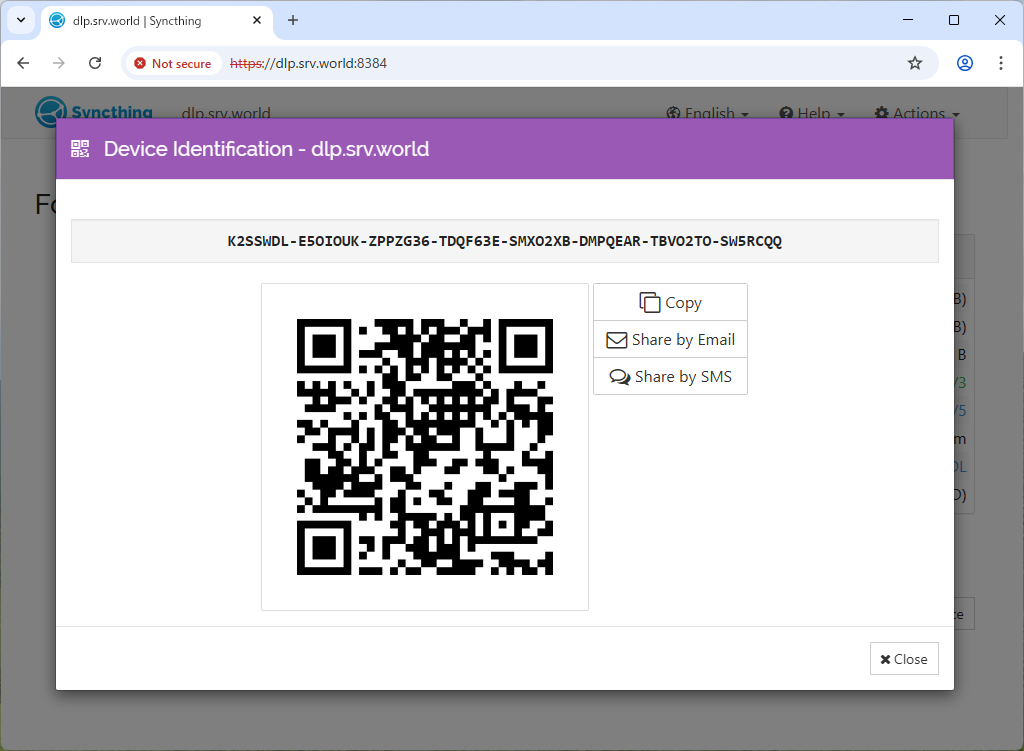
| [5] | Copy the connection ID that is displayed. |
|
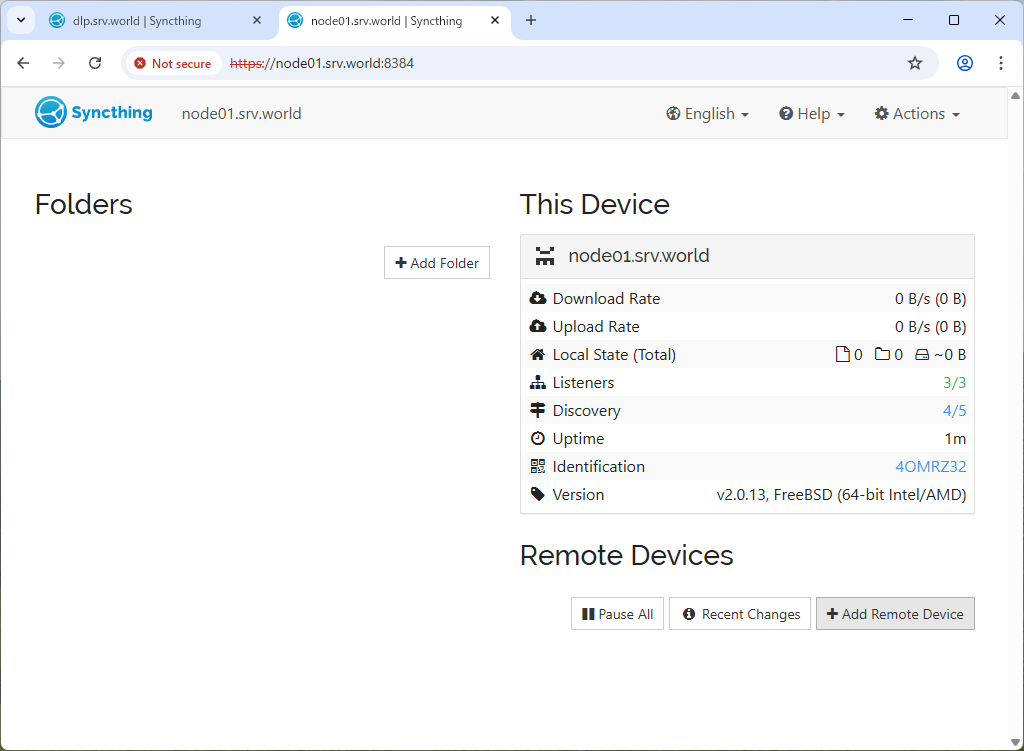
| [6] | Log in to the other Syncthing host and click [Add Remote Device] in the bottom right. |
|
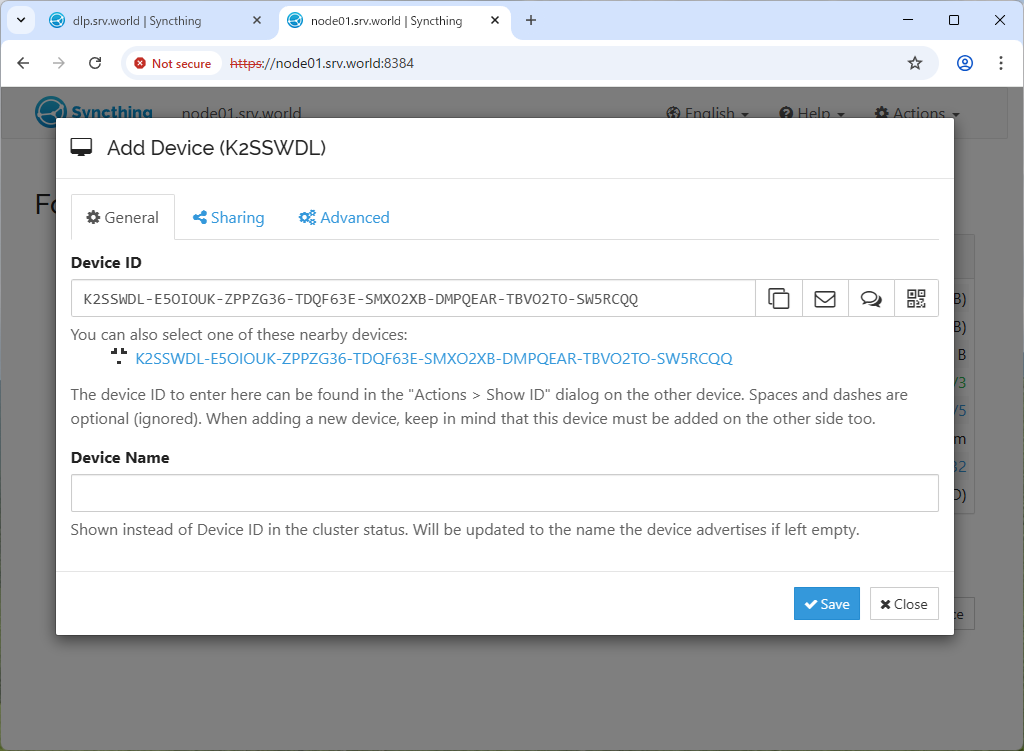
| [7] | In the [Device ID] field, enter the connection ID displayed on the other host, and in the [Device Name] field, enter the name of the host to be synchronized (any name), and click the [Save] button. |
|
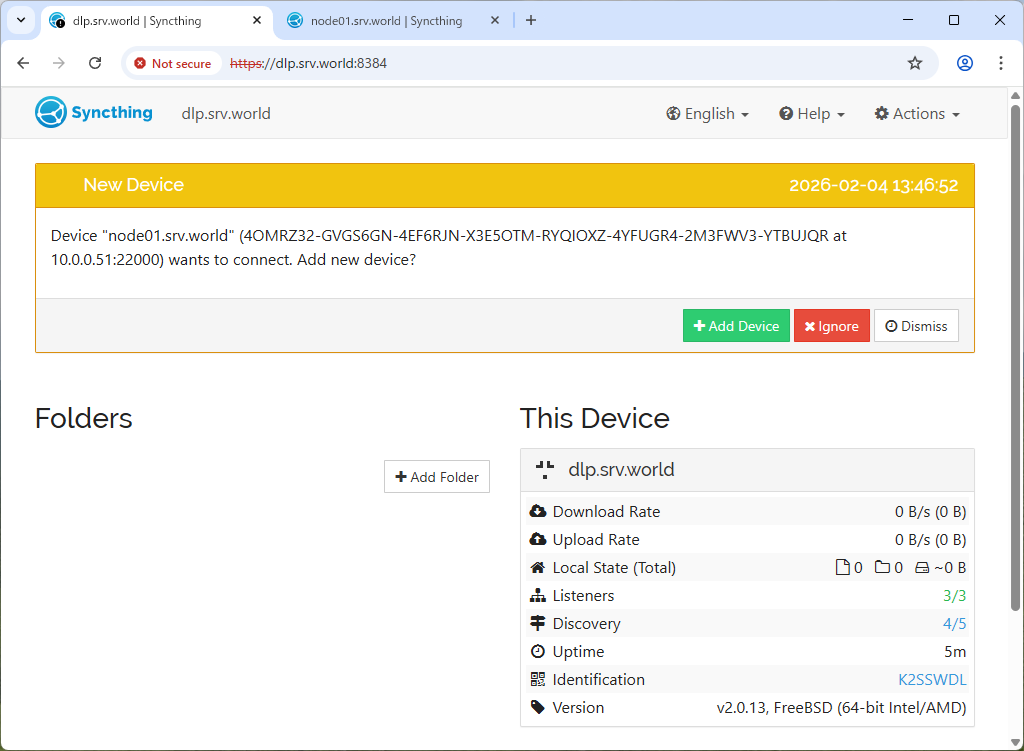
| [8] | When you return to the host for which you confirmed the connection ID,
a message will appear indicating that a connection request has been made. Click [Add Device] to add the host to which you want to connect. |
|
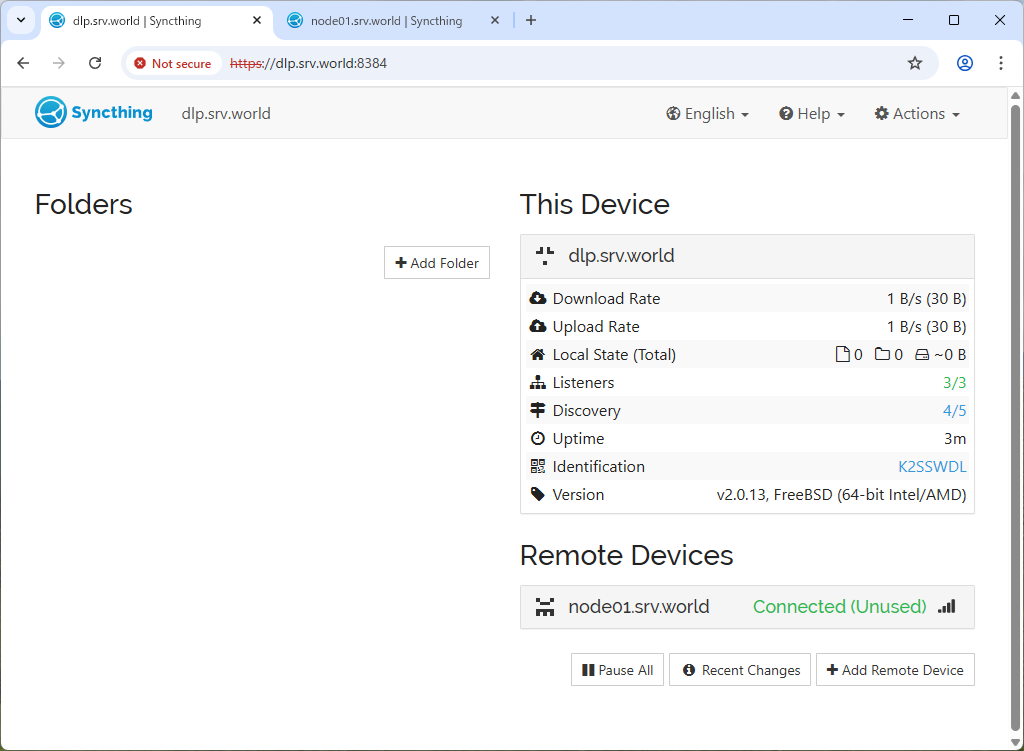
| [9] | Click [Add Folder] to add a folder to sync. |
|
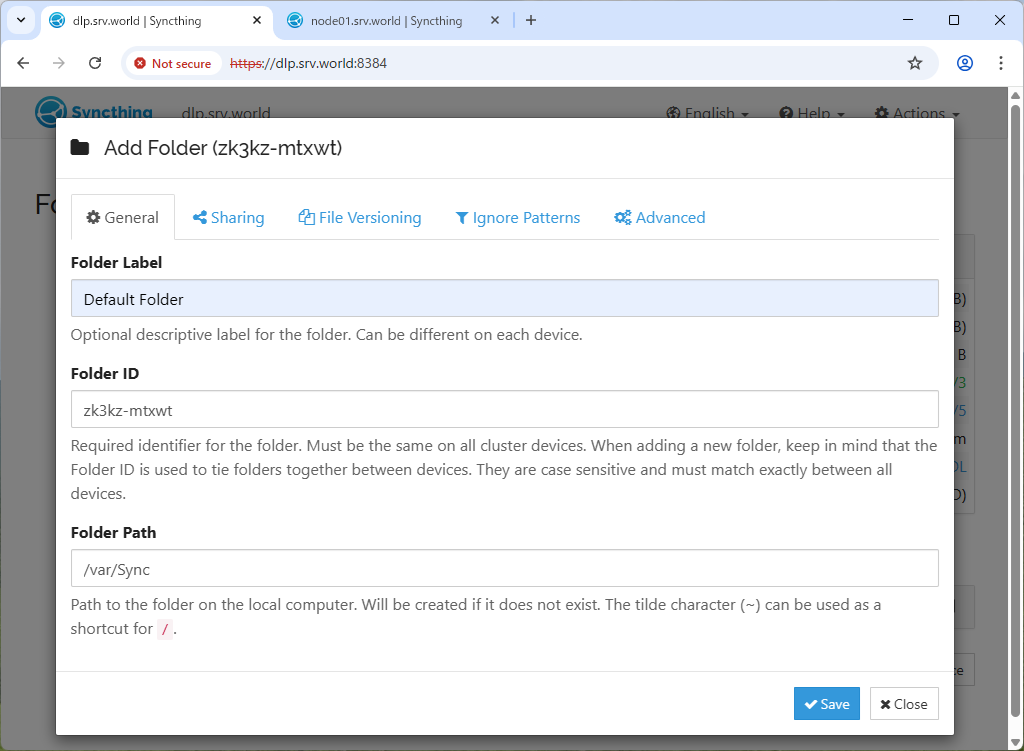
| [10] | Enter the path and label of the folder you want to sync and go to the Sharing tab. |
|
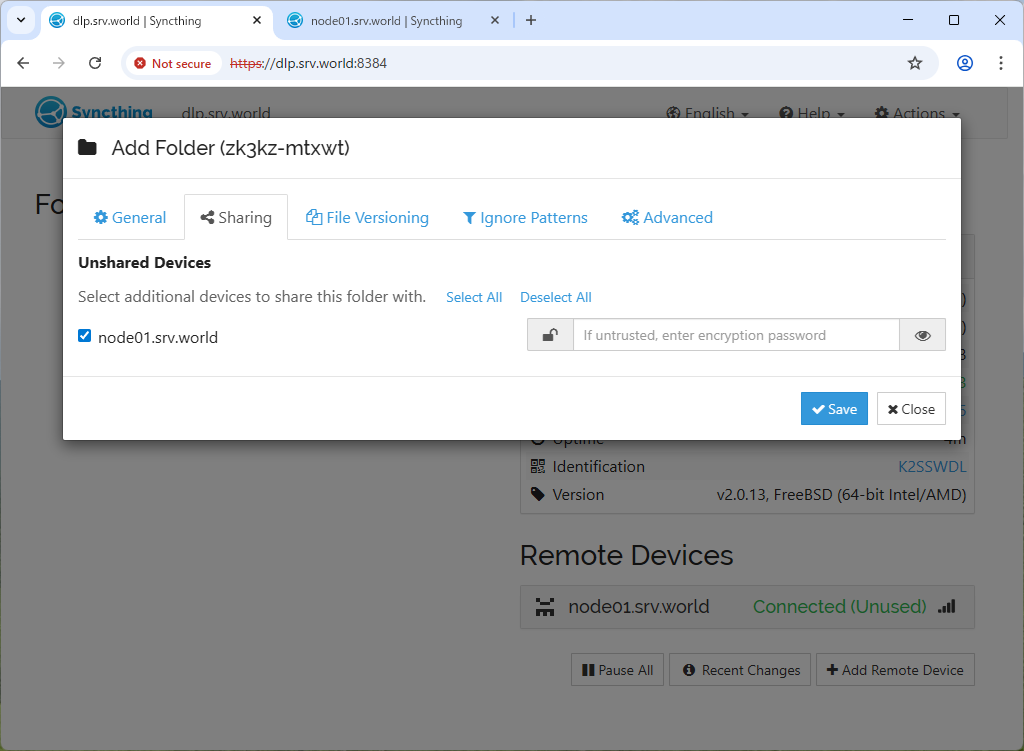
| [11] | Check the hosts you want to synchronize and click [Save]. |
|
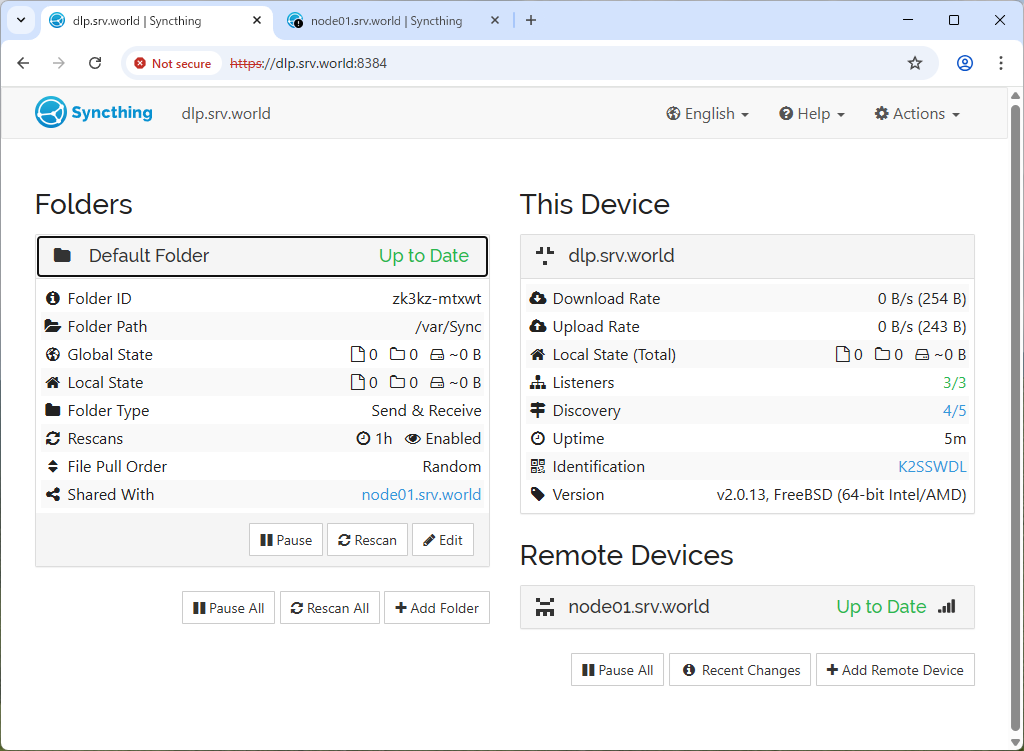
| [12] | Now that the synchronization setup is complete, add or remove files on both hosts to verify that they are syncing properly. |
|
Matched Content