FreeBSD 15 : Install2025/12/11 |
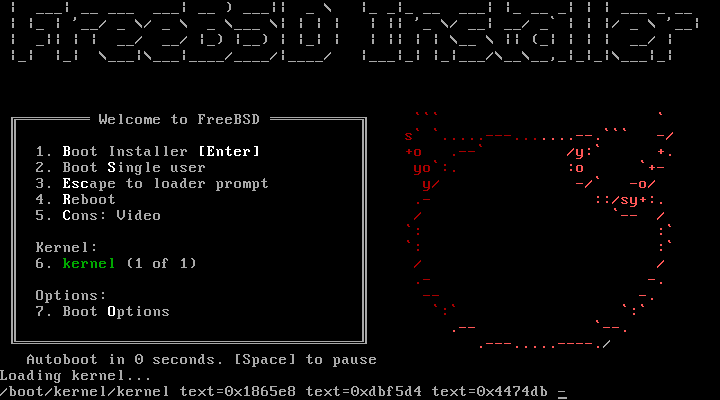
| [1] | Insert the installation USB memory stick or DVD you created into your computer and start it up. The FreeBSD 15 installer will then start up and the following screen will be displayed. To continue with the installation, simply press [Enter]. |
|
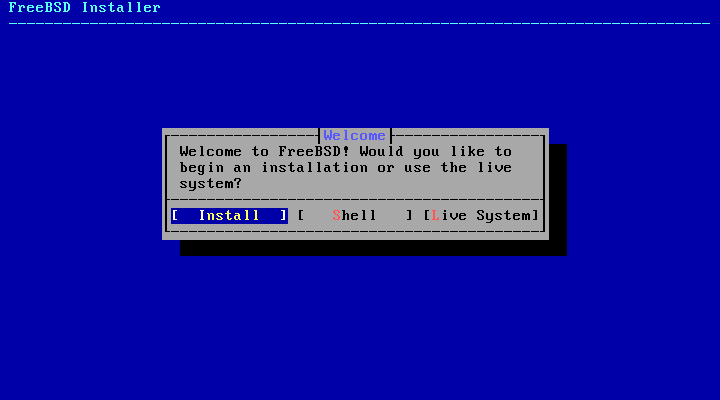
| [2] | To proceed with the installation, select Install and press Enter. |
|
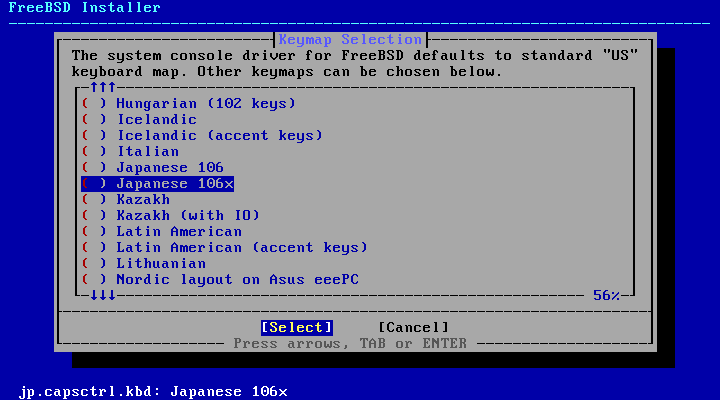
| [3] | Ths is the Keyboard map setting. Press the [Space] key to select the keyboard map for your language. |
|
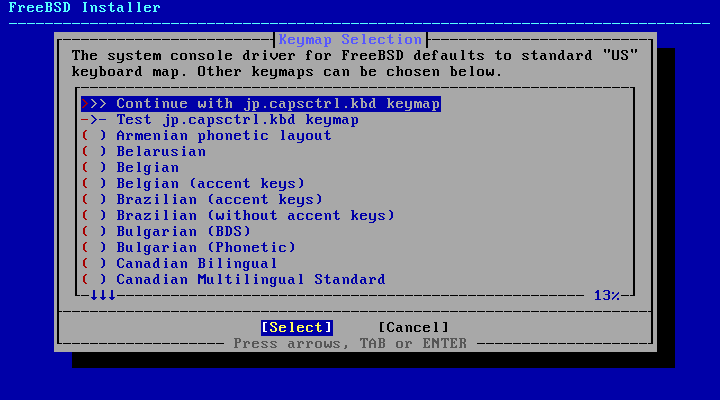
| [4] | To proceed, place the cursor on the top item [Continue with *** keymap] and press the [Enter] key. |
|
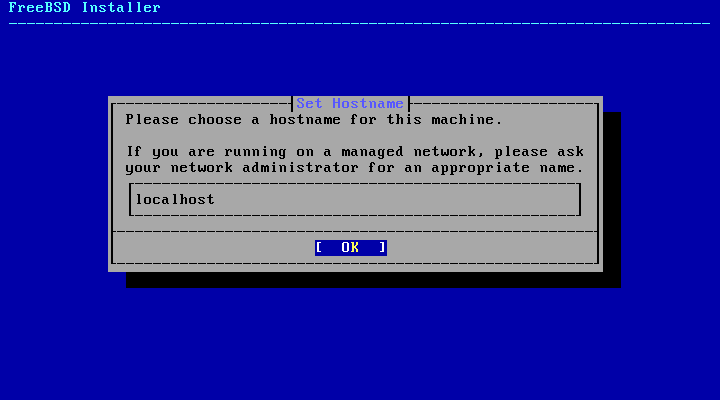
| [5] | This is the setting for the computer's host name. Enter any name and press the [Enter] key. This can be changed after installation. |
|
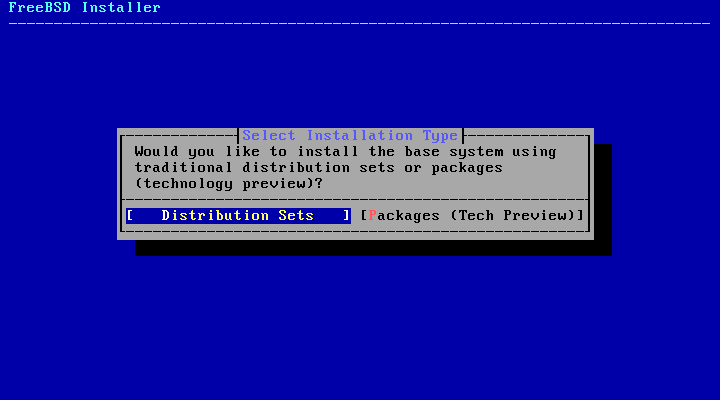
| [6] | Select the installation type. The left is the traditional type, and the right is the new Technology Preview type. In this example, we will proceed with the traditional type. |
|
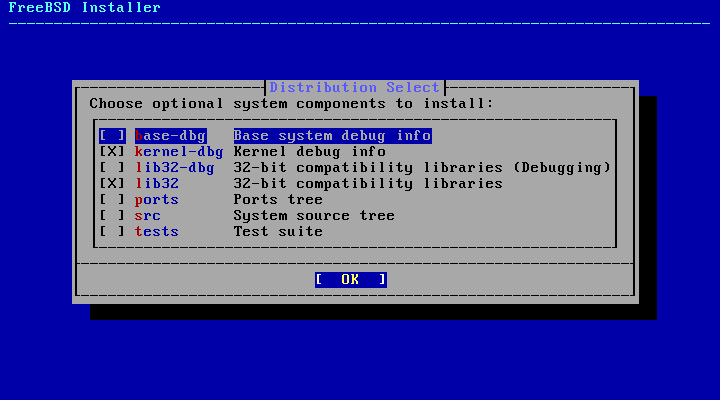
| [7] | If you want to add a system component, select it from the list. If you do not have special requirements, you can leave it as the default. |
|
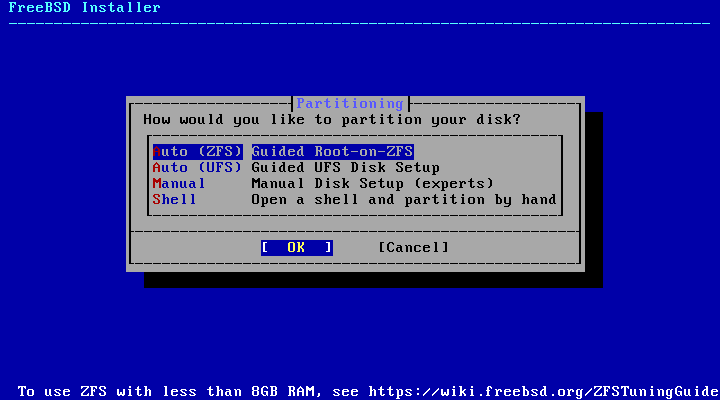
| [8] | This is the disk partition configuration. From top to bottom, there are automatic configuration using the ZFS file system, automatic configuration using the UFS file system, manual configuration, and manual configuration via the shell. Configure as needed. In this example, we will proceed with [Auto (ZFS)]. |
|
| [9] | This is a confirmation of the settings you have made so far. Check the contents, and if there are no problems, select [Install] and press the [Enter] key. |
|
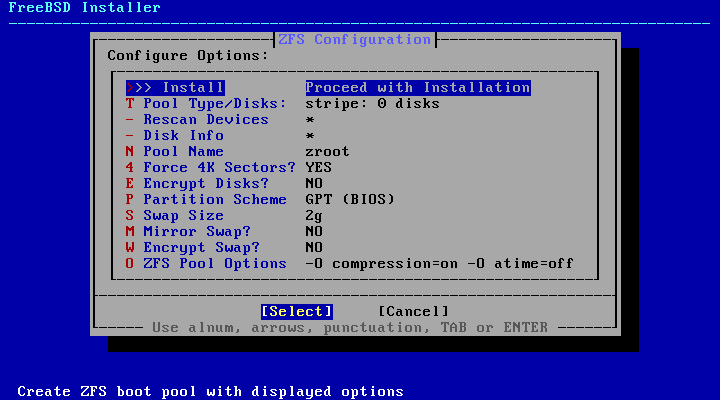
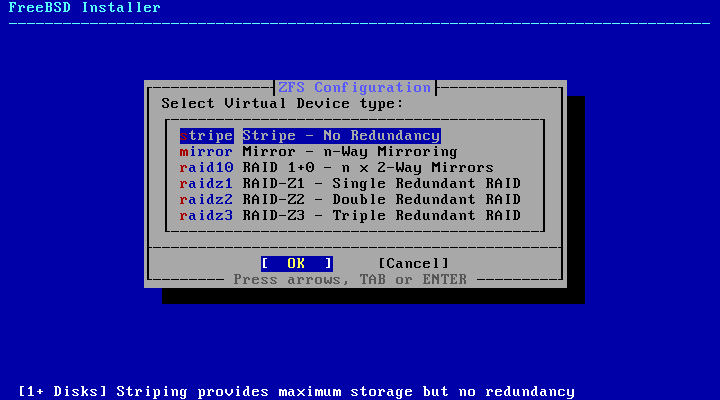
| [10] | If you selected ZFS in [8], configure the ZFS configuration. Select a mirror configuration or a more redundant RAID level as needed. Redundant configurations below the second level require two or more disks installed in the computer, so if you have only one disk, your only option is [Stripe]. If you selected UFS in [8], you will be taken to a partition configuration screen similar to that commonly seen in other operating systems. |
|
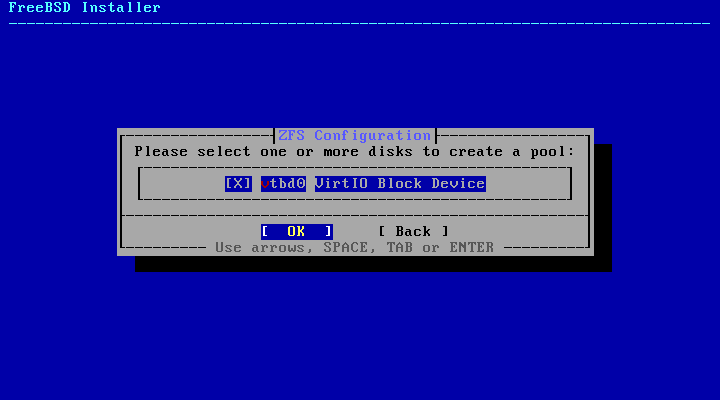
| [11] | If you selected ZFS in [8], you will be prompted to select the disk to which the root partition will be written. Even if you selected UFS, you will be prompted to make a similar selection. |
|
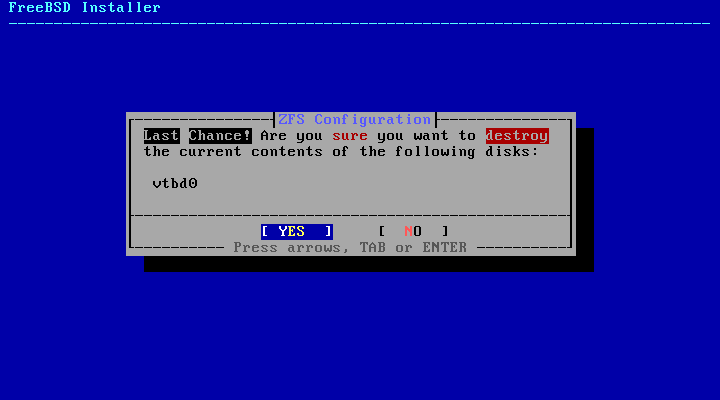
| [12] | [10] If there is any existing data on the disk selected, this is a final confirmation that all data will be erased by formatting. If you agree, select [Yes] and press the [Enter] key. |
|
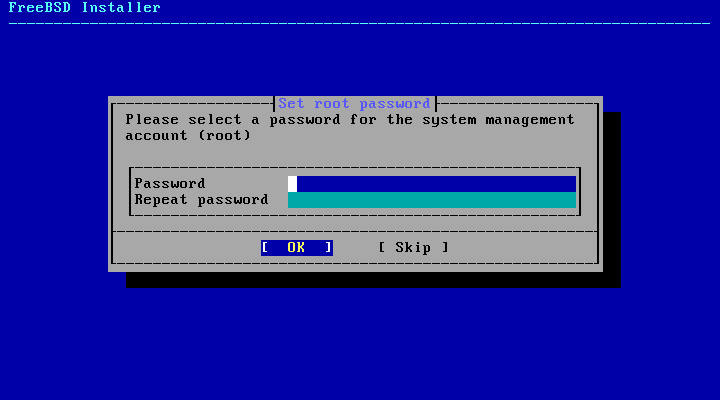
| [13] | After the installation process is complete, you will be asked to set a root password. Enter a password of your choice. |
|
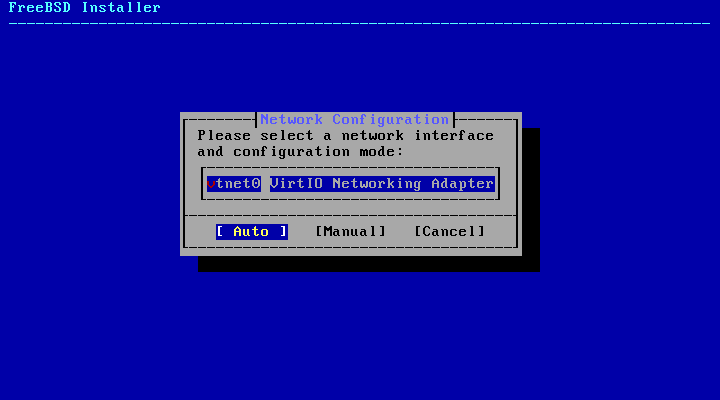
| [14] | Select the interface for which you want to configure the network. |
|
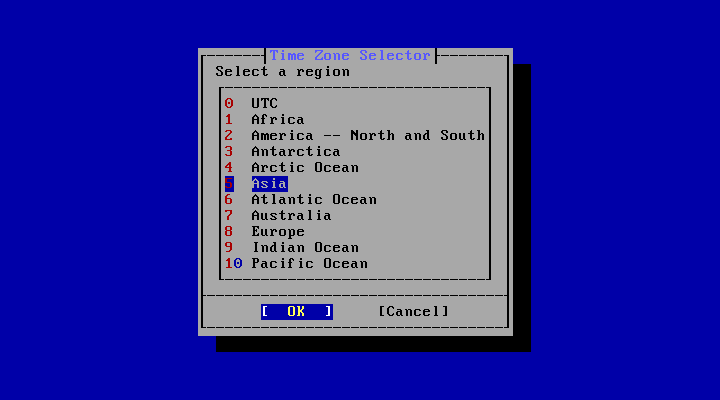
| [15] | Select your locale. After this, you will be taken to the time zone and time setting screen according to the locale you selected. |
|
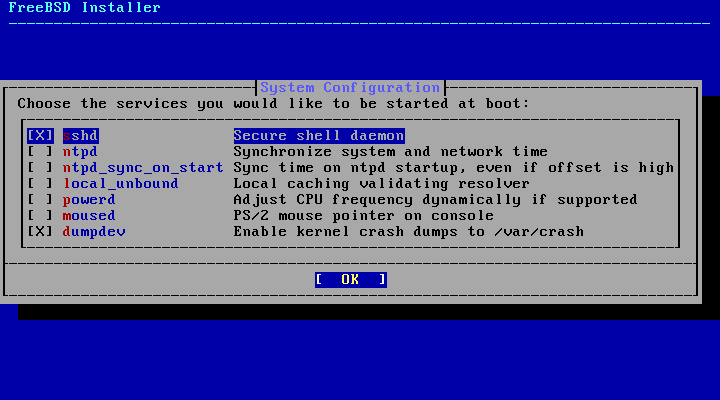
| [16] | This is the service to enable automatic startup when the system boots. It can be changed even after installation. On this example, we will leave it as default as shown below. |
|
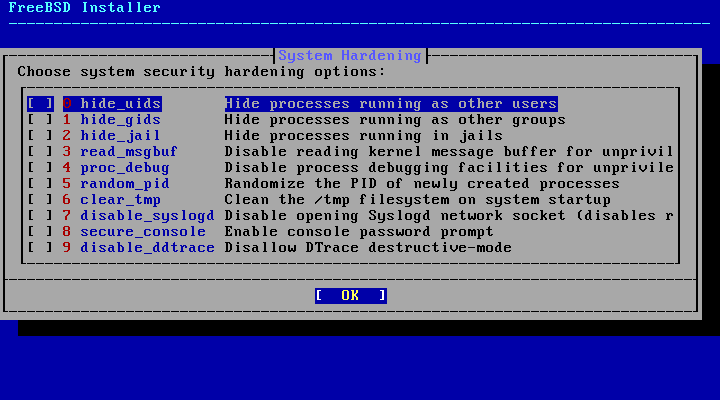
| [17] | This is additional setting related to system security. It can be changed even after installation. On this example, we will proceed with the default settings as shown below. |
|
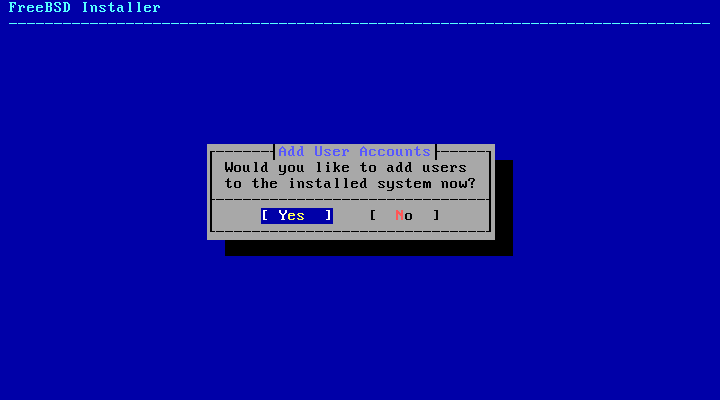
| [18] | Select whether to add a user account. |
|
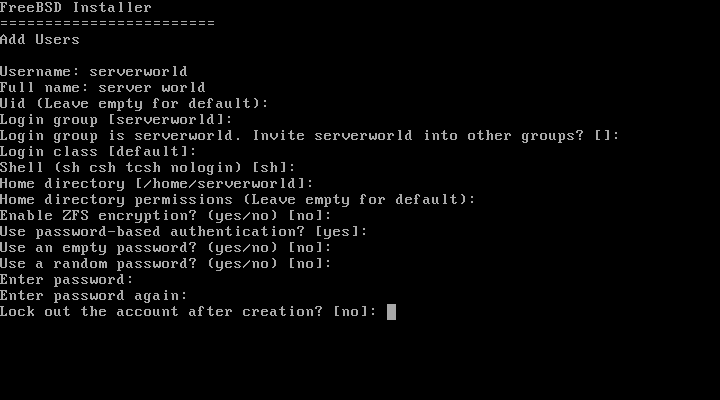
| [19] | If you selected to add a user account in previous section, enter the username, password, and other settings. |
|
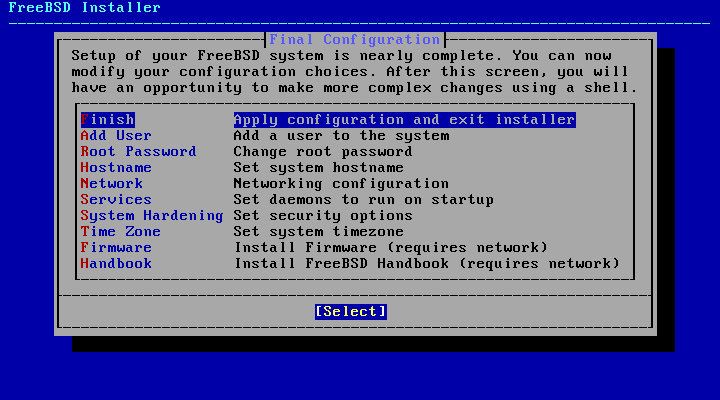
| [20] | This is the final configuration of the system. If you want to redo any of the previous settings, you can select them from the list and reconfigure them. If there are no problems, select [Apply configuration ***] and press the [Enter] key. |
|
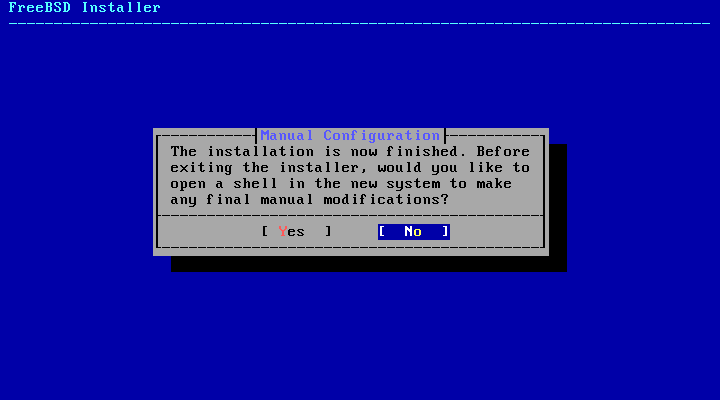
| [21] | Installation is complete. Click Yes to open a shell to perform additional manual configuration before rebooting the system, or No to reboot immediately. |
|
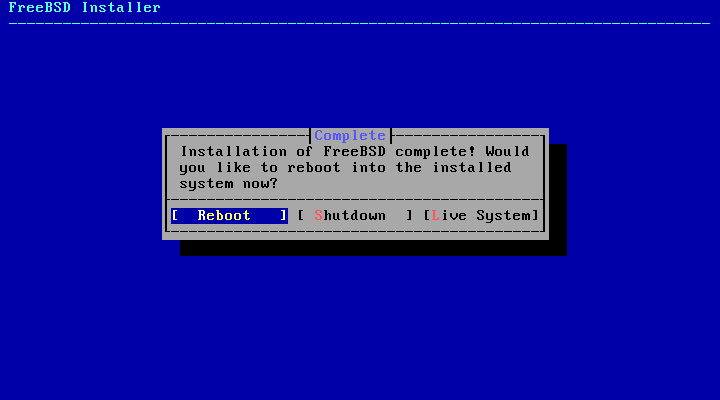
| [22] | You can choose to reboot the system or shut it down and exit. |
|
| [23] | When you reboot the system, a login prompt will appear. Make sure you can log in successfully using the root user account. This completes the FreeBSD installation. |
|  ______               ____   _____ _____
  |  ____|             |  _ \ / ____|  __ \
  | |___ _ __ ___  ___ | |_) | (___ | |  | |
  |  ___| '__/ _ \/ _ \|  _ < \___ \| |  | |
  | |   | | |  __/  __/| |_) |____) | |__| |
  | |   | | |    |    ||     |      |      |
  |_|   |_|  \___|\___||____/|_____/|_____/      ```                        `
                                                s` `.....---.......--.```   -/
 ╔══════════ Welcome to FreeBSD ═══════════╗    +o   .--`         /y:`      +.
 ║                                         ║     yo`:.            :o      `+-
 ║  1. Boot Multi user [Enter]             ║      y/               -/`   -o/
 ║  2. Boot Single user                    ║     .-                  ::/sy+:.
 ║  3. Escape to loader prompt             ║     /                     `--  /
 ║  4. Reboot                              ║    `:                          :`
 ║  5. Cons: Dual (Video primary)          ║    `:                          :`
 ║                                         ║     /                          /
 ║  Options:                               ║     .-                        -.
 ║  6. Kernel: default/kernel (1 of 1)     ║      --                      -.
 ║  7. Boot Options                        ║       `:`                  `:`
 ║                                         ║         .--             `--.
 ║                                         ║            .---.....----.
 ╚═════════════════════════════════════════╝
   Autoboot in 1 seconds. [Space] to pause

.....
.....

FreeBSD/amd64 (localhost) (ttyu0)

login: root
Password:
Last login: Thu Dec 11 12:37:07 on ttyv0
Dec 11 12:40:43 localhost login[1406]: ROOT LOGIN (root) ON ttyu0
FreeBSD 15.0-RELEASE (GENERIC) releng/15.0-n280995-7aedc8de6446

Welcome to FreeBSD!

Release Notes, Errata: https://www.FreeBSD.org/releases/
Security Advisories:   https://www.FreeBSD.org/security/
FreeBSD Handbook:      https://www.FreeBSD.org/handbook/
FreeBSD FAQ:           https://www.FreeBSD.org/faq/
Questions List:        https://www.FreeBSD.org/lists/questions/
FreeBSD Forums:        https://forums.FreeBSD.org/

Documents installed with the system are in the /usr/local/share/doc/freebsd/
directory, or can be installed later with:  pkg install en-freebsd-doc
For other languages, replace "en" with a language code like de or fr.

Show the version of FreeBSD installed:  freebsd-version ; uname -a
Please include that output and any error messages when posting questions.
Introduction to manual pages:  man man
FreeBSD directory layout:      man hier

To change this login announcement, see motd(5).
root@localhost:~ #
|
Matched Content