Mail Server : Email Client Setting2024/04/17 |
|
Configure your Mail Client on your PC. This example shows with Mozilla Thunderbird.
|
|
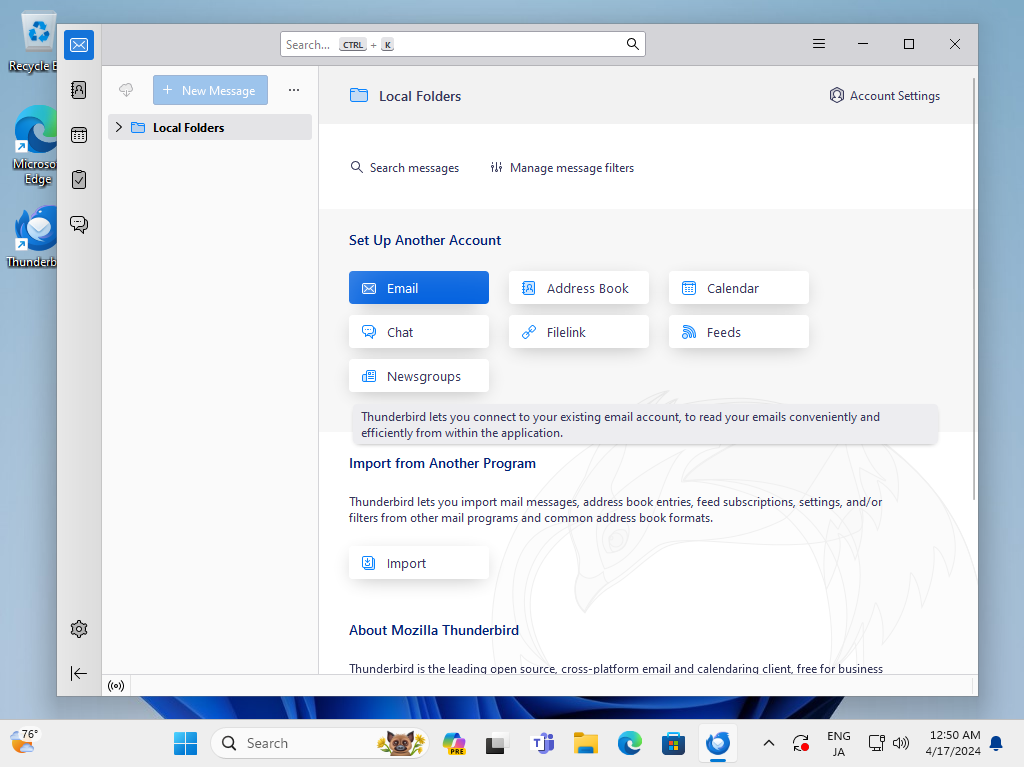
| [1] | Run Thunderbird and Click the [Email] button. |
|
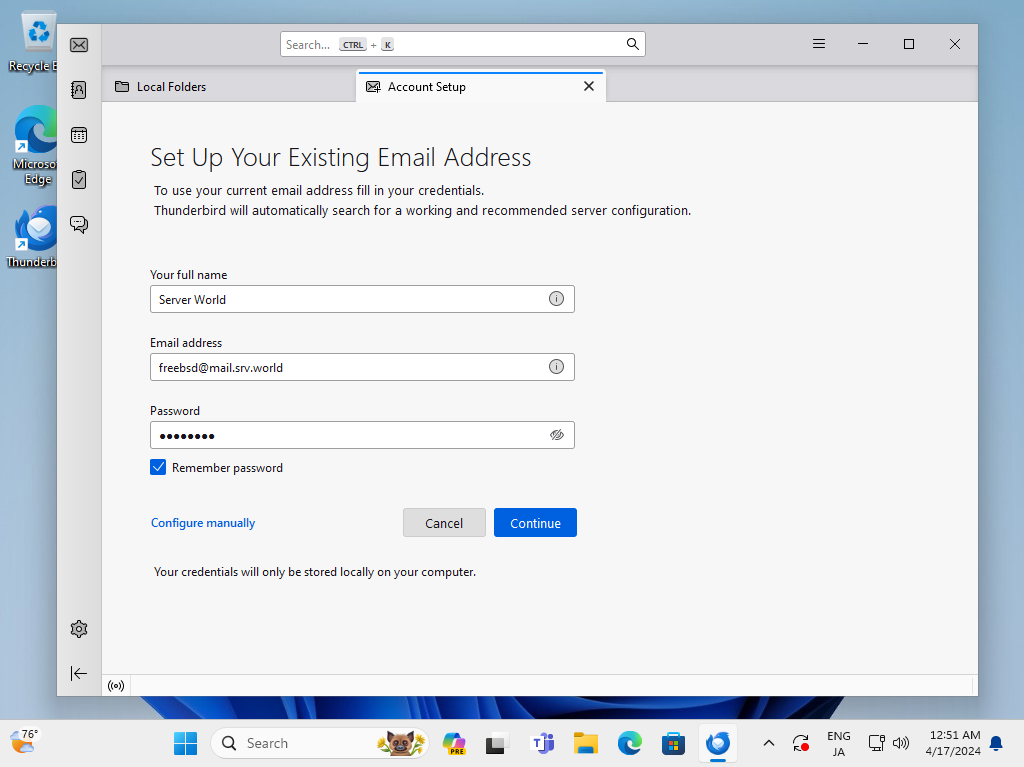
| [2] | Input any name which is displayed as email-Sender and also input email address and password, amd then Click [Continue] button. |
|
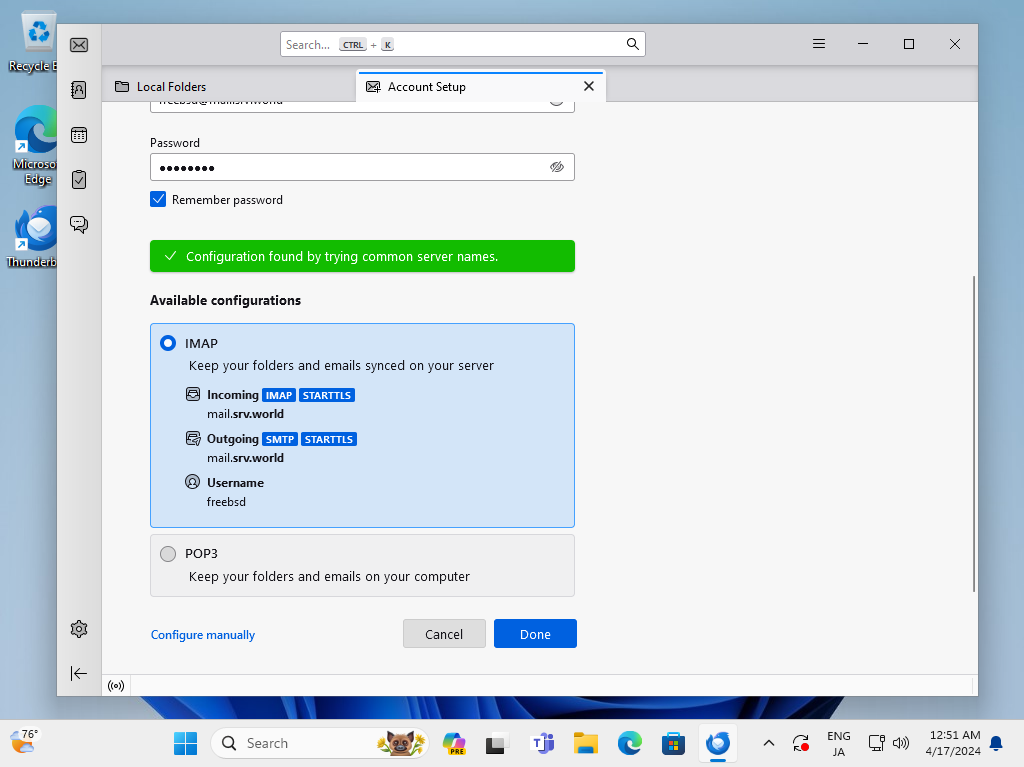
| [3] | Click [Configure Manually] button. |
|
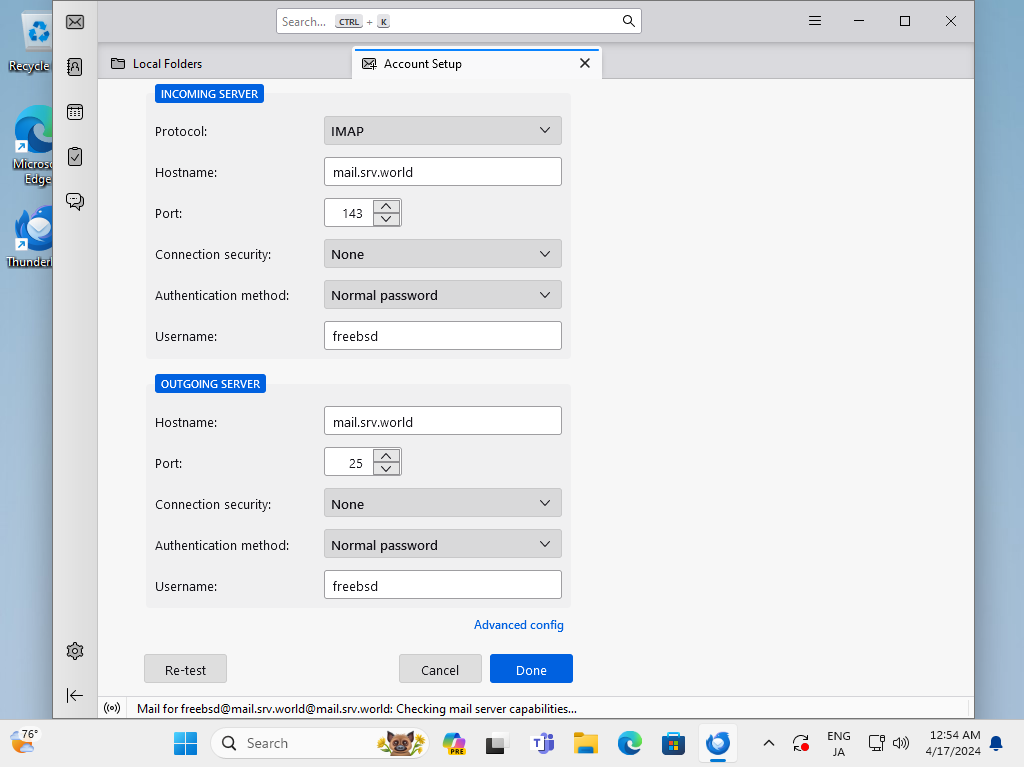
| [4] | Confirm selection and also confirm [Authentication] fields are selected [Normal password] like follows, then Click [Done] to finish. |
|
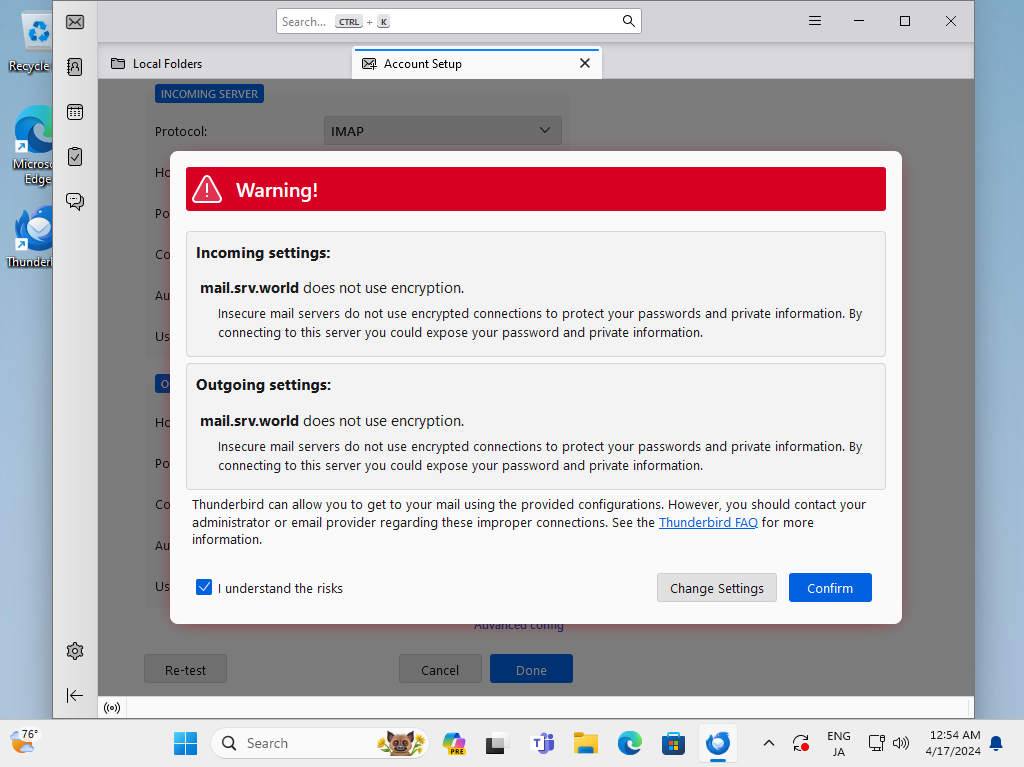
| [5] | The warnings is shown because connection is not encrypted. If OK, Click [Done] button, If not OK, Configure more to refer to SSL/TLS settings section. |
|
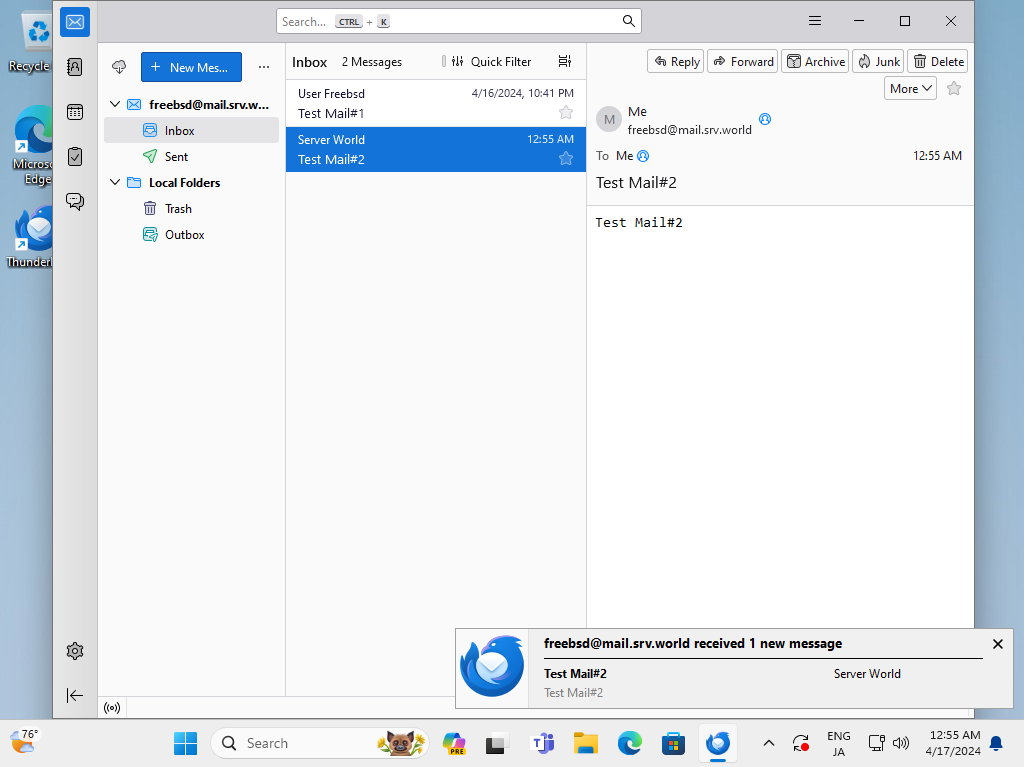
| [6] | If email account setup normally, it's possible to send or receive emails like follows. |
|
Matched Content