Initial Settings : Use Web Admin Console2024/10/31 |
|
Cockpit Admin Console is installed and starts by default if you installed [Fedora Server] group.
It's possible to manage your Fedora server on this admin console on a web browser.
If you'd like to access to Cockpit from remote computer and if Firewalld is running on your Fedora Server,
it needs to allow service [cockpit] or allow port [9090]. (allowed them by default, though)
|
|
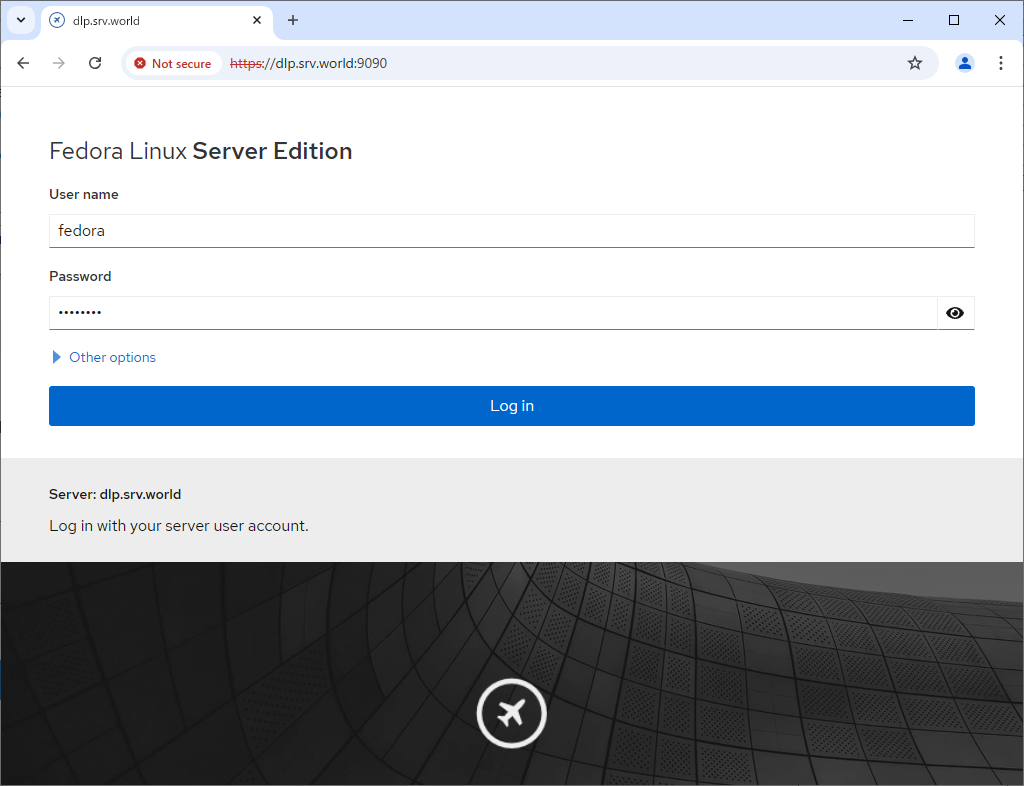
| [1] | Access to [https://(server's hostname or IP address):9090/] with Web browser from localhost or Client compuer, then Cockpit login form is displayed like follows. Login with a user except root user account. (root login is prohibited by default ) |
|
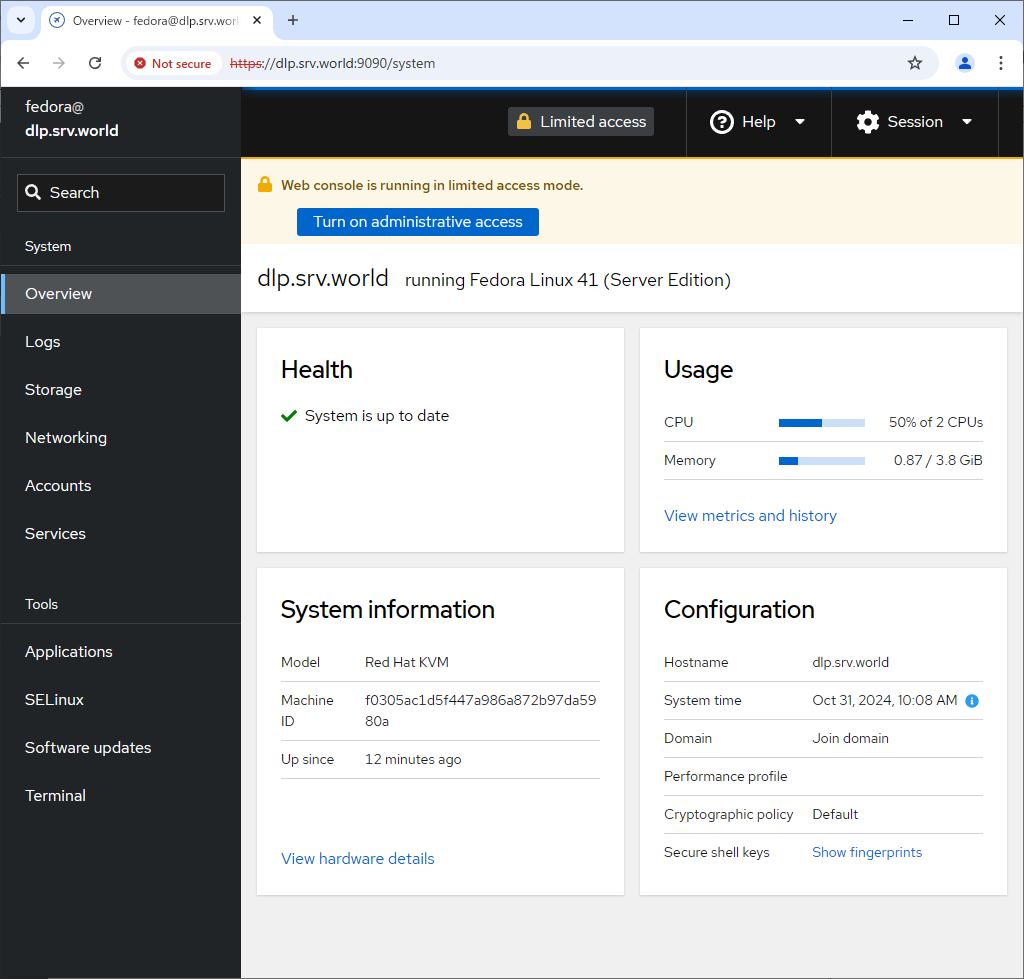
| [2] | This is the Cockpit index page. It's possible to manage various system settings on here. If you like to use admin privilege, click the [Turn on administrative access] button to authenticate. |
|
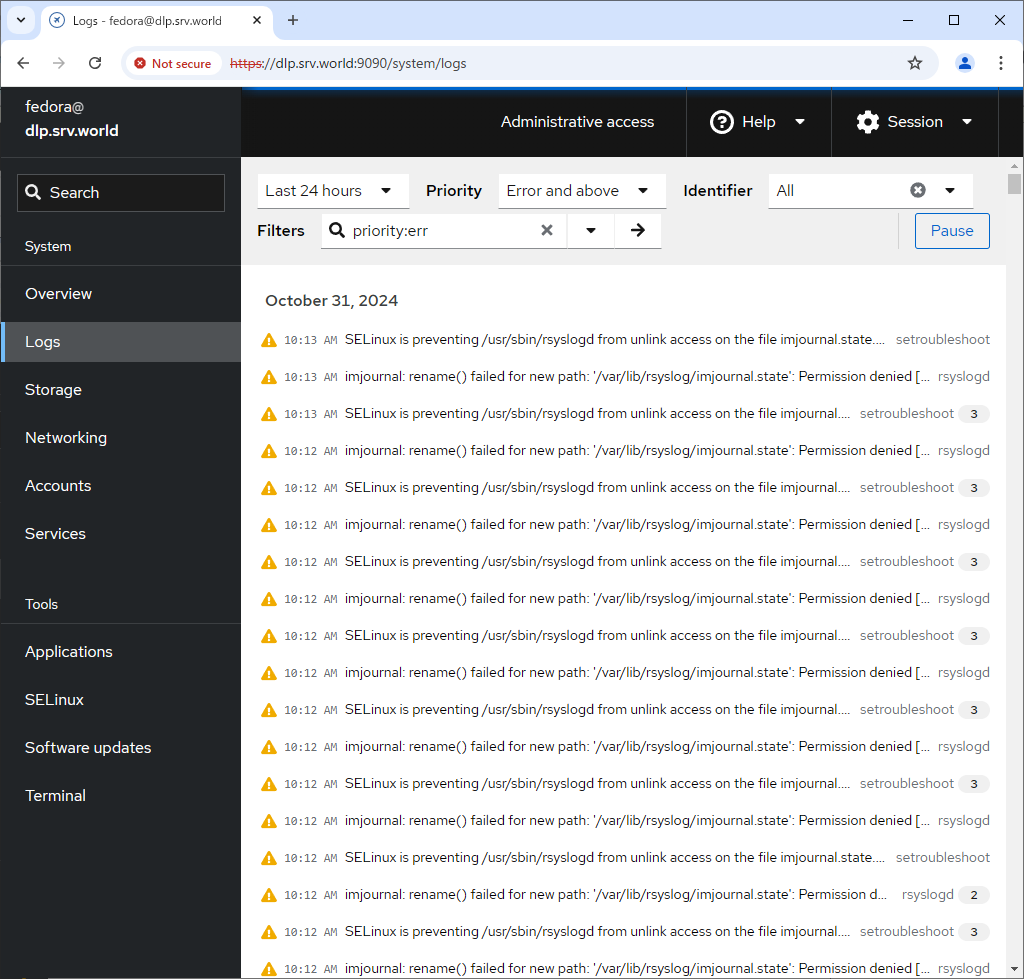
| [3] | For [Logs] on the left pane, it's possible to manage or operate [Journal] service that is the log management tool. |
|
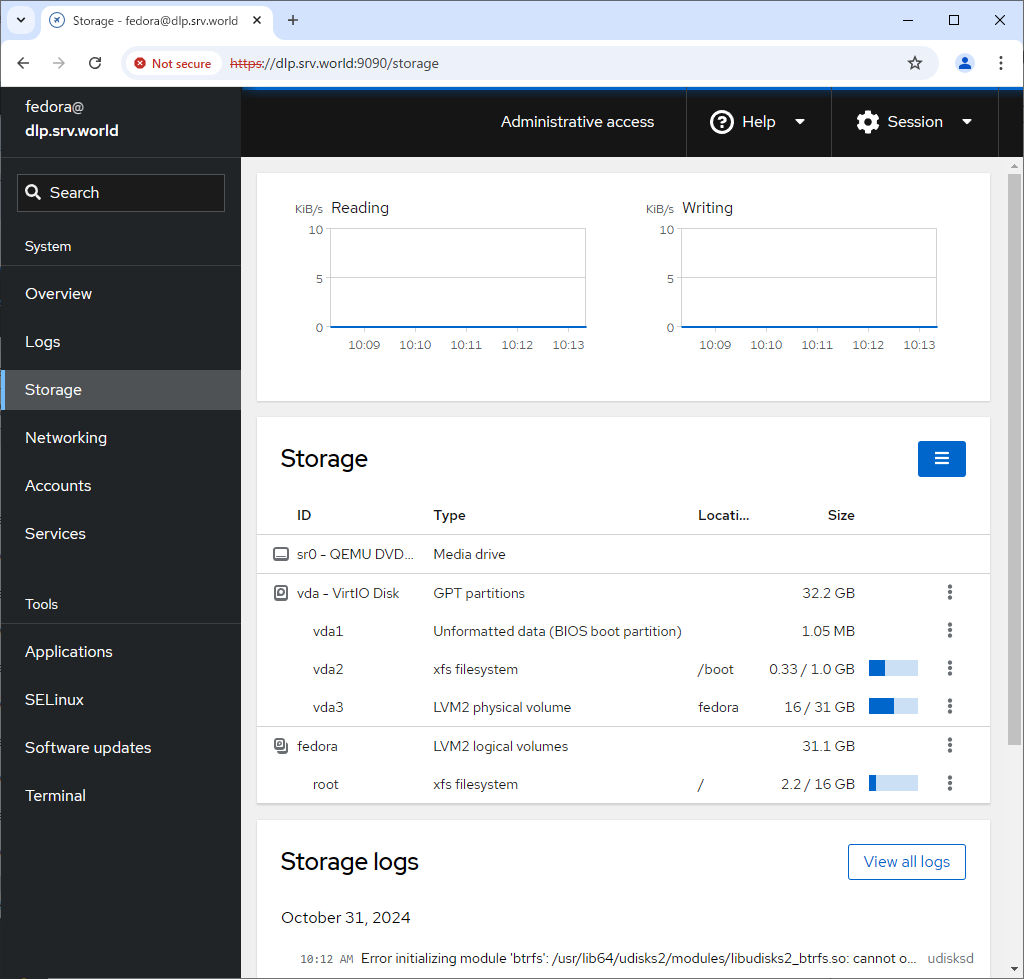
| [4] | For [Storage] on the left pane, it's possible to manage or operate Storages. |
|
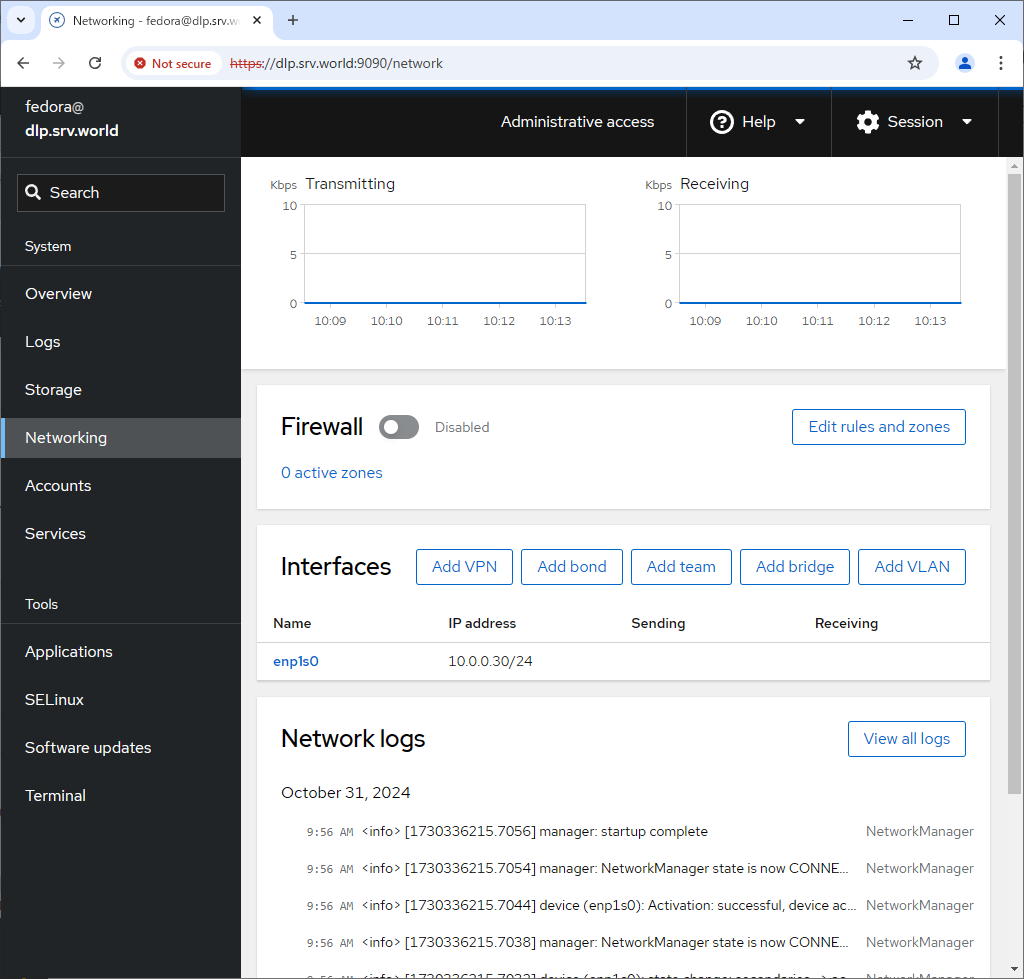
| [5] | For [Networking] on the left pane, it's possible to manage or operate Network settings. |
|
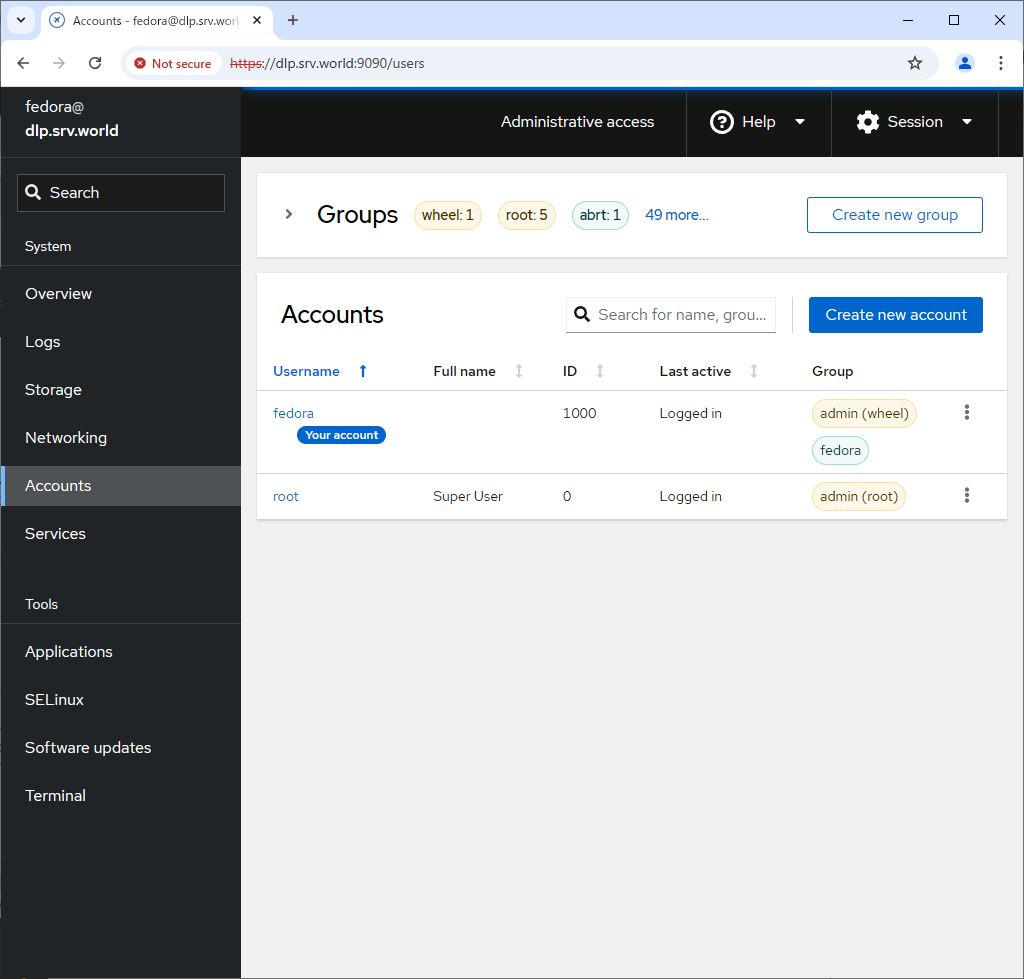
| [6] | For [Accounts] on the left pane, it's possible to manage or operate system accounts. |
|
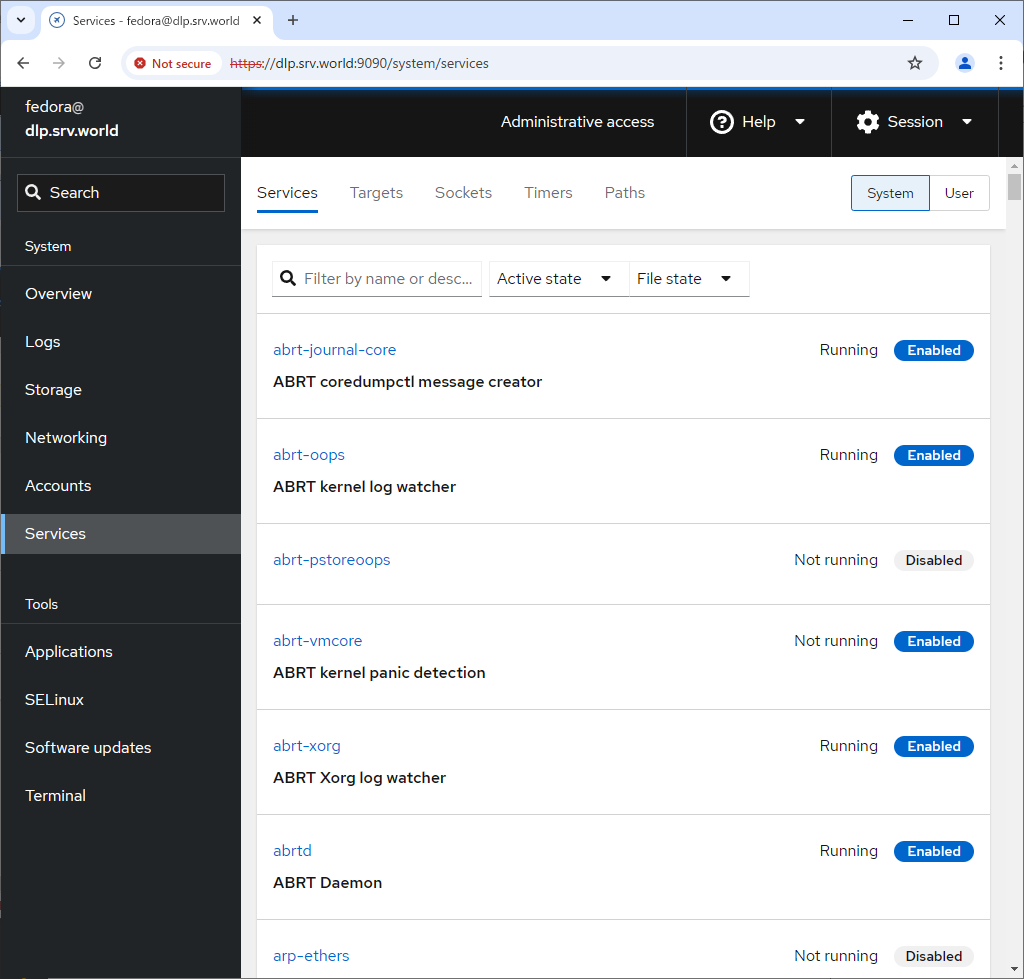
| [7] | For [Services] on the left pane, it's possible to manage or operate system services. |
|
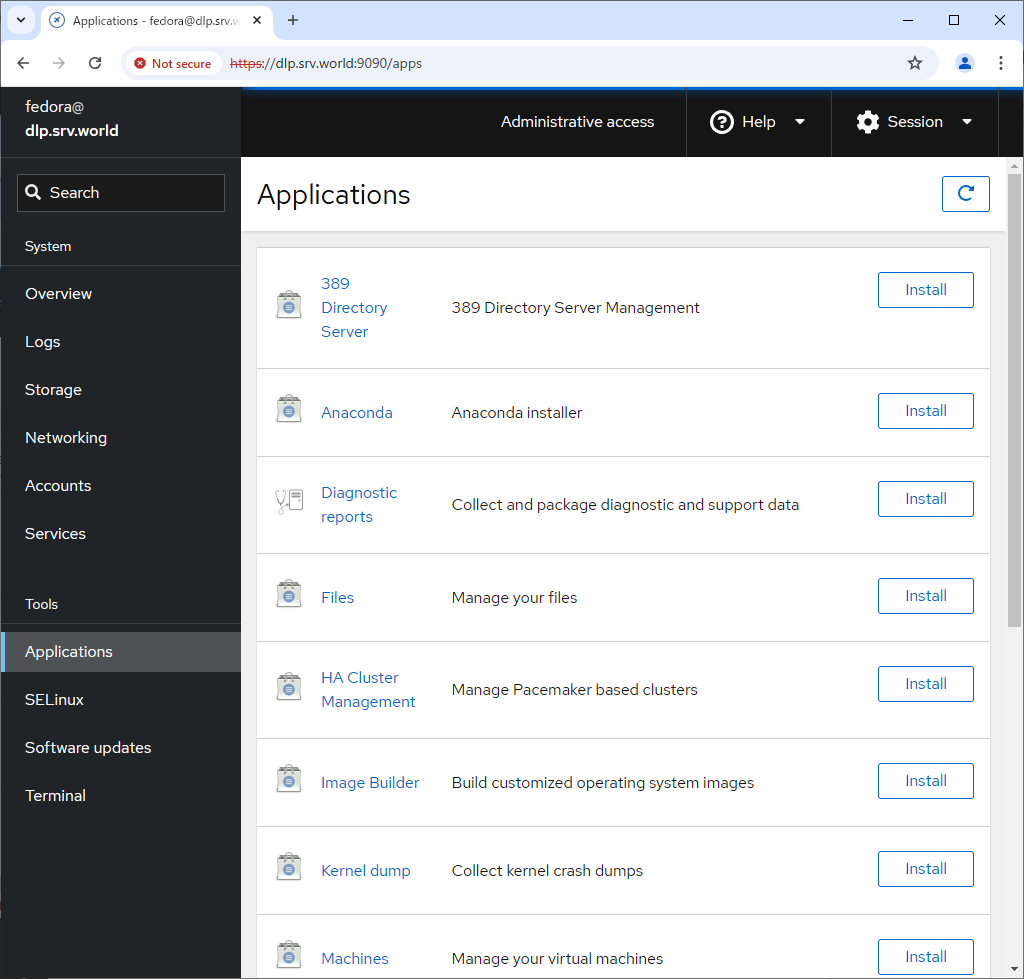
| [8] | For [Applications] on the left pane, it's possible to install or remove applications. |
|
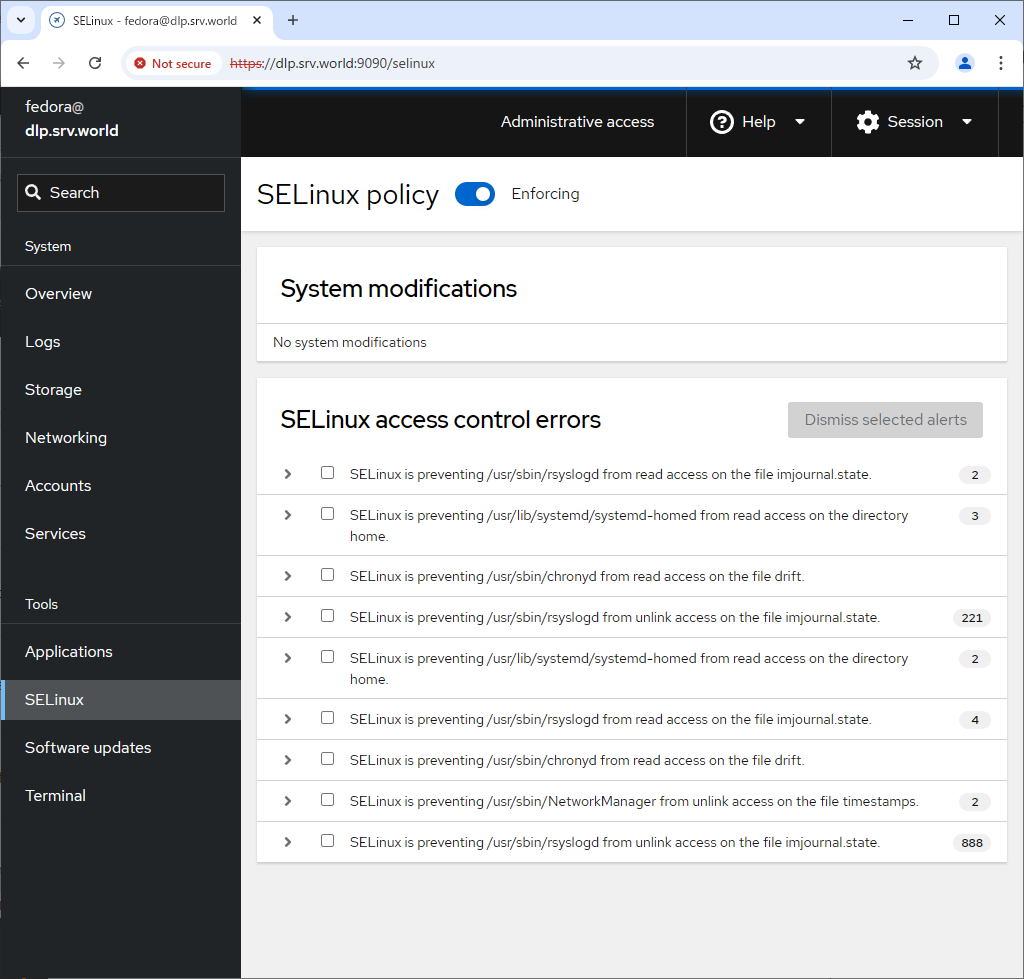
| [9] | For [SELinux] on the left pane, it's possible to see SELinux alert logs. (based on SELinux enabled state) |
|
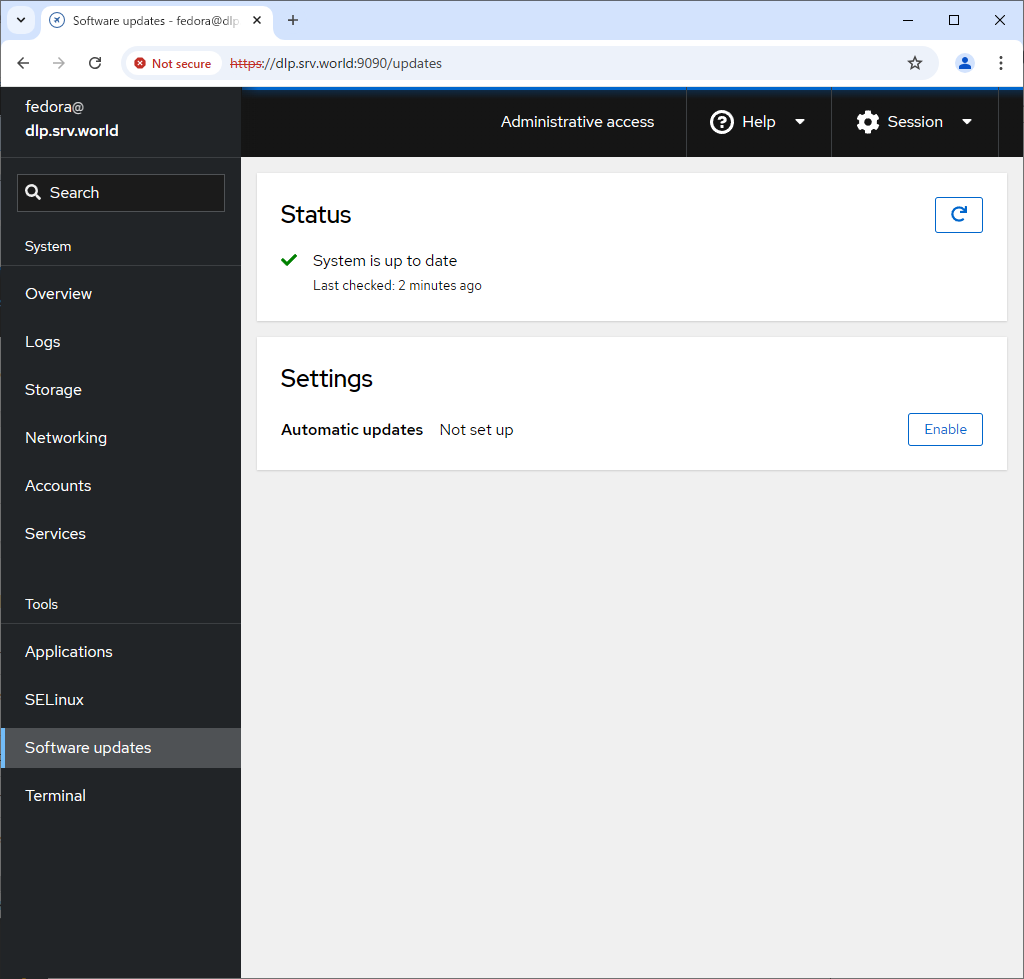
| [10] | For [Software Updates] on the left pane, it's possible to confirm updates or run update packages. |
|
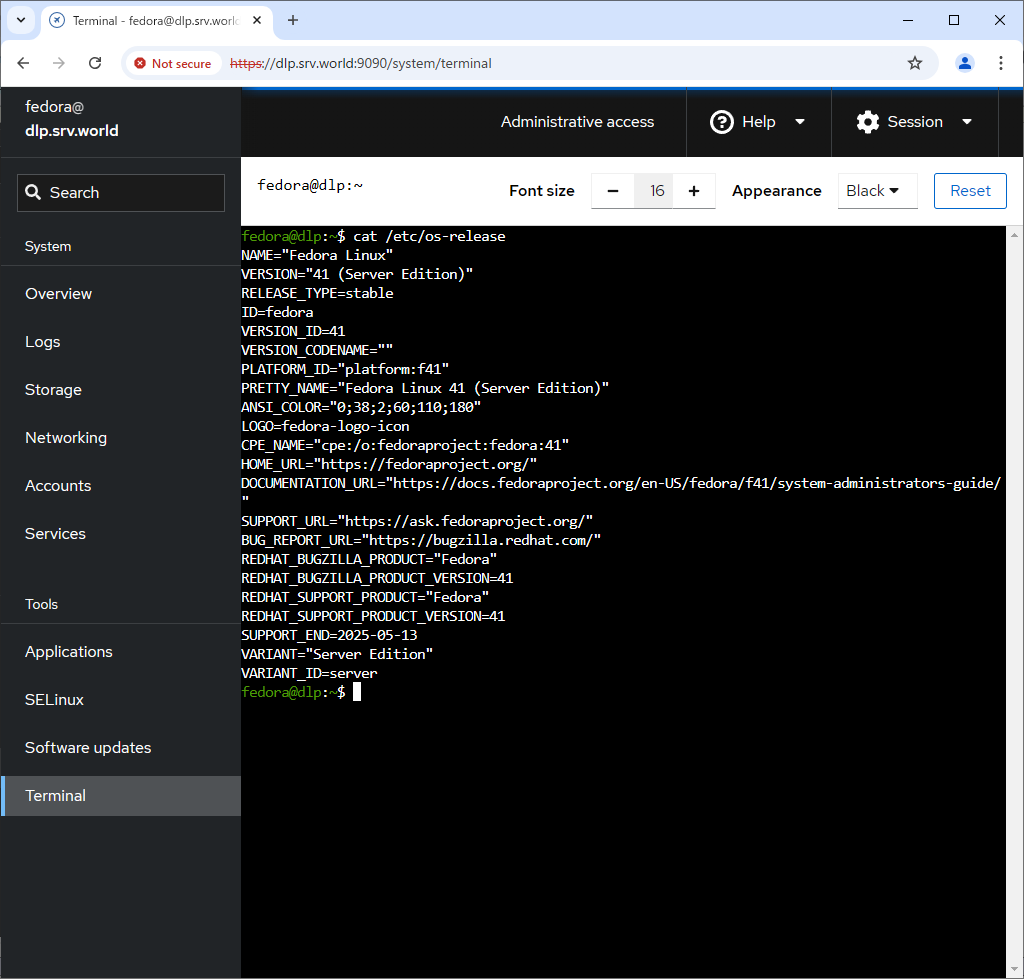
| [11] | For [Terminal] on the left pane, it's possible to operate system with commands directly. |
|
Matched Content