Desktop Environment : Configure VNC Server2025/08/18 |
|
Install and Configure VNC Server to connect to Debian Desktop from remote clients. |
|
| [1] | Install VNC server. |
|
root@dlp:~# apt -y install tigervnc-standalone-server
|
| [2] | Login as a user you'd like to set VNC. For Desktop session, this example shows to use GNOME Desktop on VNC connection. |
|
# set VNC password debian@dlp:~$
Password:
Verify:
Would you like to enter a view-only password (y/n)? n
# start VNC server with GNOME desktop, display number [1], screen resolution [1024x768] debian@dlp:~$ tigervncserver -xstartup /usr/bin/gnome-session -geometry 1024x768 -localhost no :1 New Xtigervnc server 'dlp.srv.world:1 (debian)' on port 5901 for display :1. Use xtigervncviewer -SecurityTypes VncAuth,TLSVnc -passwd /home/debian/.config/tigervnc/passwd dlp.srv.world:1 to connect to the VNC server. # to stop VNC session, run like follows debian@dlp:~$ tigervncserver -kill :1 Killing Xtigervnc process ID 4303... success! |
| [3] |
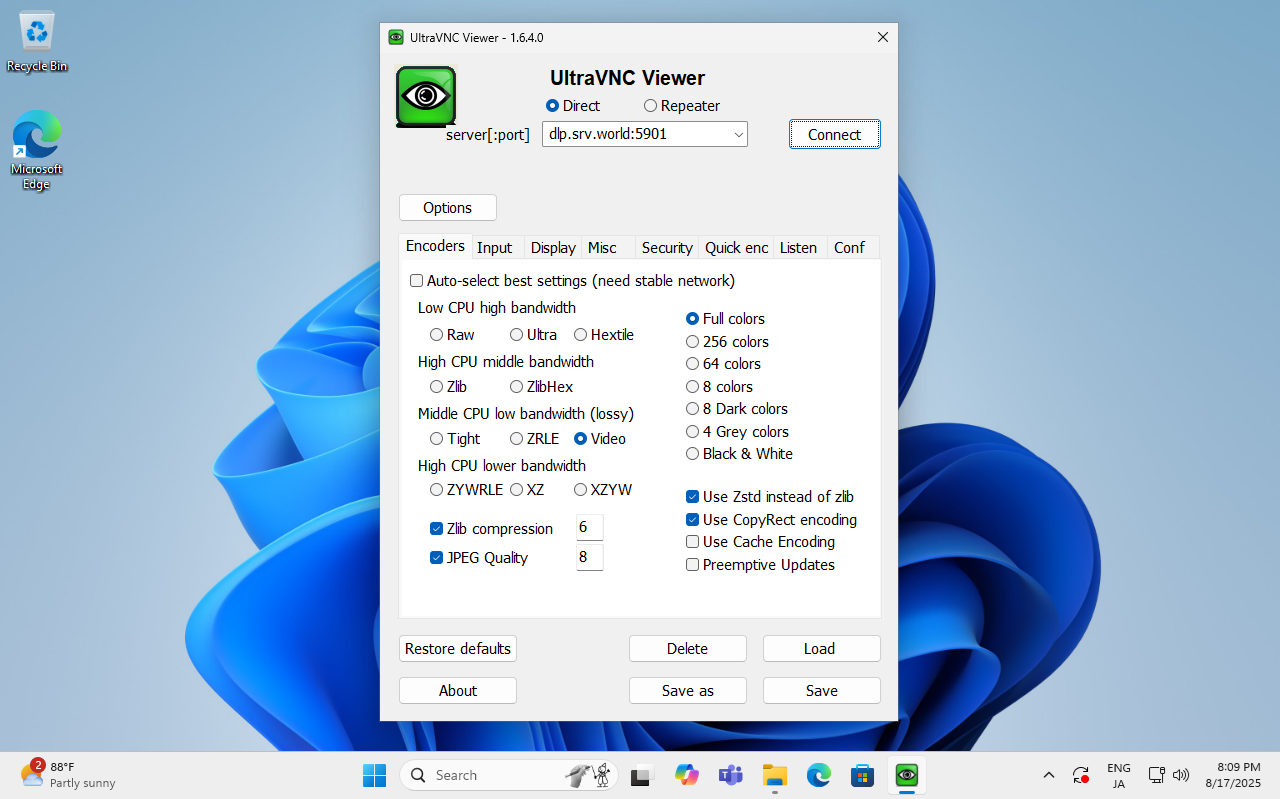
Install VNC viewer on client computer, this example in on Windows 11. ⇒ http://www.uvnc.com/downloads/ultravnc.html After installing UltraVNC, click [UltraVNC Viewer] to run, then, following screen is shown.Input [(Server's hostname or IP address):(display number)] like following example and then click [Connect] button. |
|
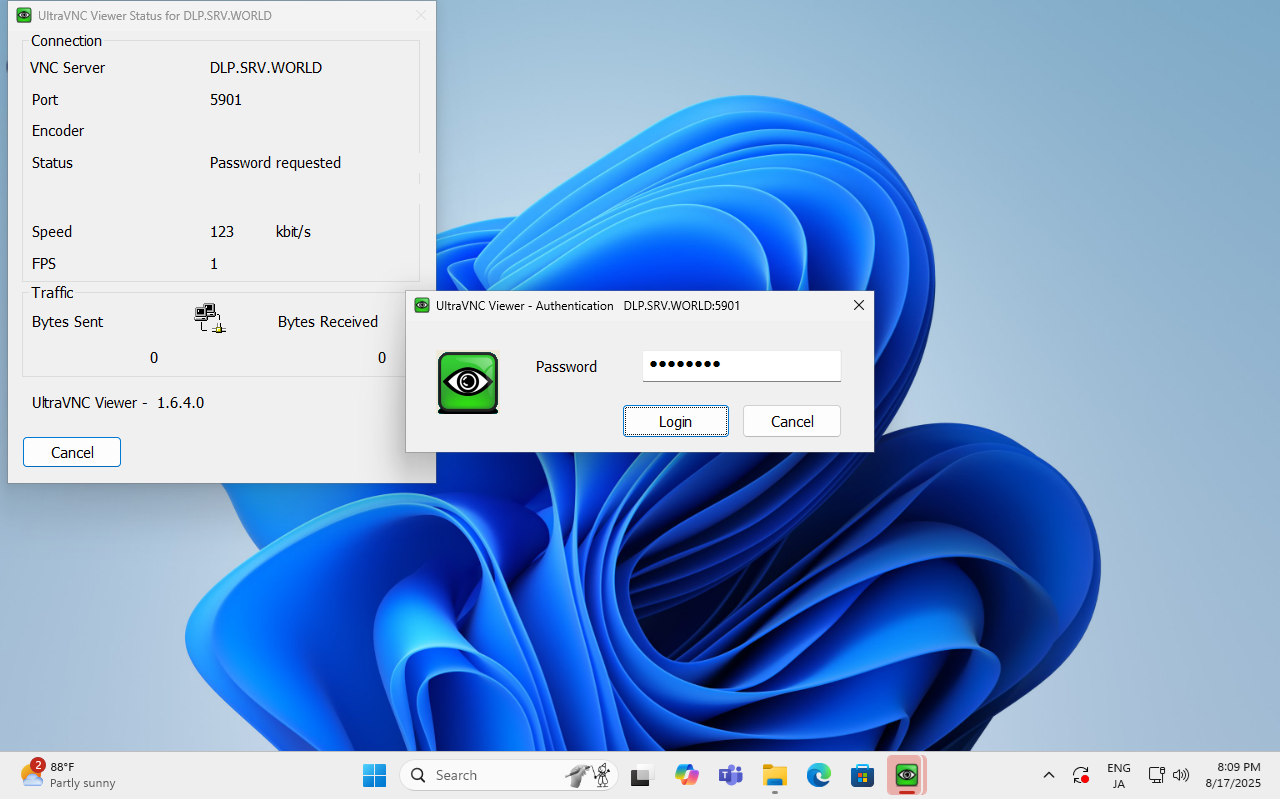
| [4] | VNC password you set in the section [2] is required to input for authentication. |
|
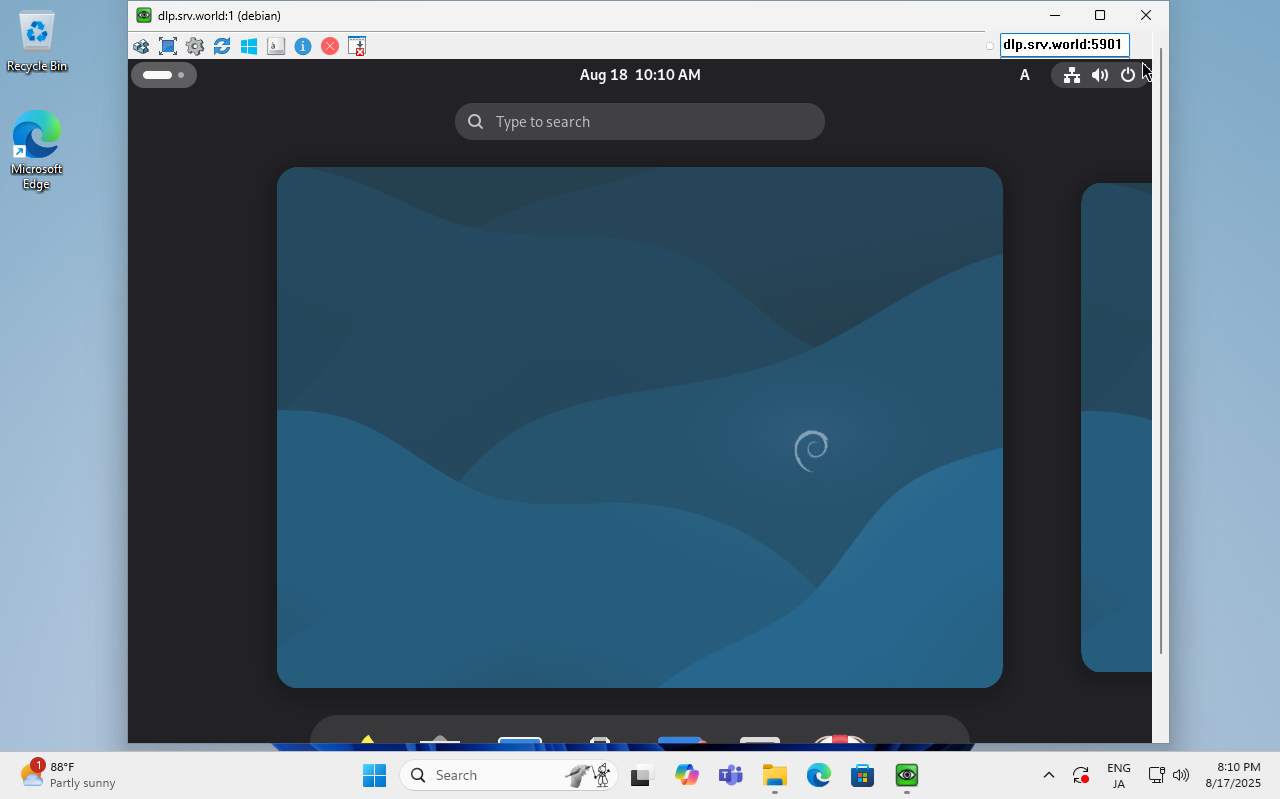
| [5] | If successfully passed authentication, VNC session starts like follows. |
|
Matched Content