NextCloud : Access via Desktop Client2022/07/27 |
|
It's possible to use NextCloud System on your Desktop to install NextCloud Desktop Client.
Desktop Client Applications are provided for Windows, macOS X, Linux and this example is for Windows 11.
|
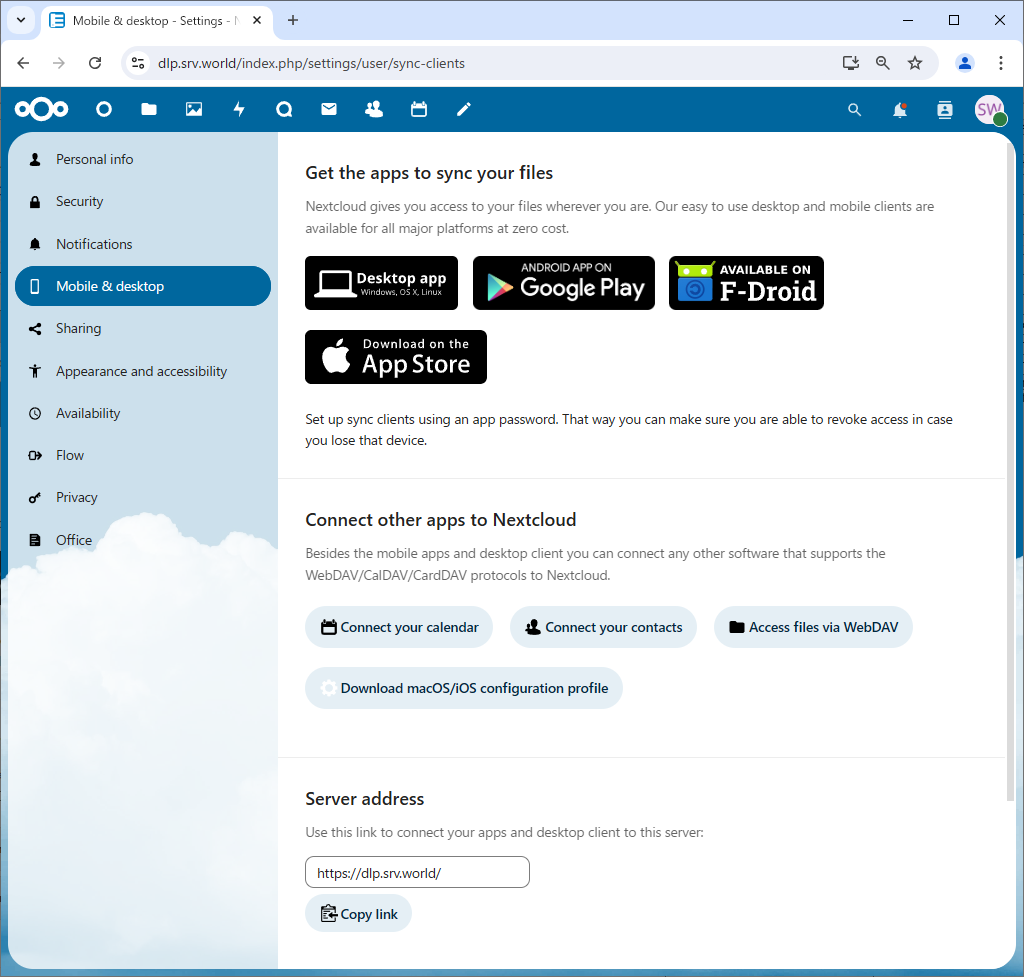
| [1] | Login to NextCloud Web with your own account and Open [Settings], next Click [Mobile & desktop] on the left pane and then Click [Desktop app] on the right pane. |
|
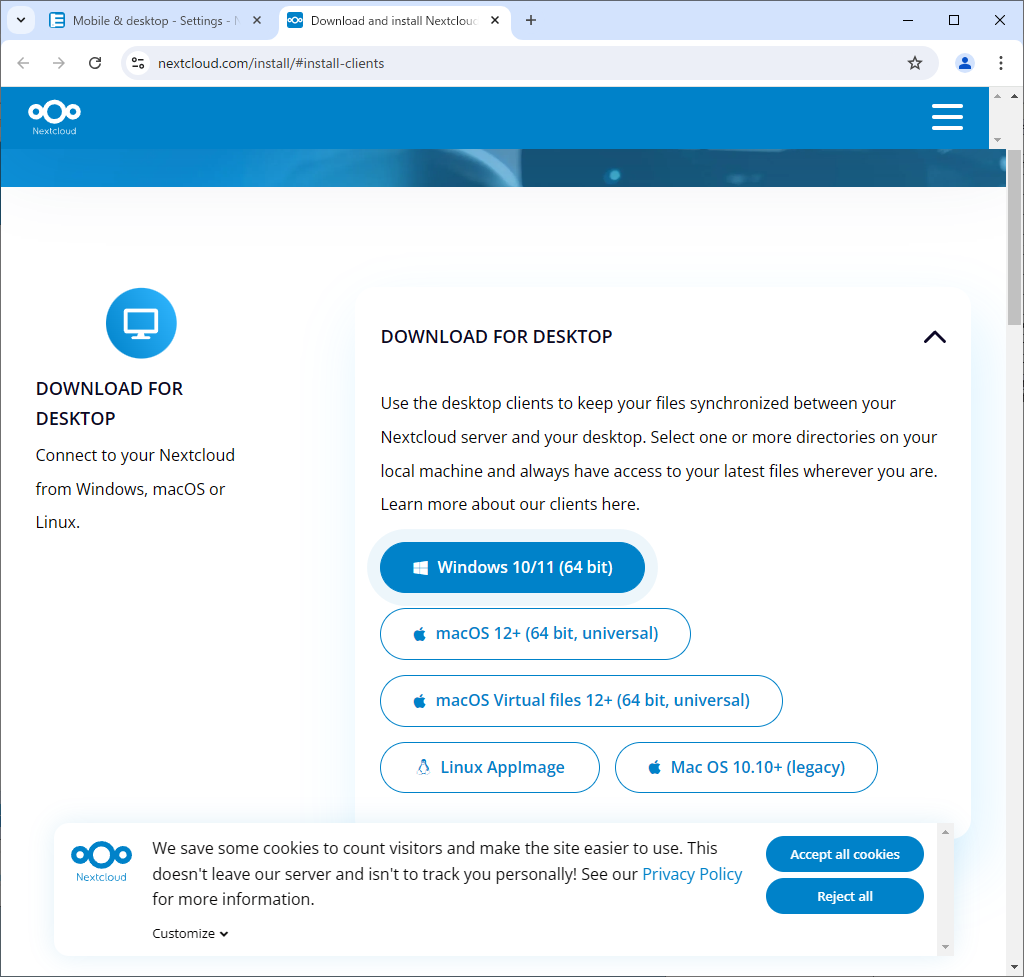
| [2] | Download Desktop app to your computer. After downloading, Install it. |
|
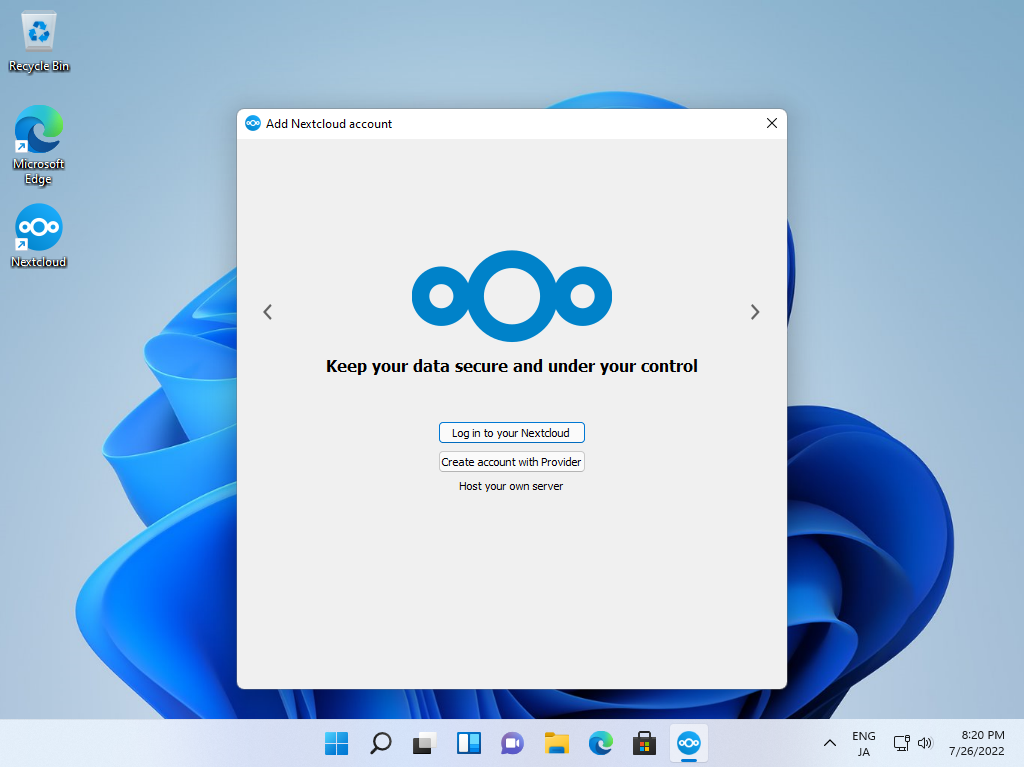
| [3] | After installing Desktop app, following window is displayed, Click [Log in] button. |
|
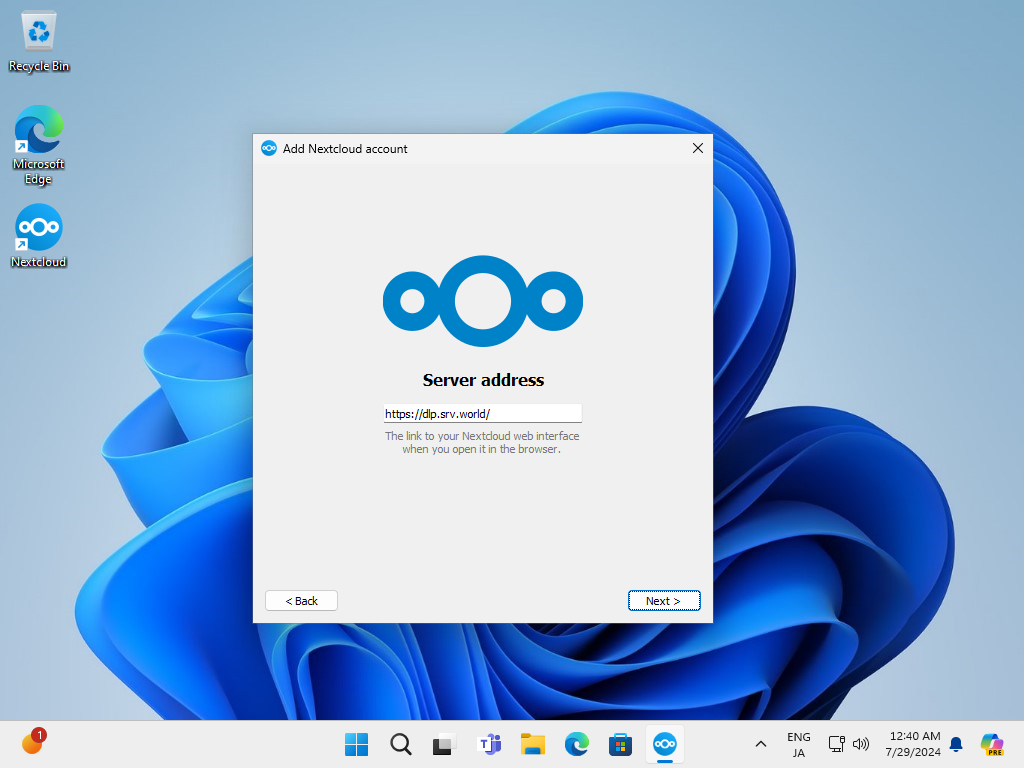
| [4] | Input the URL of NextCloud and Click [Next] button. |
|
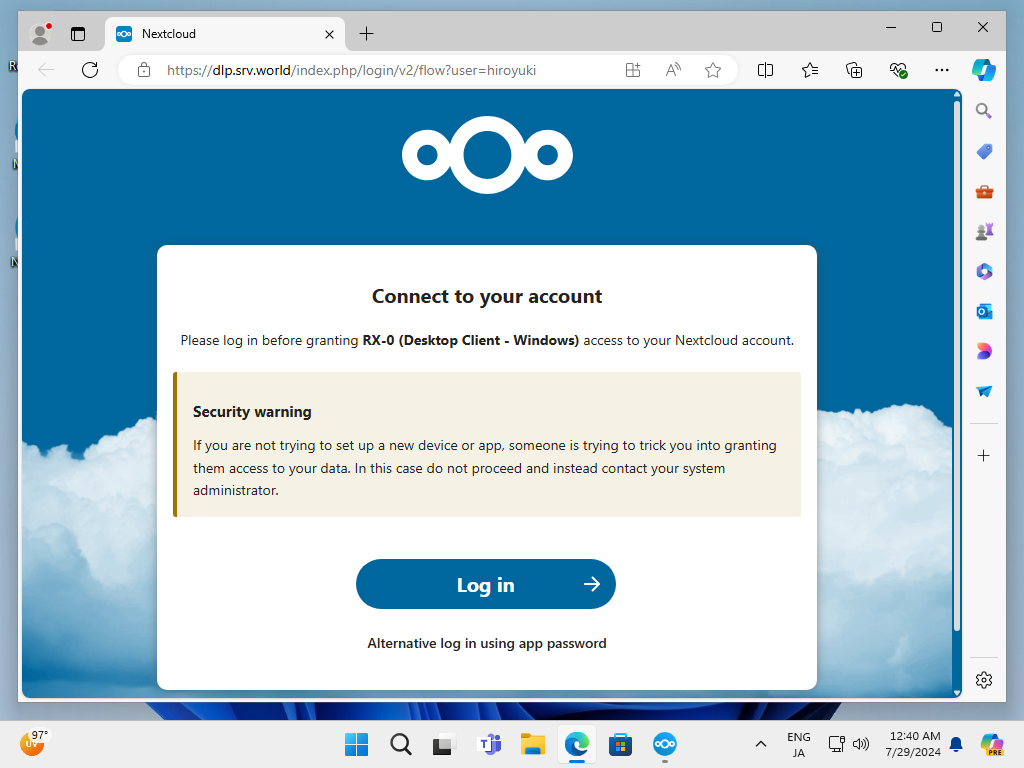
| [5] | Click [Log in] and next, authenticate to NextCloud with your own NextCloud account. |
|
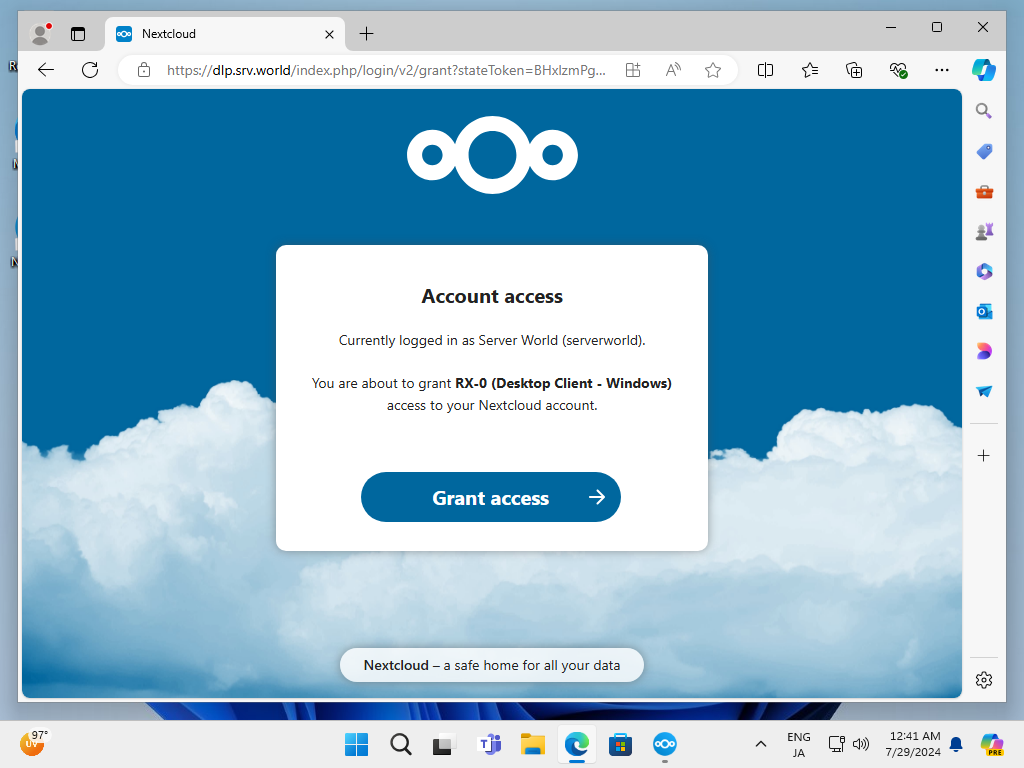
| [6] | Click [Grant access] to access to NextCloud from your Desktop. |
|
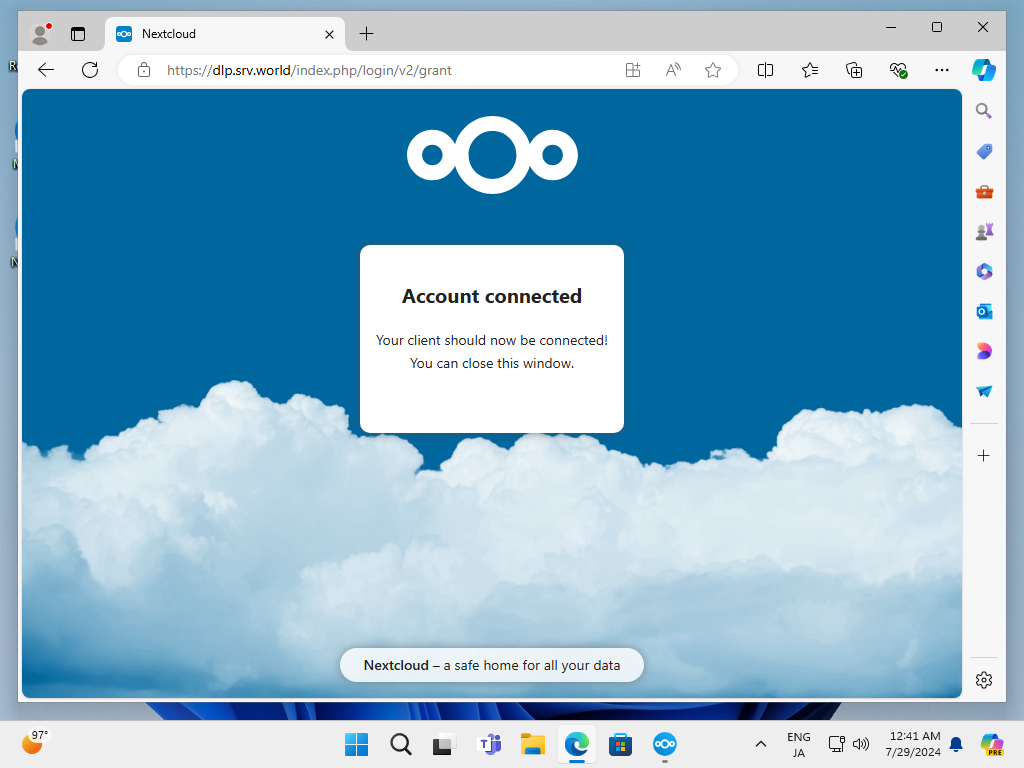
| [7] | That's OK if following message is displayed. |
|
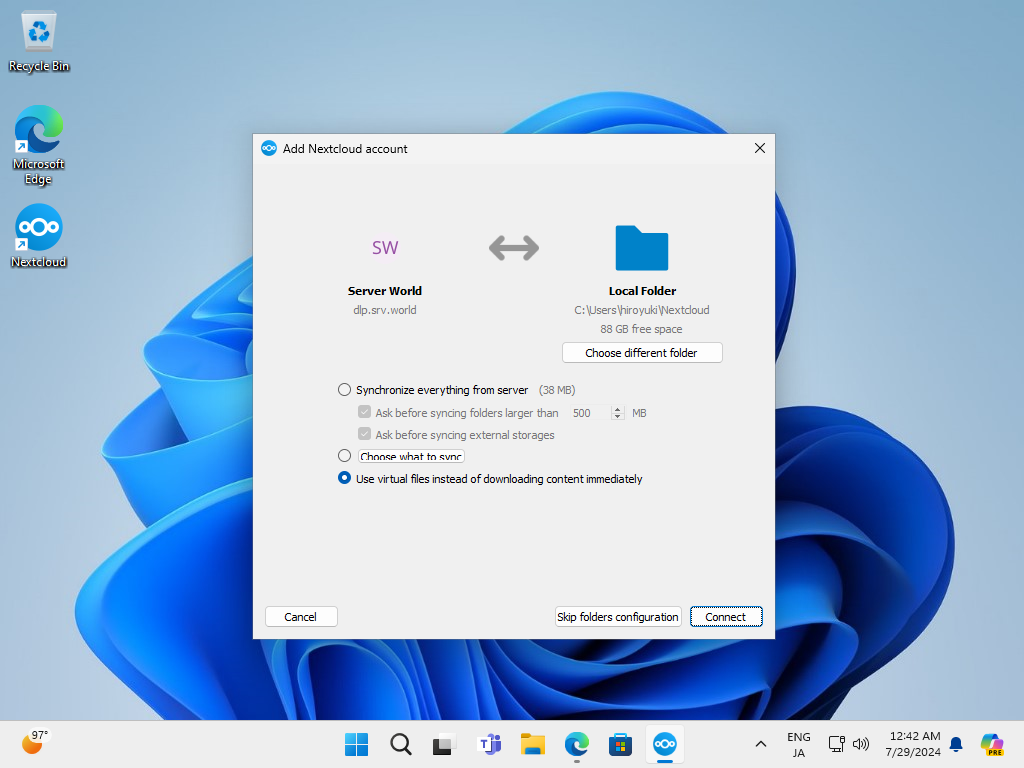
| [8] | Setup local folder options and Click [Connect] button. |
|
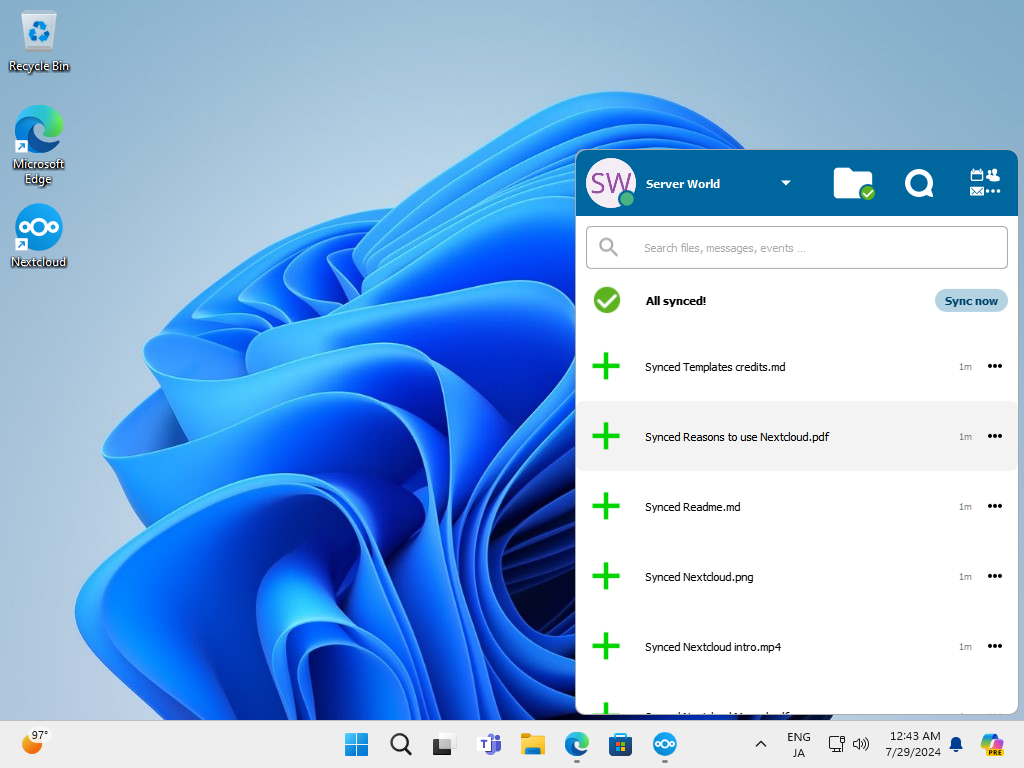
| [9] | After finishing setup. you can use NextCloud on your Desktop. For example to use files, Open [Files] on the menu. |
|
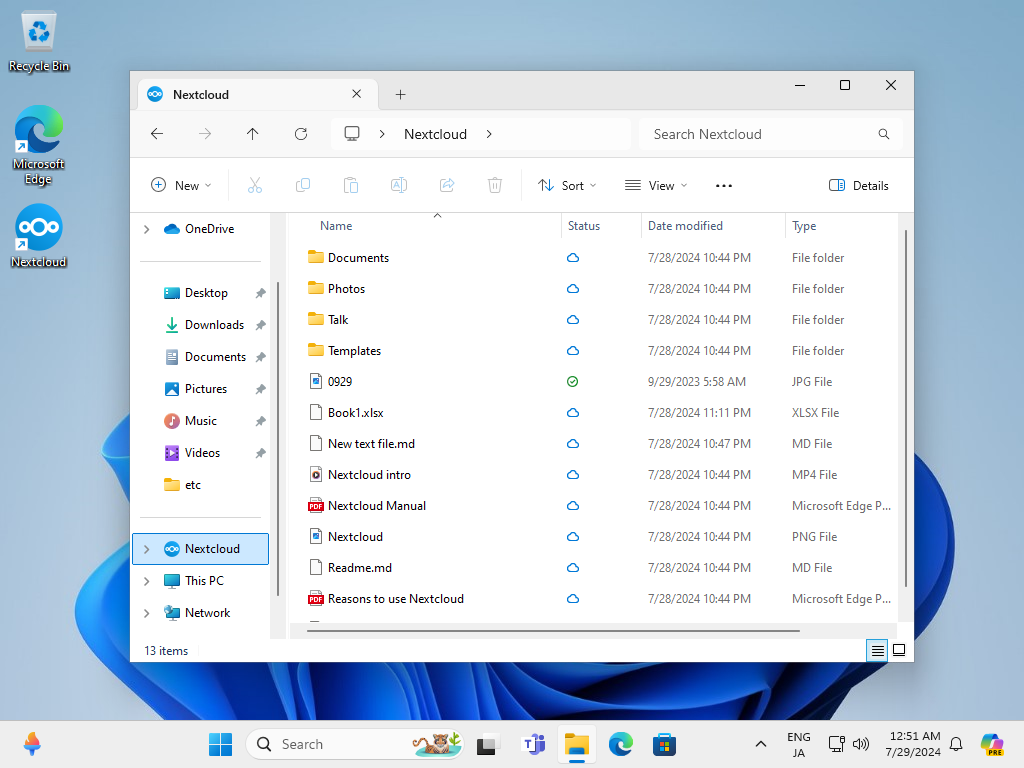
| [10] | It's possible to open or edit files on Windows file explorer. |
|
Matched Content