Zabbix 6.0 : Change admin password2022/03/08 |
|
Change admin password first. And also set admin email address for notifications.
|
|
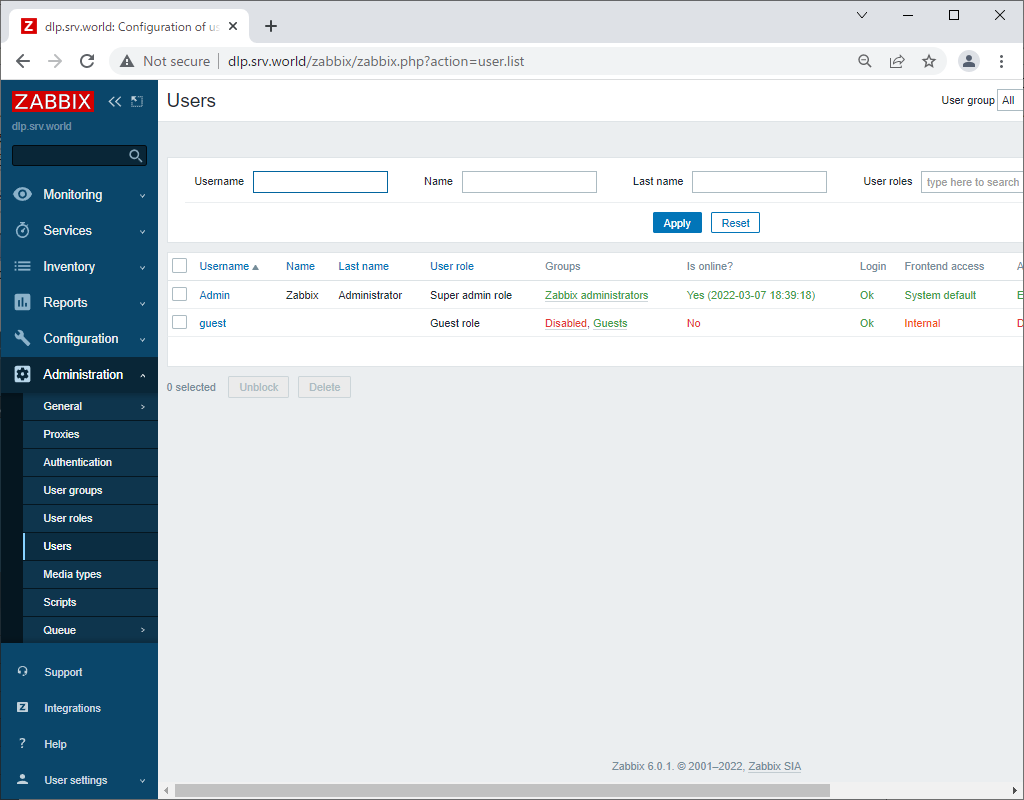
| [1] | Login to Zabbix admin site with [Admin] user and select [Administration] - [Users] on the left pane, then click [Admin] link on the right pane. |
|
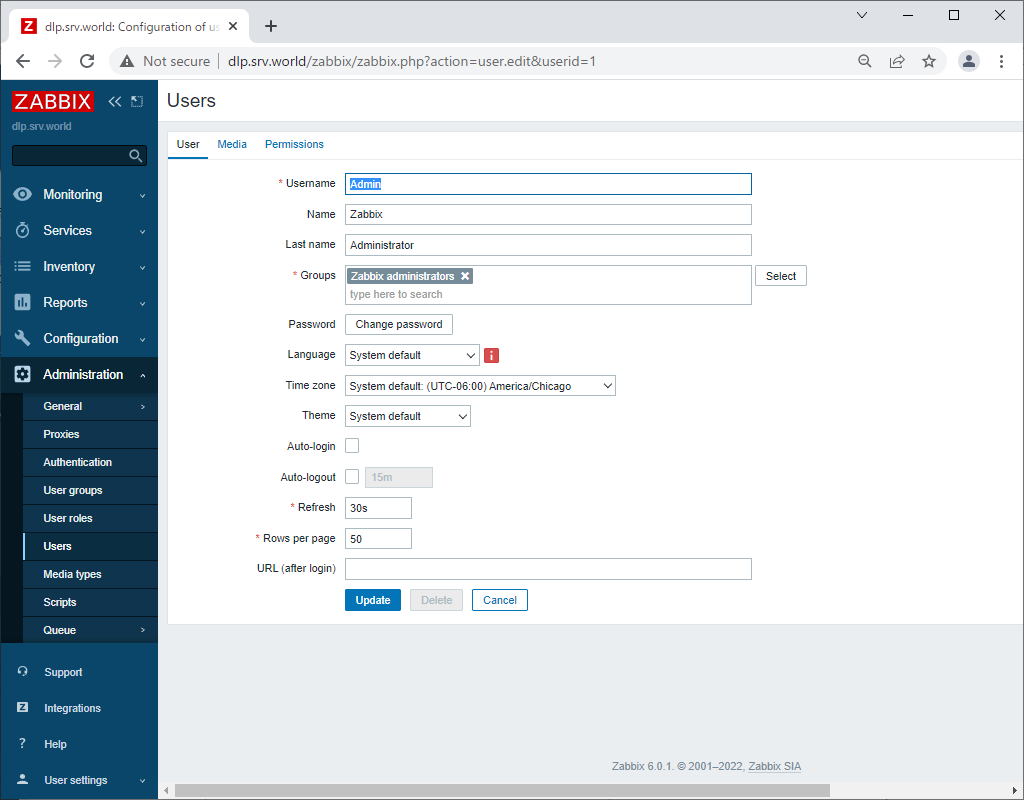
| [2] | Click [Change password] button. |
|
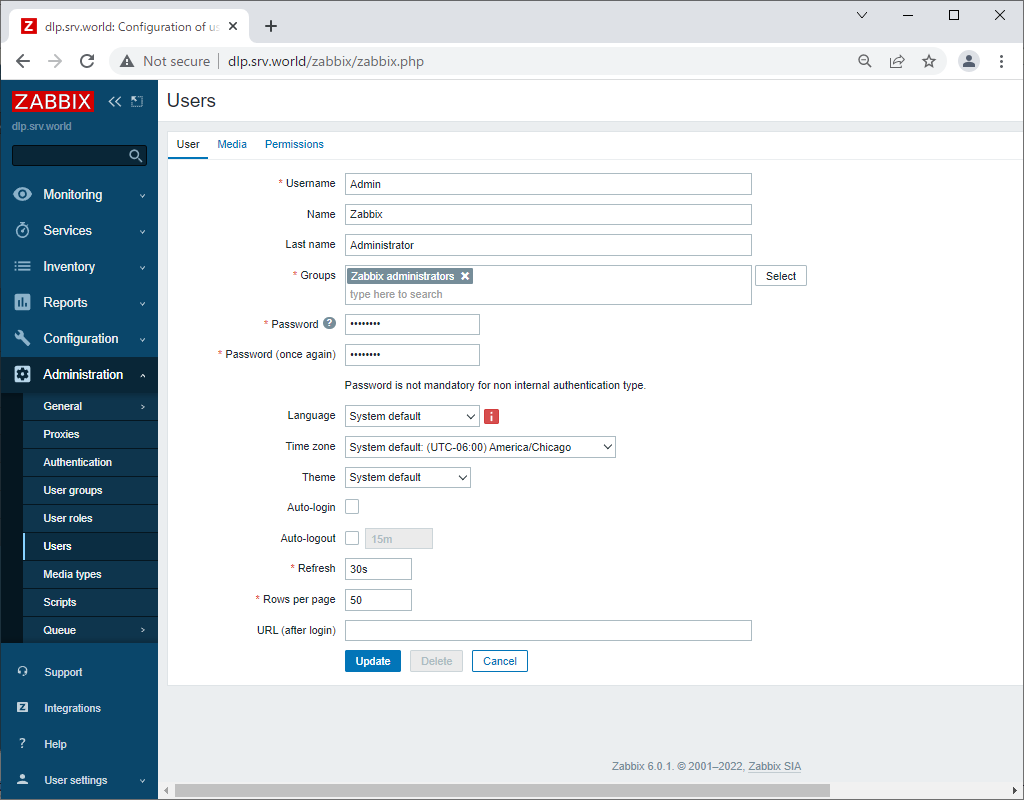
| [3] | Input password you'd like to change and click [Update] to change password. By the way, this example is English displayed, however if you'd like to change display language, it's possible to select it on [Language] field. |
|
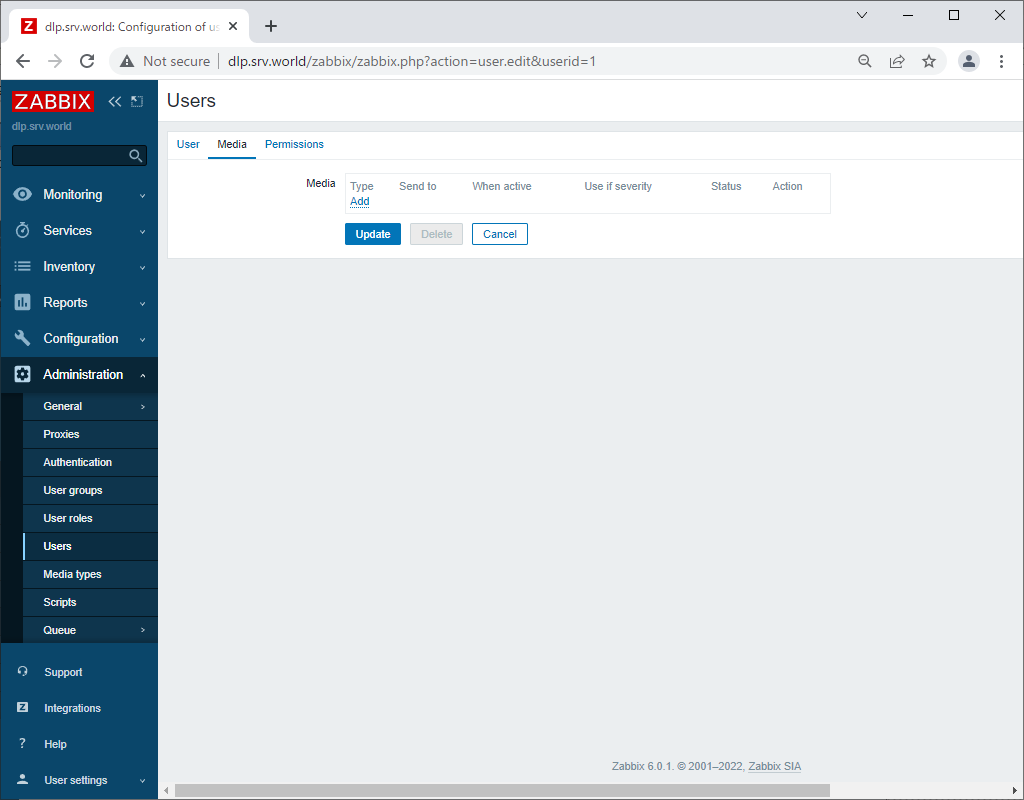
| [4] | Come back to the screen of [3], move to [Media] tab and click [Add] link. |
|
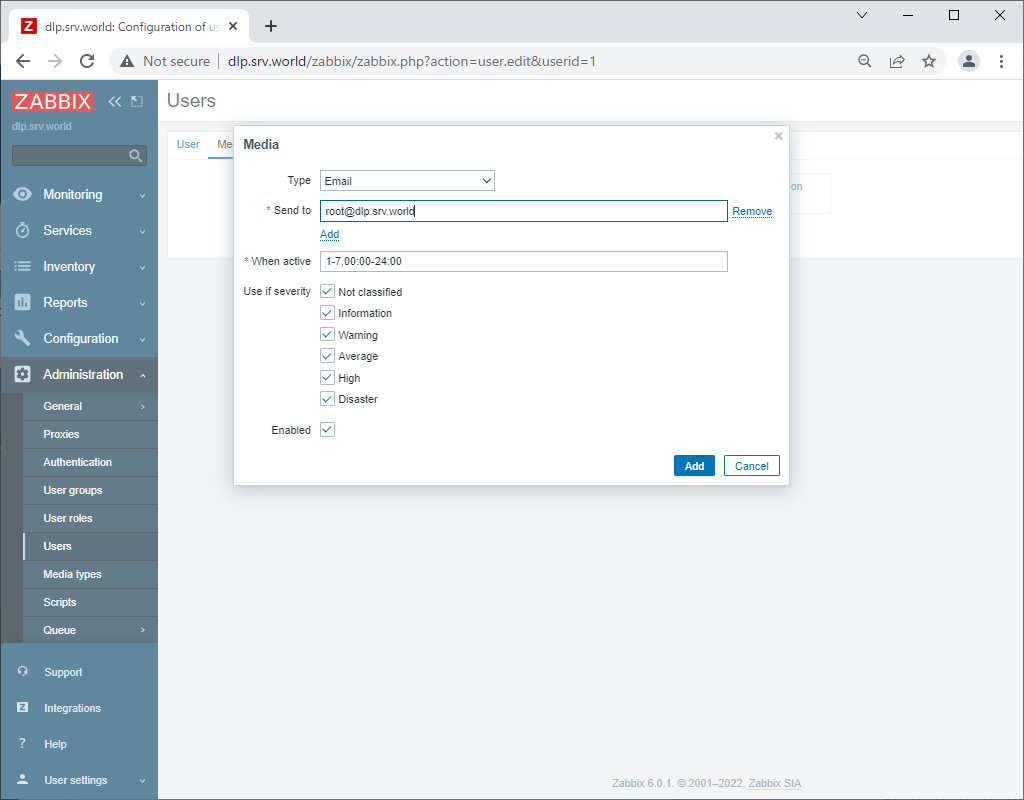
| [5] | Select [Email] on [Type] field and input administrative email address on [Send to] field, then click [Add] button. |
|
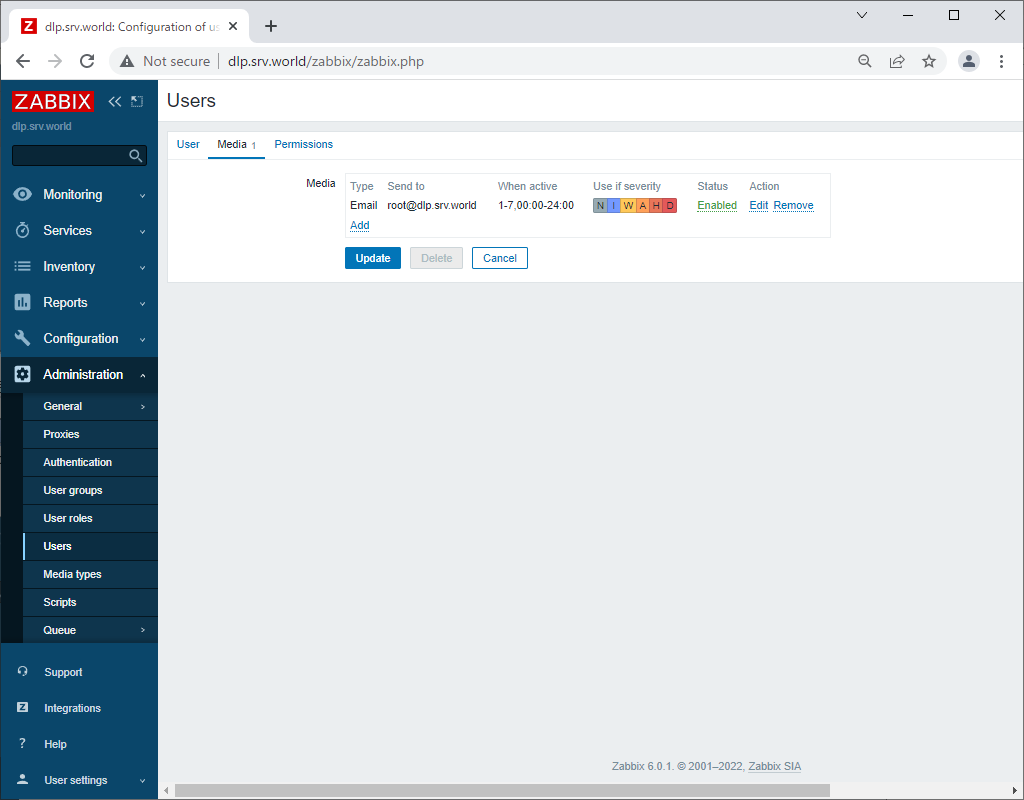
| [6] | Click [Update] button to finish. |
|
Matched Content