VirtualBox : Create Virtual Machine (GUI)2021/06/08 |
|
If you installed Desktop Environment, it's possible to create Virtual Machines on GUI.
This example shows to install Windows Server 2019 on GUI. |
|
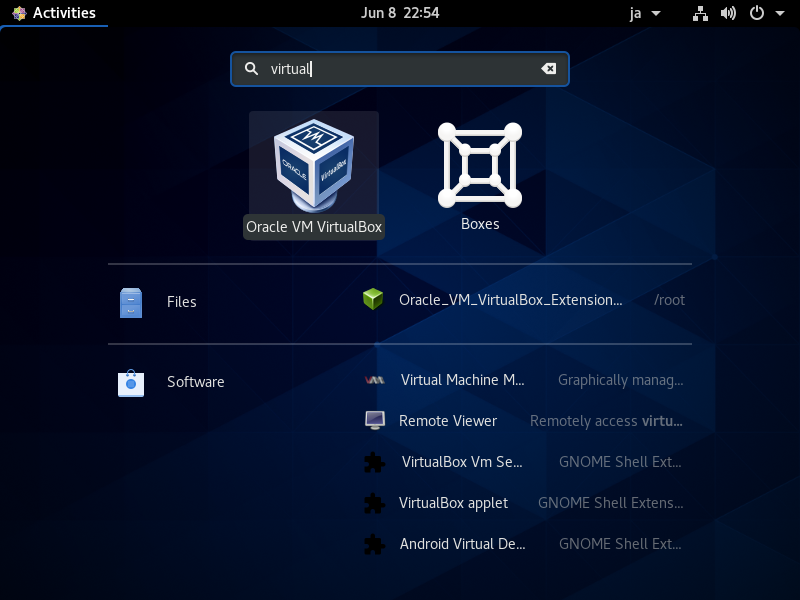
| [1] | Run [Applications] - [Oracle VM VirtulBox]. |
|
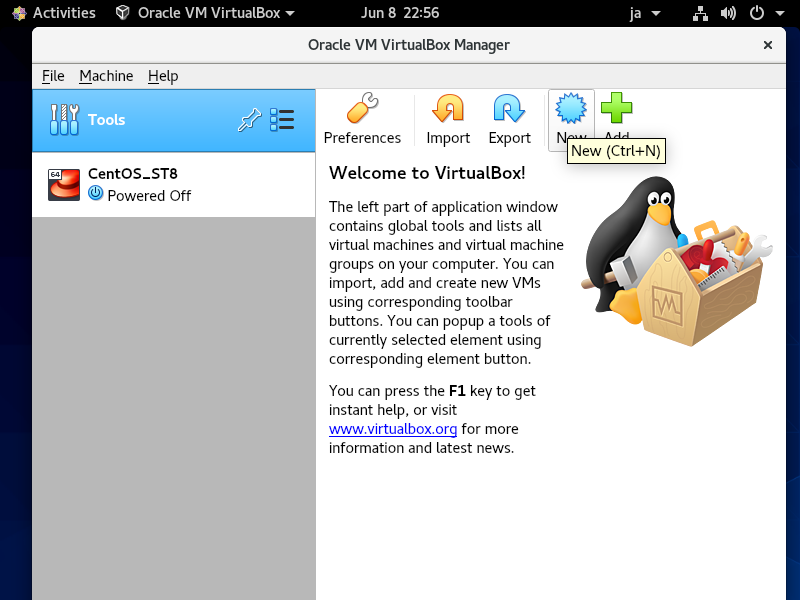
| [2] | Click [New] button on upper menu. |
|
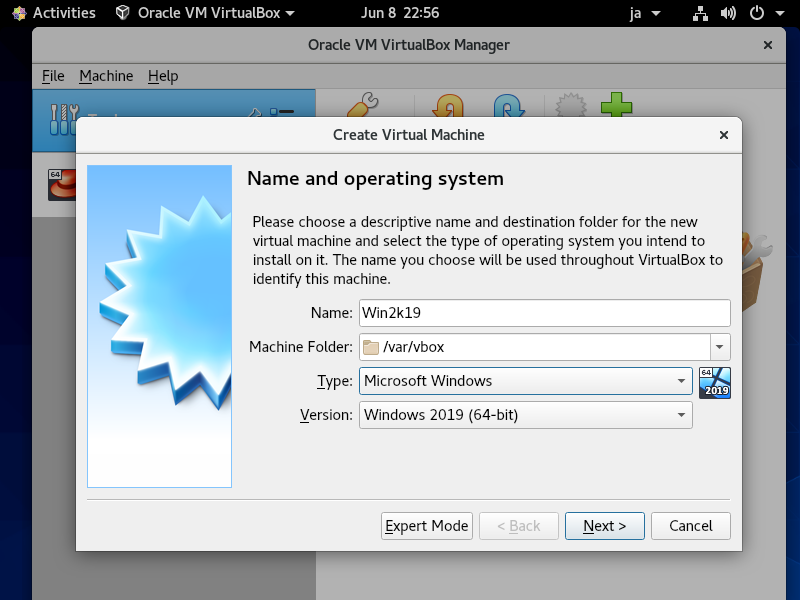
| [3] | Select the type of OS for VM. |
|
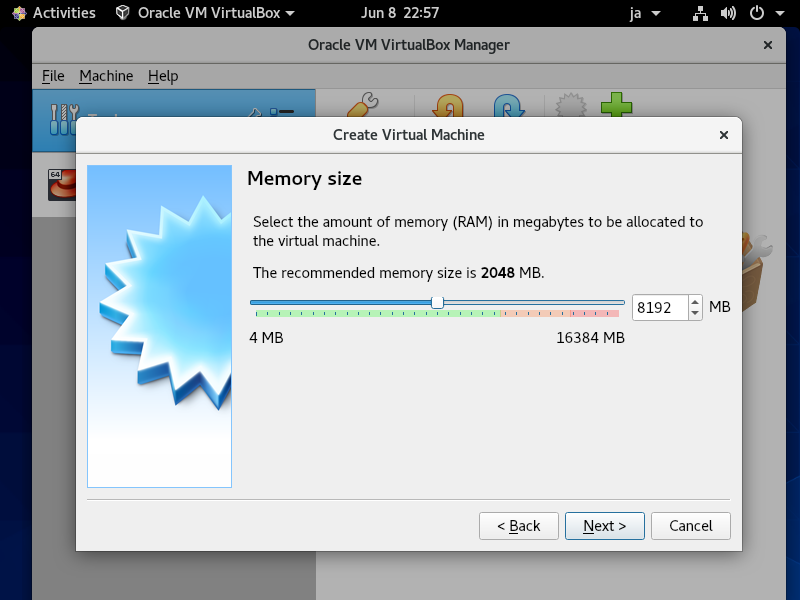
| [4] | Specify amount of memory for Virtual Machine. |
|
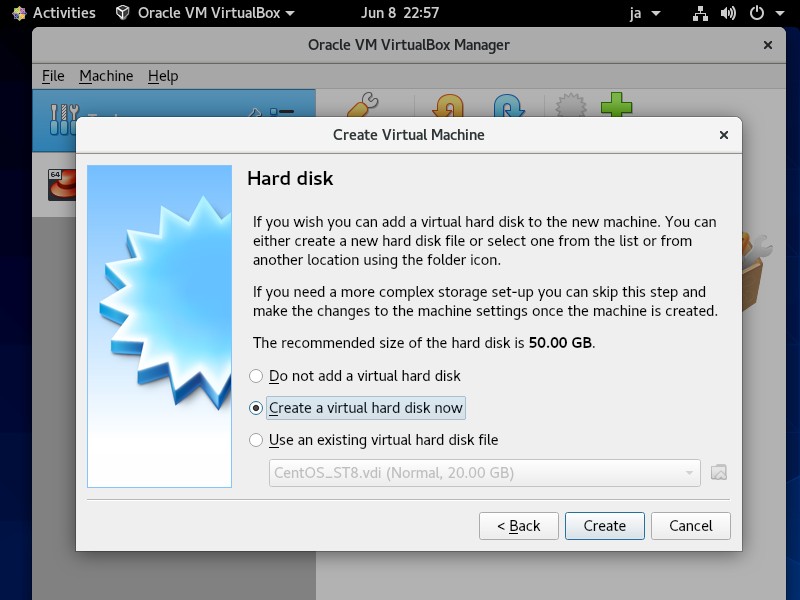
| [5] | It's the settings for disks of Virtual Machine. This example shows to select [Create a virtual hard disk now]. |
|
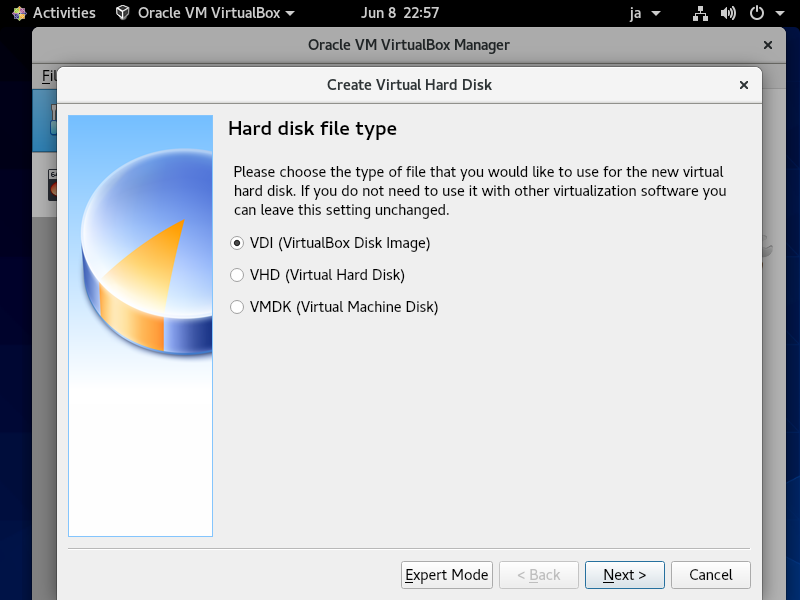
| [6] | Specify the type of Virtual hard disk. This example shows to select [VDI]. |
|
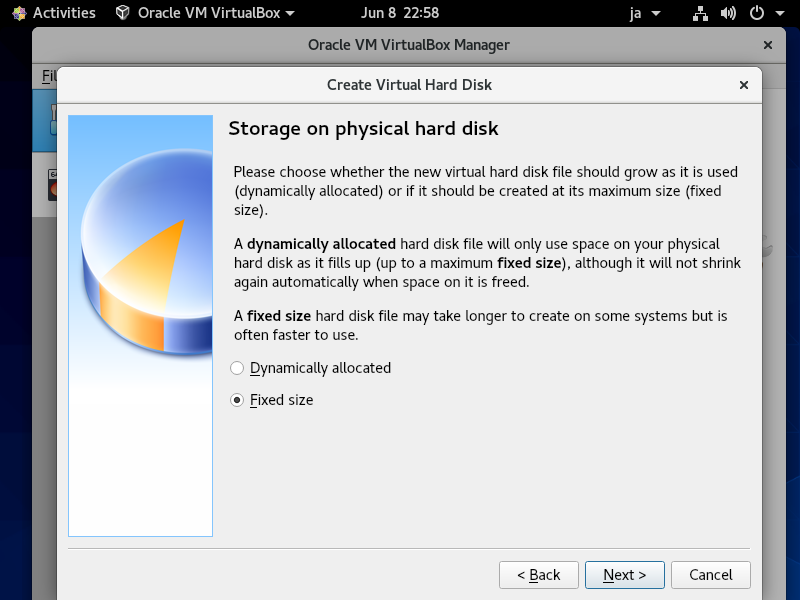
| [7] | Specify the type of growing for Virtual hard disk. This example shows to select [Fixed size]. |
|
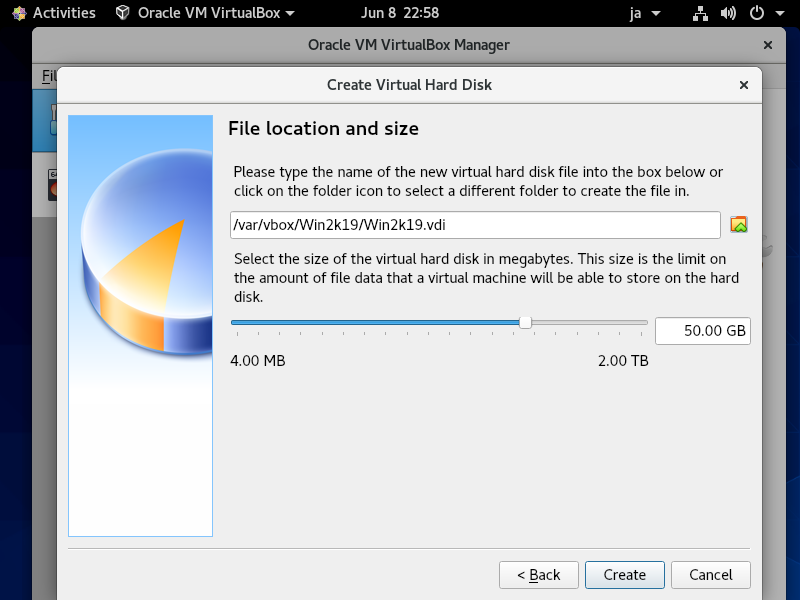
| [8] | Specify amount of Virtual hard disk. |
|
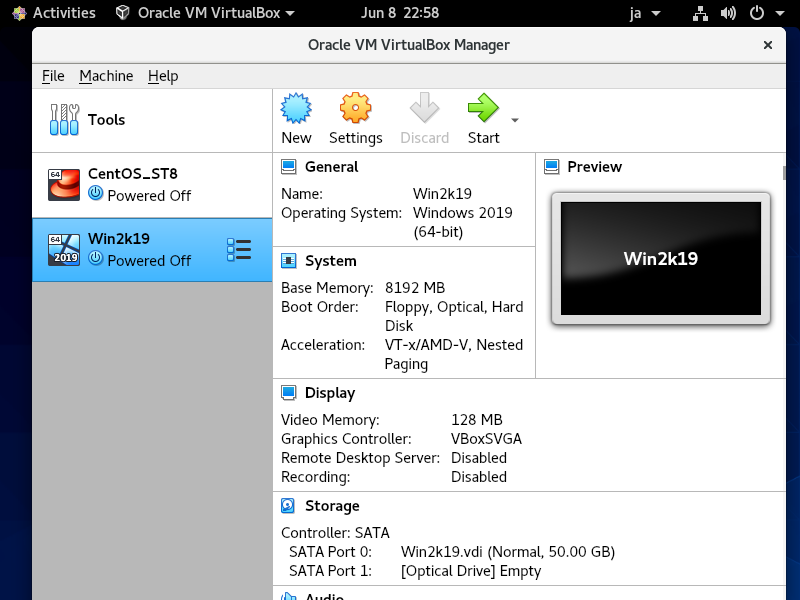
| [9] | Configuration wizard finished. For initial booting of VM, it's necessarry to install OS, so click [Settings] button to specify installation media. |
|
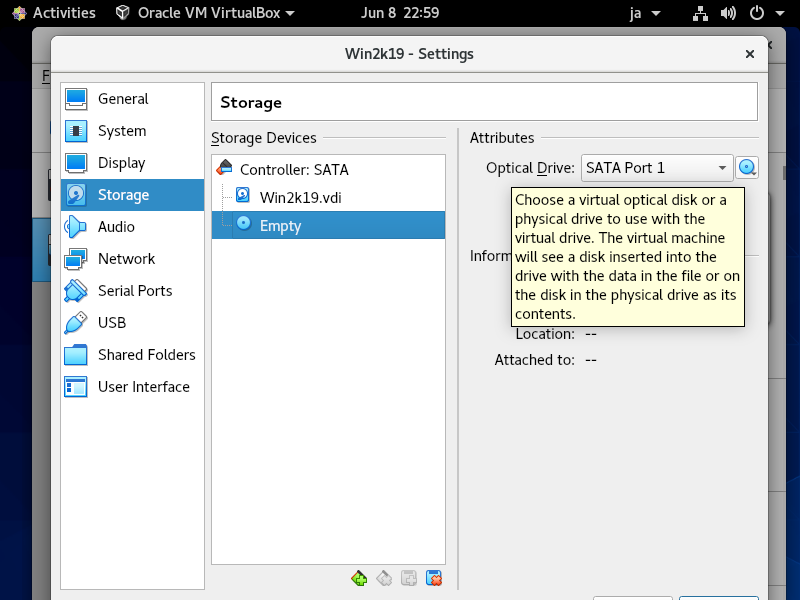
| [10] | Select [Storage] on the left menu and click DVD icon on the right pane. |
|
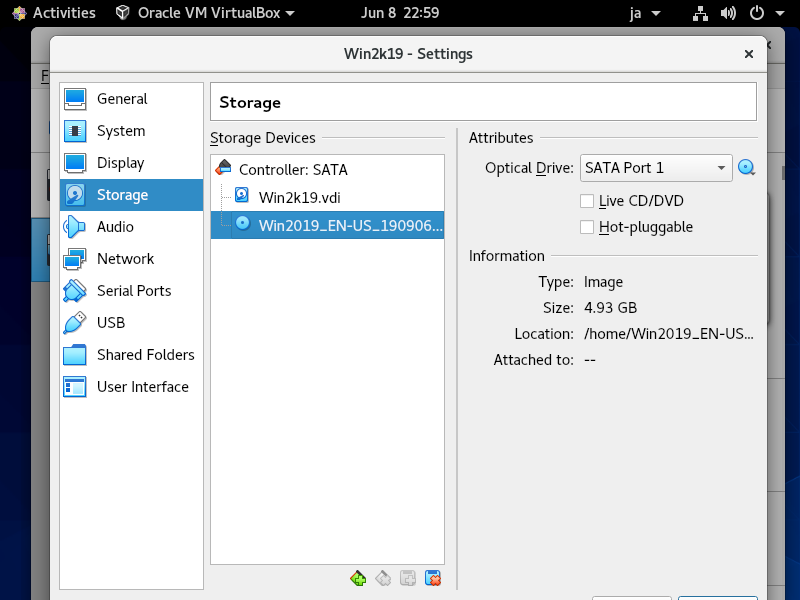
| [11] | Specify installation media. |
|
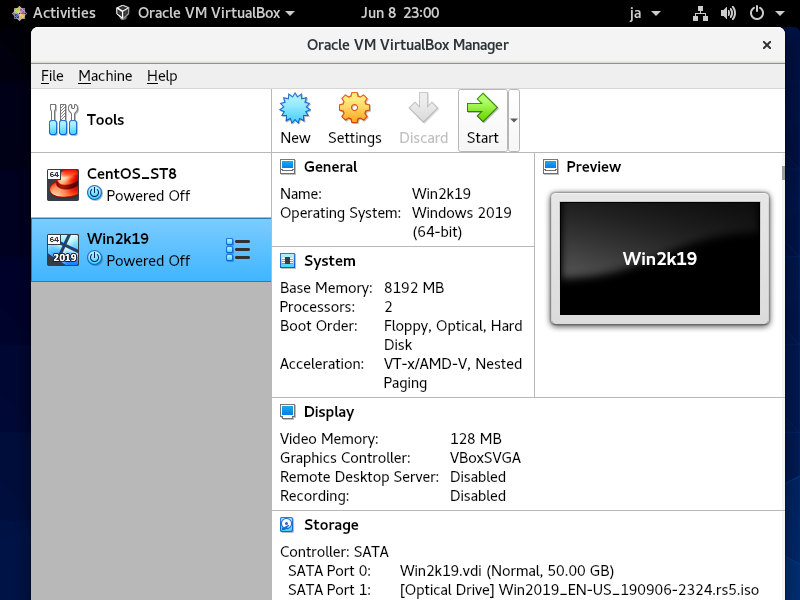
| [12] | Back to main menu and click [Start] button to start Virtual Machine. |
|
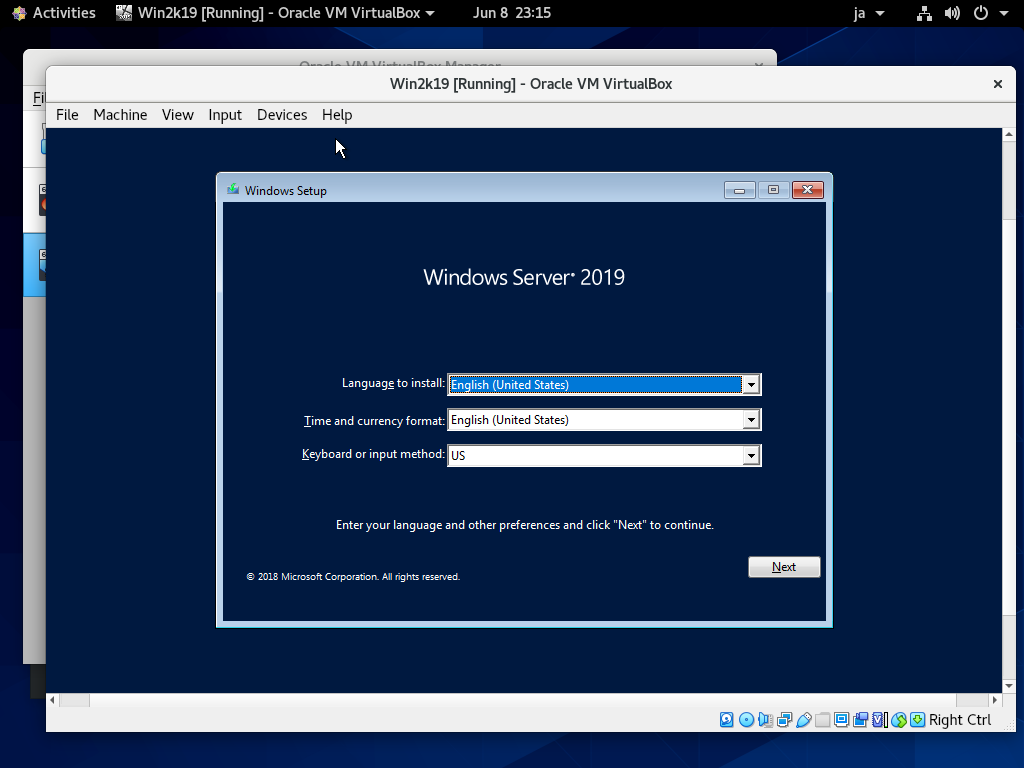
| [13] | Virtual Machine started. |
|
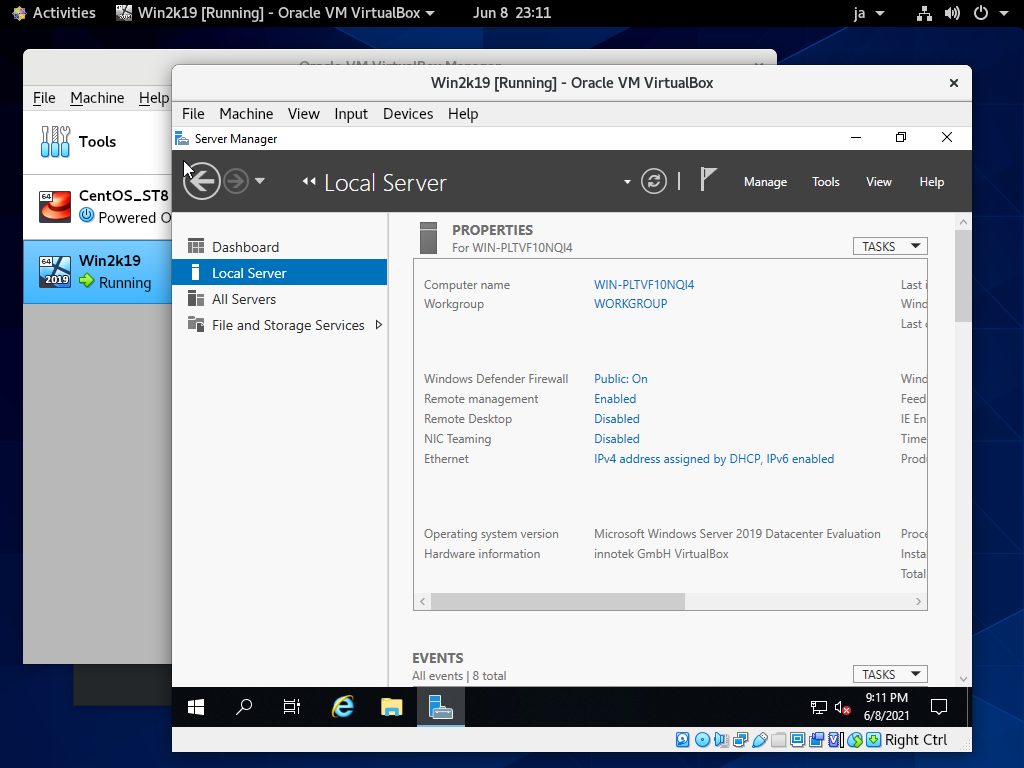
| [14] | Installation has finished and Virtual Machine is running. |
|
Matched Content