oVirt 4.4 : Create Virtual Machines2021/07/06 |
|
Create Virtual Machine on oVirt Web Admin Portal.
This example is based on the environment below. For Console Window of VM, it needs Virt-Viewer, so you need to install it on your Client Computer.
+-----------------------+          |          +-----------------------+
|   [   Admin Node   ]  |10.0.0.30 | 10.0.0.25| [    oVirt Engine   ] |
|    dlp.srv.world      +----------+----------+     ctrl.srv.world    |
|                       |          |          |                       |
+-----------------------+          |          +-----------------------+
                                   |
+-----------------------+          |          +-----------------------+
| [   Shared Storage  ] |10.0.0.35 | 10.0.0.51|  [   oVirt Node    ]  |
|     nfs.srv.world     +----------+----------+   node01.srv.world    |
|                       |                     |                       |
+-----------------------+                     +-----------------------+
|
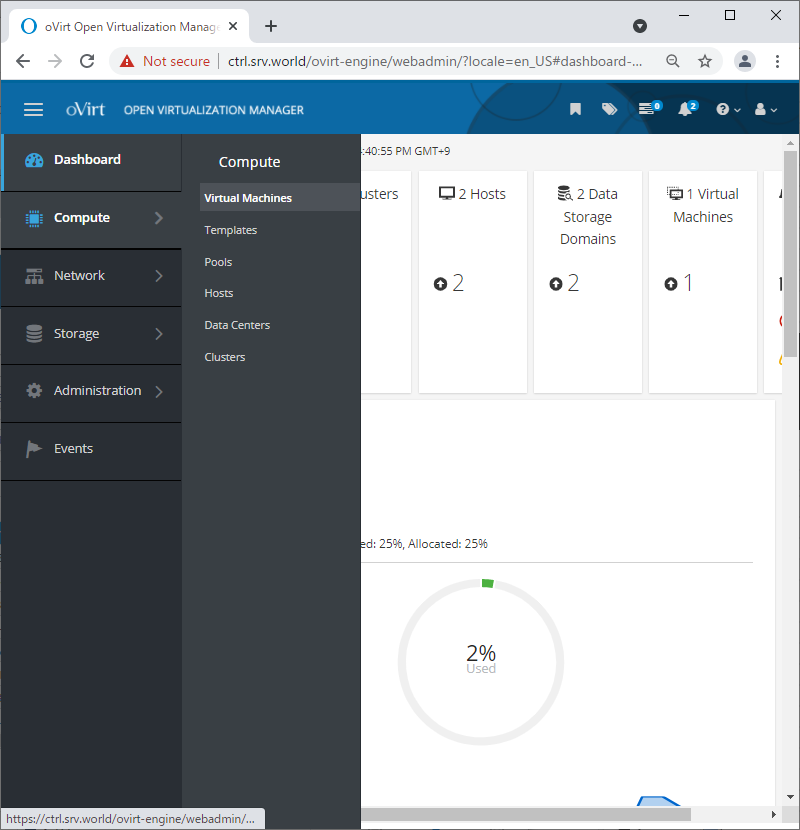
| [1] | Login to oVirt Web Admin Portal and Click [Compute] - [Virtual Machines] on the left pane. |
|
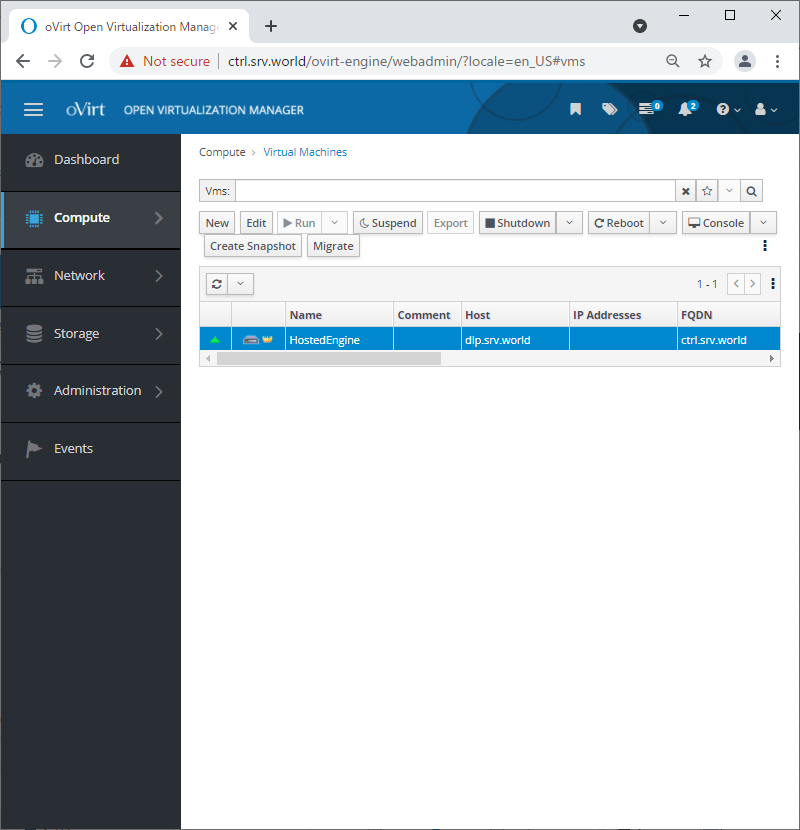
| [2] | Click [New] button on the top of right pane. |
|
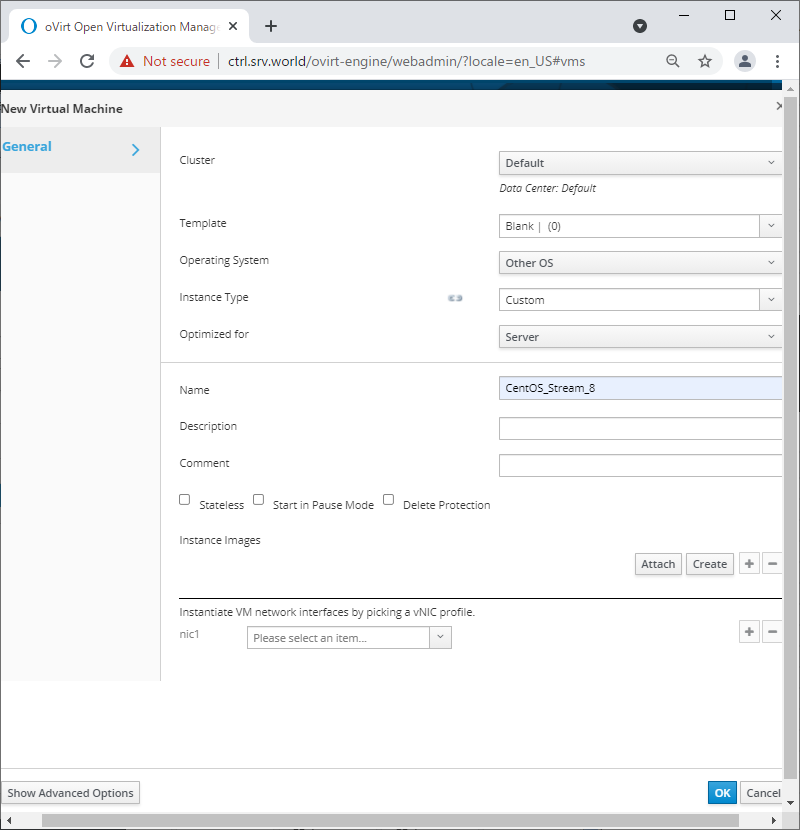
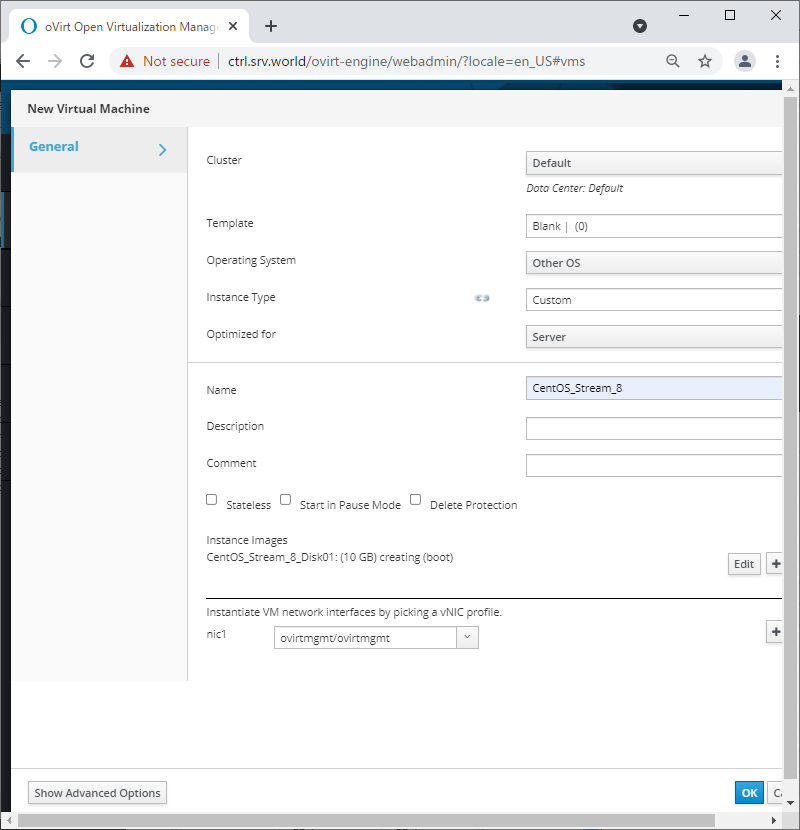
| [3] | Input name and other information of VM you'd like to create, and next, Click [Create] button on [Instance Images] section. |
|
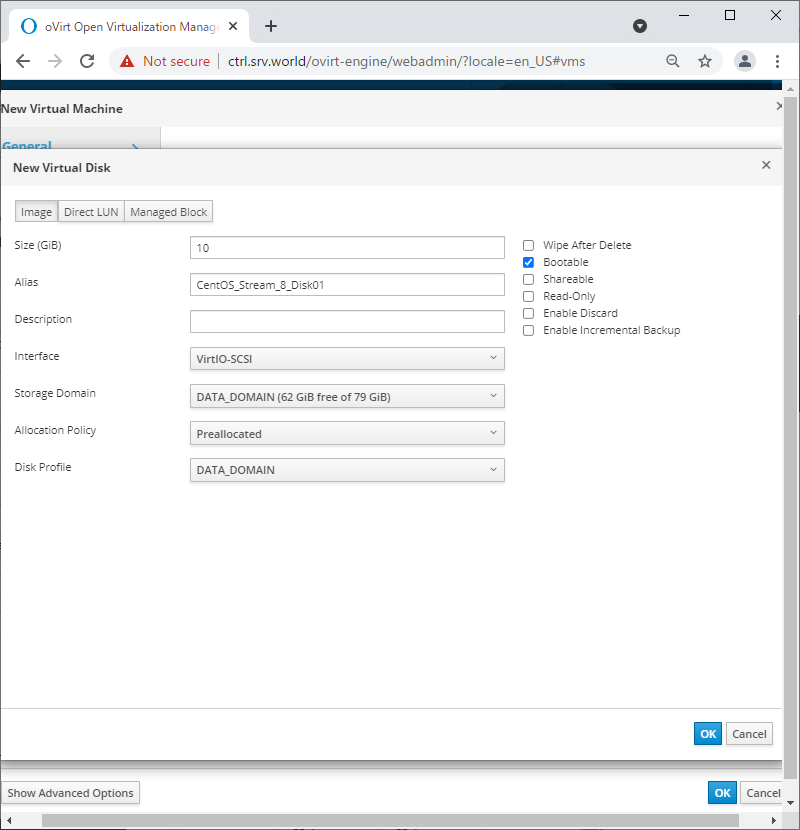
| [4] | Input Disk size of VM and click [OK] button. |
|
| [5] | Select network interfaces for VM to connect to network on [nic1] section. And next, Click [Show Advanced Options] button on the bottom. |
|
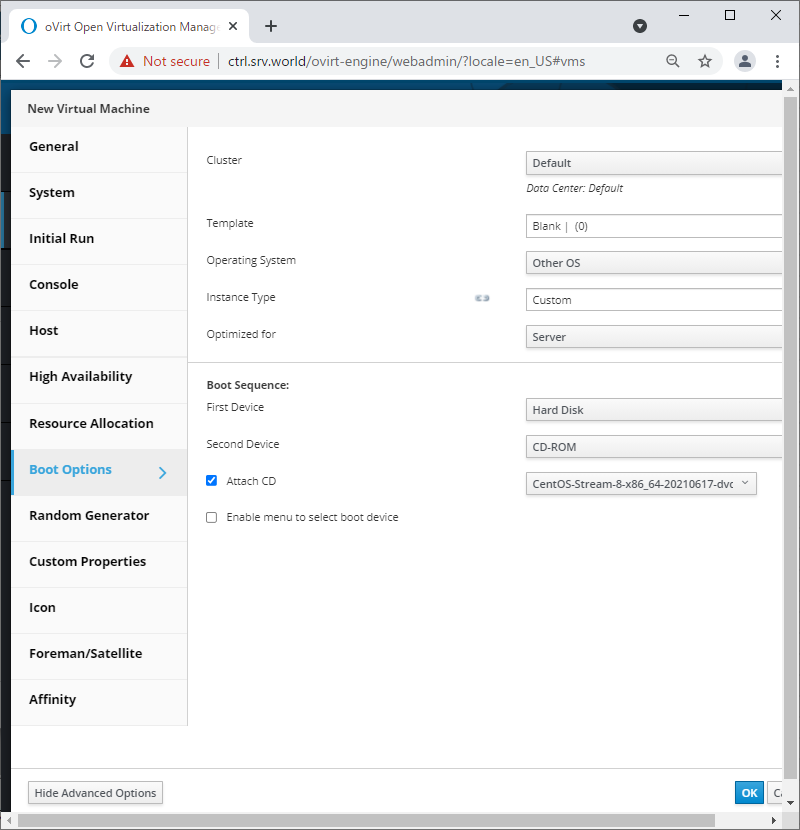
| [6] | Open [Boot Options] on the left pane and select [CD-ROM] for [Boot Sequence] - [Second Device] and check a box [Attach CD] like follows. For CD, select an ISO file you uploaded to Data Domain. |
|
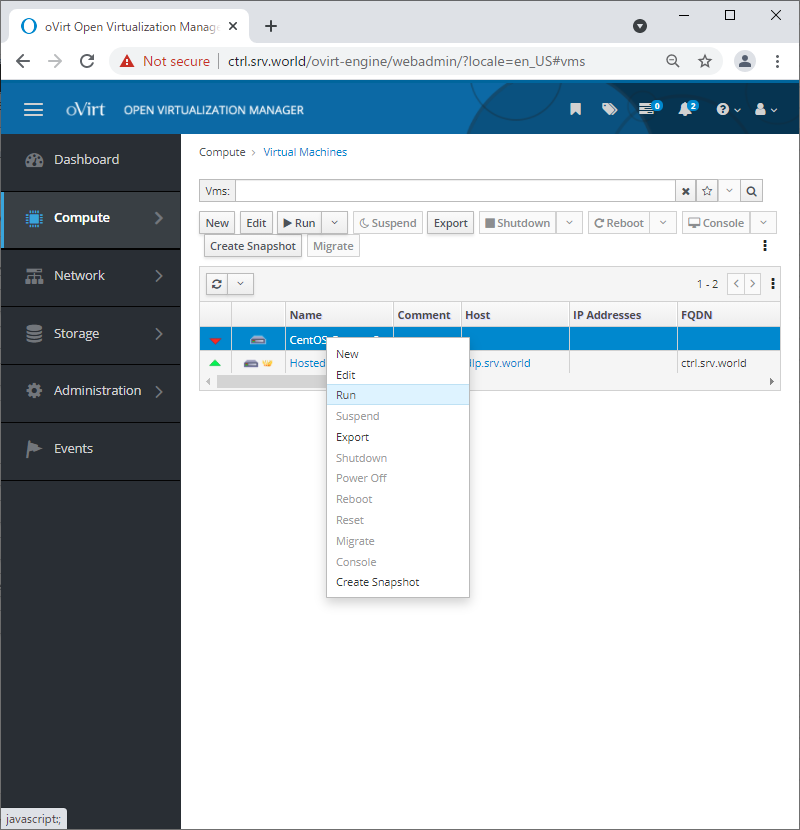
| [7] | After finishing creating Virtual Disks, VM becomes runnable state, right-click the VM and select [Run] to start it. |
|
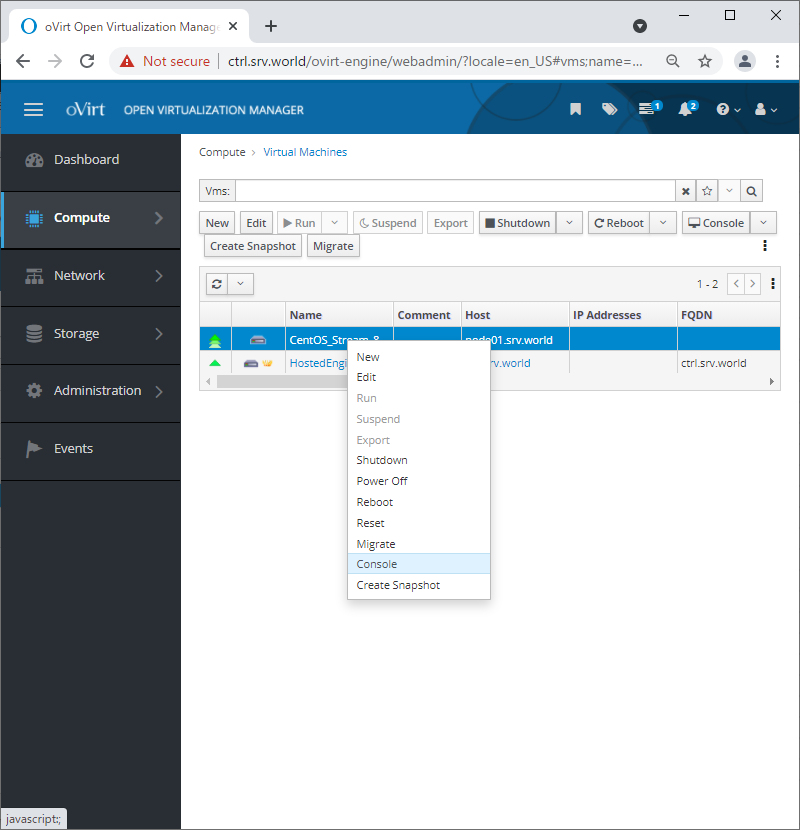
| [8] | Connect to VM console, right-click the VM and select [Console] to connect it. For Console Window of VM, it needs Virt-Viewer, so you need to install it on your Client Computer. |
|
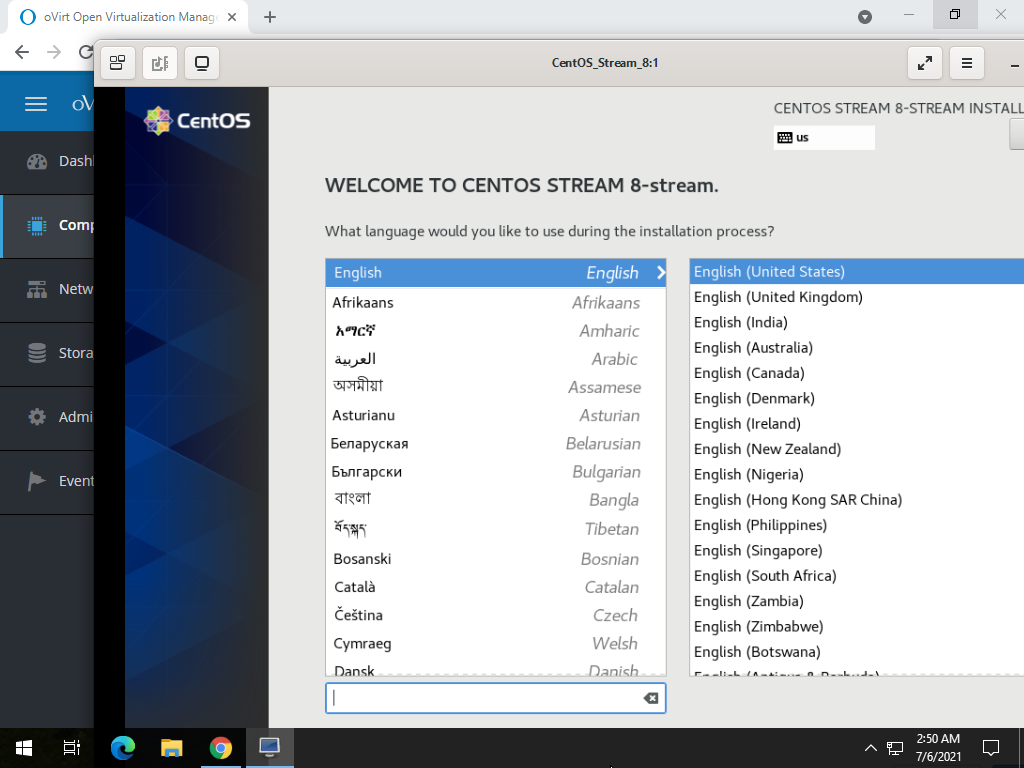
| [9] | To open VM Console, it's possible to connect to VM. Install OS with common way at initial booting. |
|
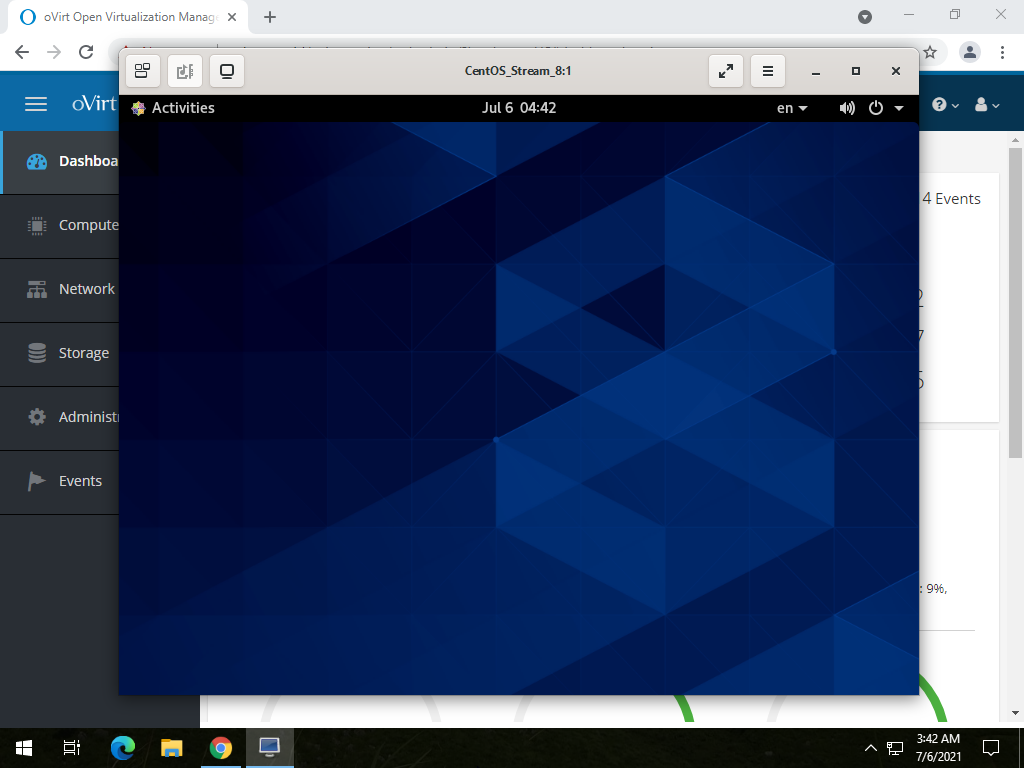
| [10] | That's OK if installation successfully finished and VM starts normally. |
|
Matched Content